







Guide Index9 sections
Opening your inventory in vanilla Minecraft freezes your perspective behind an opaque 2D rectangle that blocks everything happening around you. Spatial GUI changes this fundamental mechanic by rendering your inventory, crafting tables, and storage containers as physical 3D planes projected directly into the game environment at a default distance of 1.5 blocks.
Because the interface is a surface in the world, the surroundings stay visible around it, so you can still see what is happening near you while you sort items. Because the mod operates purely on the client side, you can use it on any multiplayer server without server-side installation.

Installation and Dependencies
Spatial GUI is developed by tastytrash under the open-source MIT licence and supports Fabric, NeoForge, and Forge loaders. For Minecraft 26.3 on Fabric, version 1.7.1 requires three companion mods to function properly:
- Fabric API: Provides core hooks and lifecycle events for modern Minecraft versions.
- Cloth Config: Supplies the multi-tab configuration interface and persistent configuration file.
- Mod Menu: Adds an in-game mod list button from the main pause screen, allowing access to settings without editing text files.
To install, place spatial-gui-1.7.1+26.3-fabric.jar in your mods folder together with Fabric API, Cloth Config and Mod Menu. Because Spatial GUI intercepts GUI projection and camera transforms, avoid pairing it with other mods that overwrite inventory camera perspectives.
First-Person Mode: Flat Planes and Curved Screens
When you open your survival inventory (E) with default settings, Spatial GUI projects a flat 3D rectangle in front of your character. The standard 2x2 crafting grid, armor equipment slots, offhand shield holder, and animated player preview appear with full clarity. Your hotbar and health status indicators remain anchored at the bottom edge.
For containers with wider layouts, such as double chests or modded inventories with recipe viewers, the mod offers a curved screen option. Enabling the curved screen option with an arc of 65 degrees bends the interface into a gentle cylindrical sweep around your viewpoint. The curvature angles the outer inventory columns toward your camera, making wide screens like double chests and recipe viewers significantly more comfortable to navigate.

Third-Person Mode: In-World Interface Placement
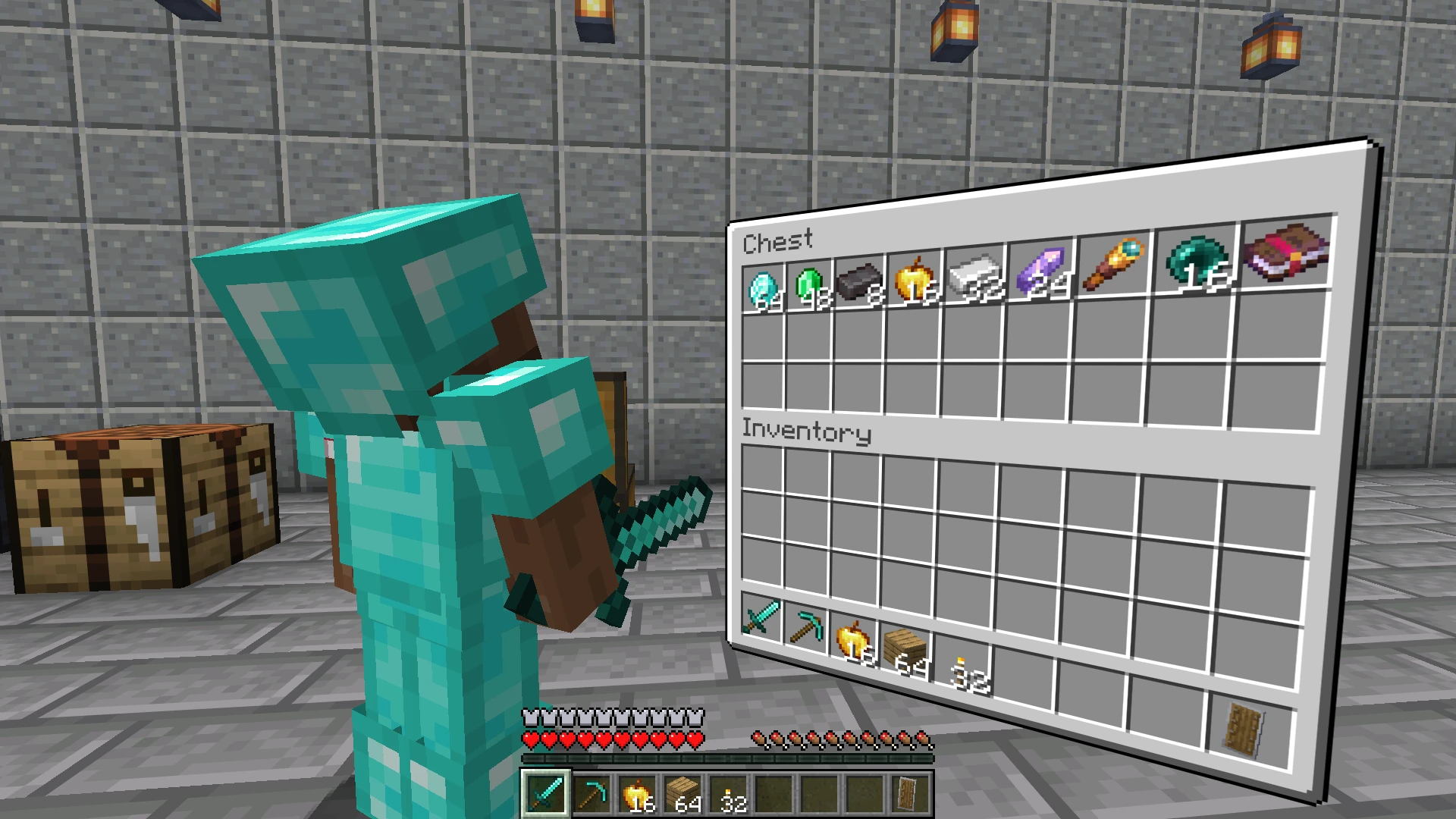
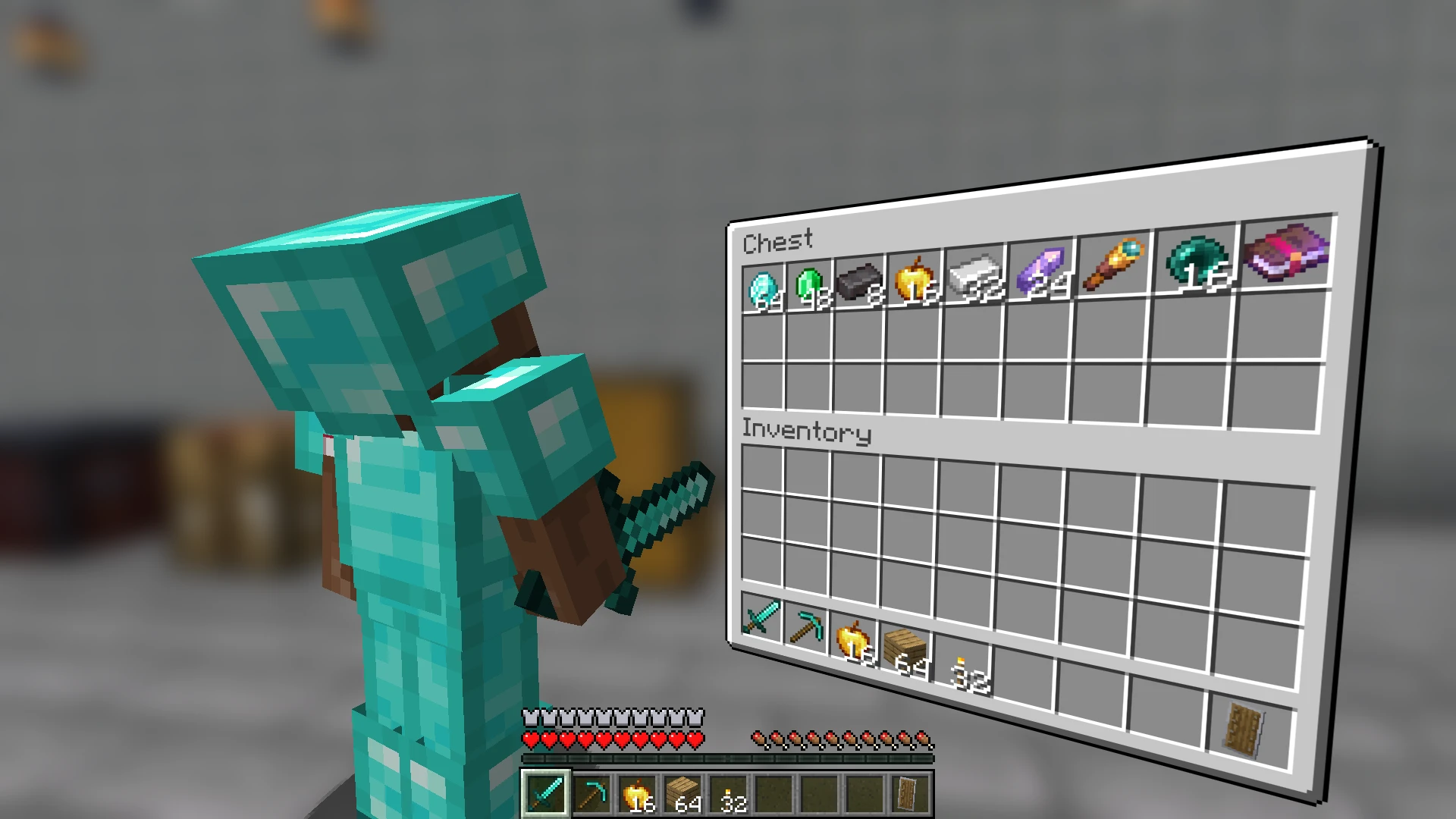
Switching your perspective to third person reveals the most distinctive visual feature of the mod. Instead of drawing the menu over your view, Spatial GUI places a large display board in the world between your avatar and the container block.
Your character stands in full armor looking at the interactive board, while the chest block sits visibly behind it. The board appears with a short opening animation, which you can adjust in the Animations tab. When auto-detect camera mode is enabled, the mod dynamically chooses between first-person and third-person layout rules depending on your active camera view.
Customizing Placement and Scale in Cloth Config
Pressing the configuration button inside Mod Menu opens the Cloth Config screen for Spatial GUI. The settings are neatly divided across dedicated categories including General, Screens, Rendering, TP Screen, FP Screen, TP Camera, FP Camera, Animations, and FOV.
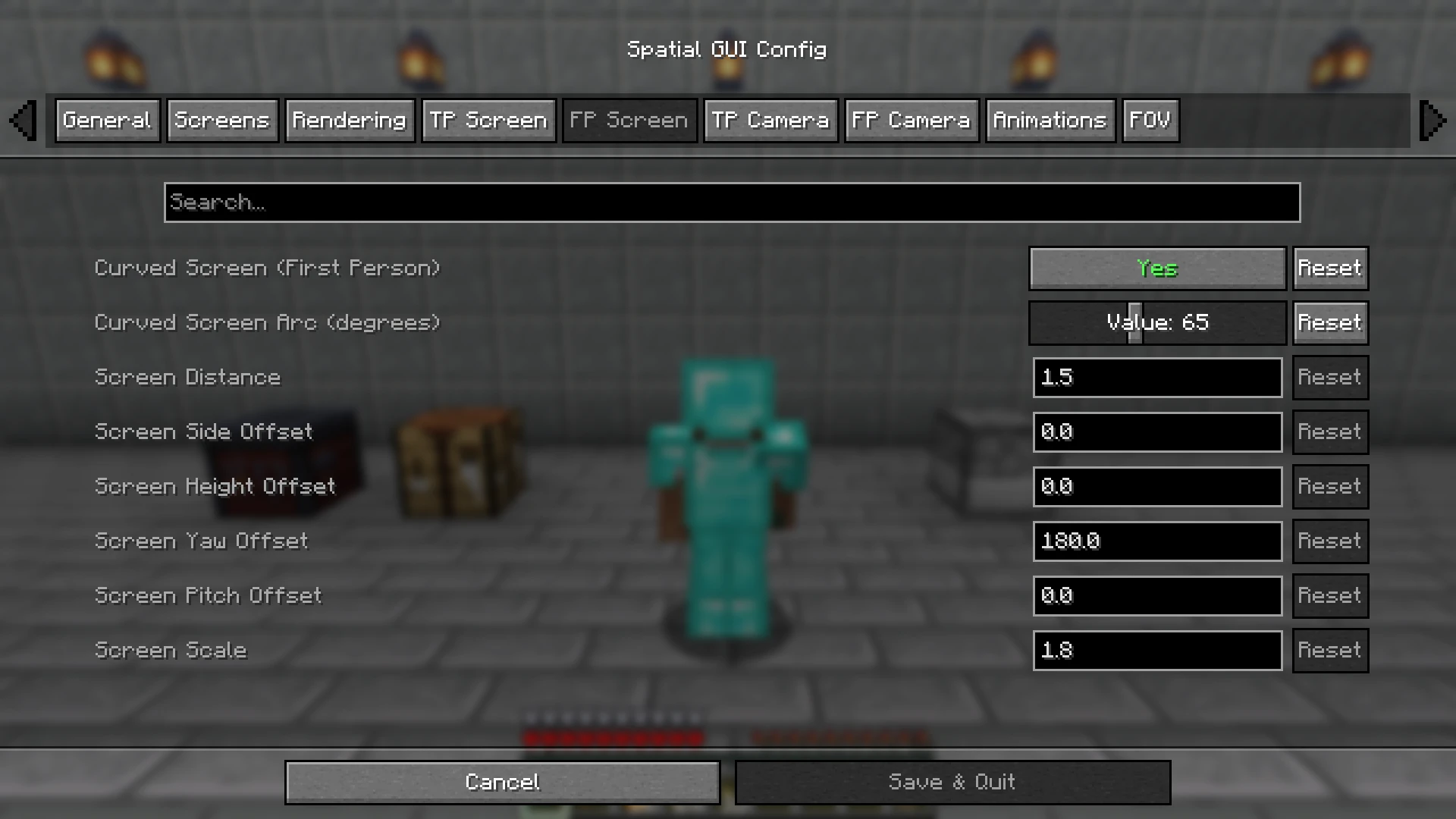
Inside the FP Screen category, you can tune the exact spatial parameters of the first-person display:
- Curved Screen: Toggles cylindrical curvature on or off.
- Curved Screen Arc: Adjusts the bending angle from 0 up to 120 degrees (around 65 degrees provides a natural panoramic curve for standard chest inventories).
- Screen Distance: Controls distance from the camera eye point (default 1.5 blocks).
- Screen Scale: Adjusts GUI dimensions (default 1.8 multiplier).
- Screen Yaw and Pitch Offsets: Fine-tunes the angle of the plane relative to your crosshair.
World Background Blur: Readability Comparison
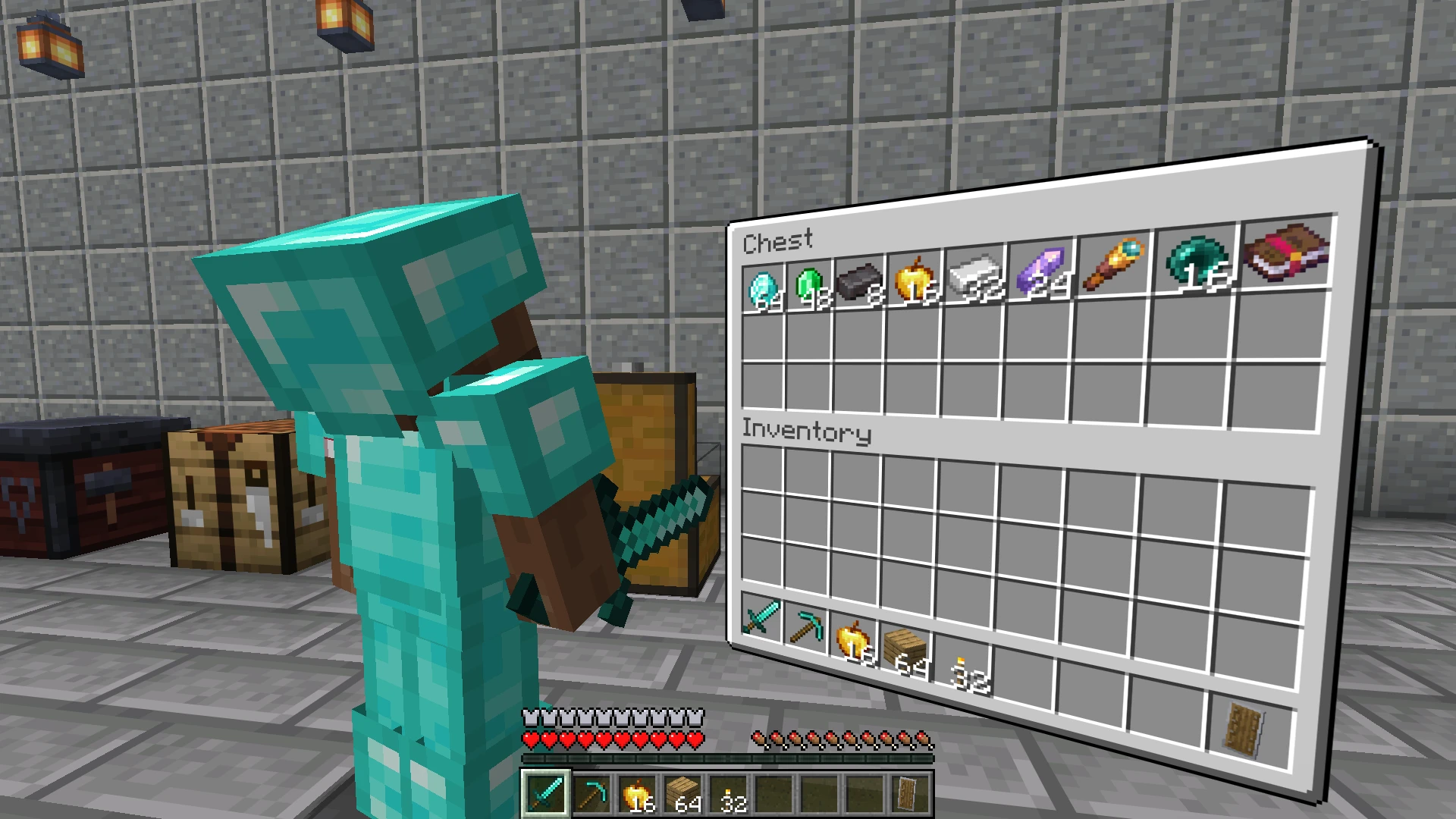
Because Spatial GUI leaves the surrounding game world visible, busy backgrounds with bright torches, moving lava, or intricate block patterns can occasionally distract from item icons. Under the Rendering tab, the mod provides an optional world blur toggle with adjustable blur strength.
Setting world blur strength to 16 creates an effective depth-of-field look. Background walls, lighting, and passing mobs soften into a smooth bokeh effect, keeping the floating 3D chest interface and item stacks crisp and readable. Players seeking cinematic immersion often leave blur disabled, while players focused on quick inventory sorting benefit from the clean visual contrast.
Practical Tips: What Works Best and What Needs Care
Several practical ergonomics stand out during survival play with 3D inventories:
- Mouse Mode vs Crosshair Mode: By default, mouse mode allows the cursor to glide across the angled interface plane, selecting slots smoothly. In contrast, crosshair mode locks the cursor to screen center, requiring you to aim by moving your character view. Mouse mode is far more intuitive for regular survival crafting.
- Furnaces and Workbenches: Crafting tables, furnaces, and smithing tables render clearly in 3D space, with smelting flame icons, progress arrows, and slot behaviors functioning identically to vanilla menus.
- Tight Spaces and Wall Fallback: Opening containers in third person when backed against a solid wall can cause the camera to clip into nearby block geometry rather than reverting smoothly to first person.
- Creative Mode UI: The creative inventory functions on the angled plane, though navigating closely spaced tab categories requires slightly more cursor precision than a traditional flat screen.
Verdict: Recommended Settings for Everyday Play
Spatial GUI succeeds in making Minecraft menus feel tangible and integrated into the surrounding world rather than separate overlay windows. For the best balance between visual flair and inventory speed, we recommend enabling first-person container mode, keeping standard mouse navigation active, setting curved screen arc to 60 or 65 degrees, and activating world background blur at strength 12 to 16. This keeps the world in view without slowing down item management.
Official Downloads
Created by tastytrash190K+ downloads
SPATIAL GUI MOD GUIDE: 3D IN-WORLD INVENTORIES
We do not host any Minecraft mod files directly on this site. We link to official sources to ensure mod developers receive proper credit and support for their work.