







Guide Index8 sections
A seed map can tell you where a vanilla biome should be, but it stops being dependable when a server hides its seed or a modpack changes world generation. Nature's Compass solves a different problem: it asks the running world for its registered biomes, searches from your current position, and turns the result into a direction you can follow in normal play.
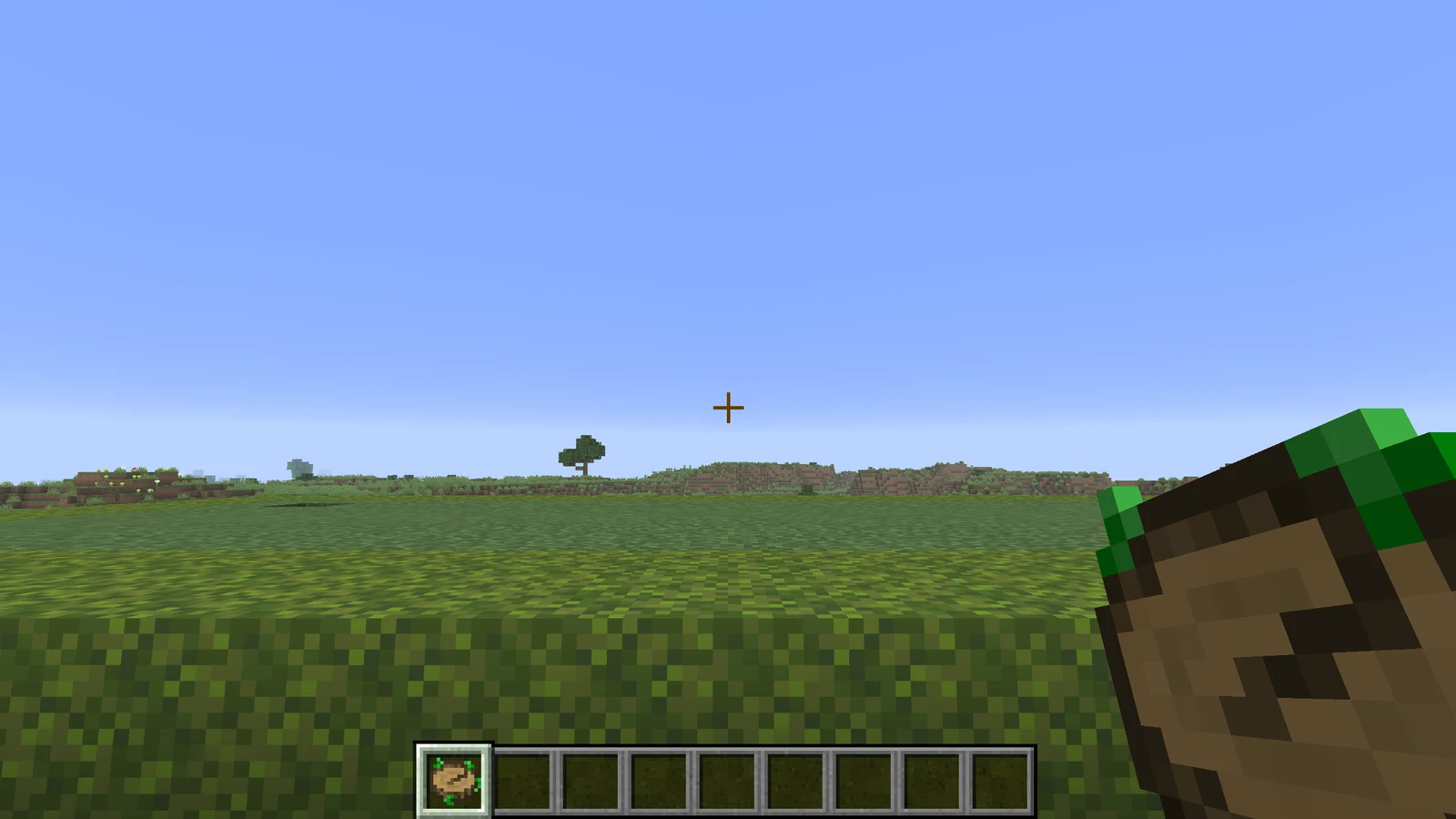
Crafting and right-clicking Nature's Compass opens a searchable registry of every vanilla and modded biome loaded in your world. Selecting a target biome runs an asynchronous search around your position and locks the compass needle onto the nearest matching coordinates.
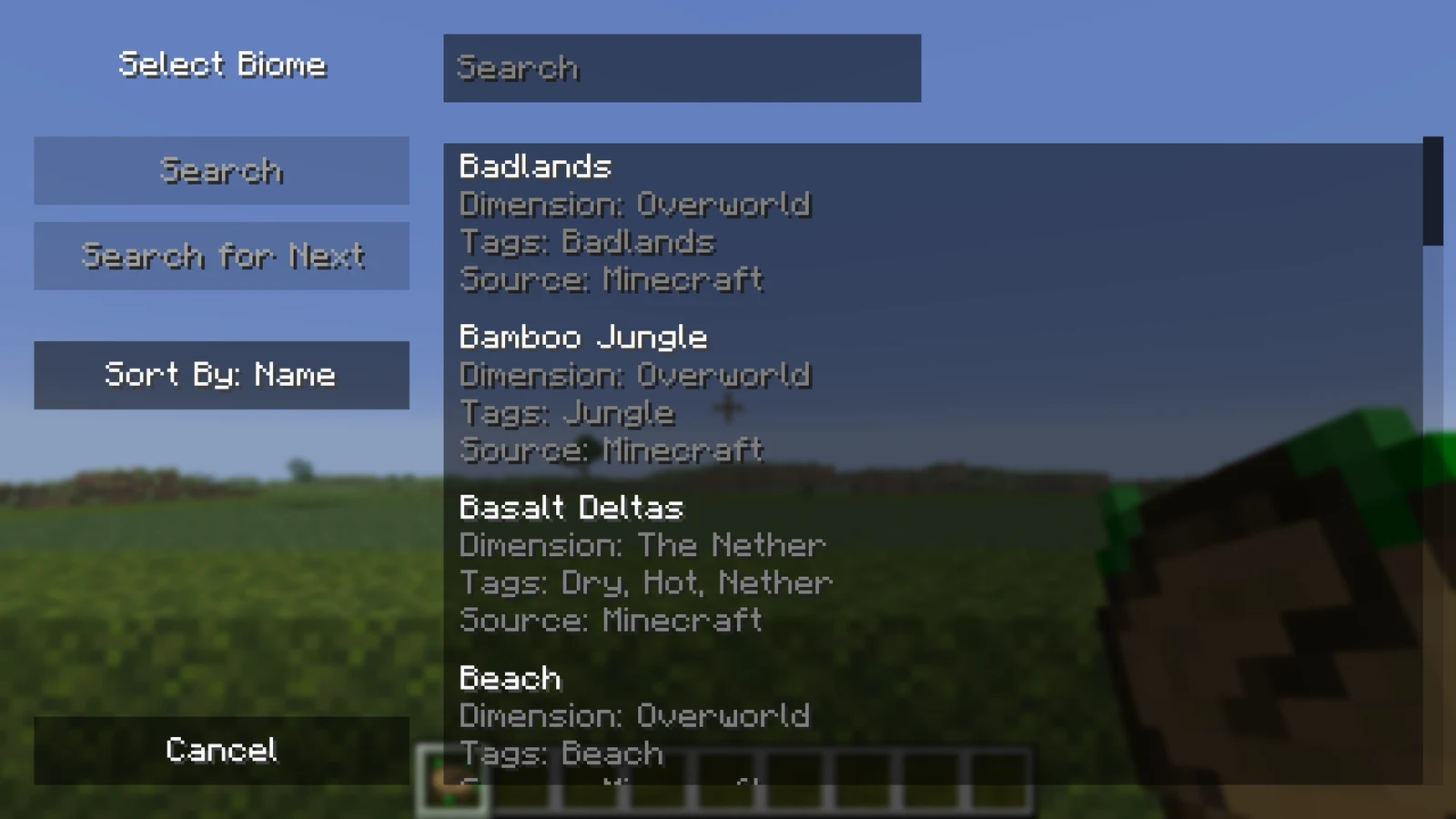
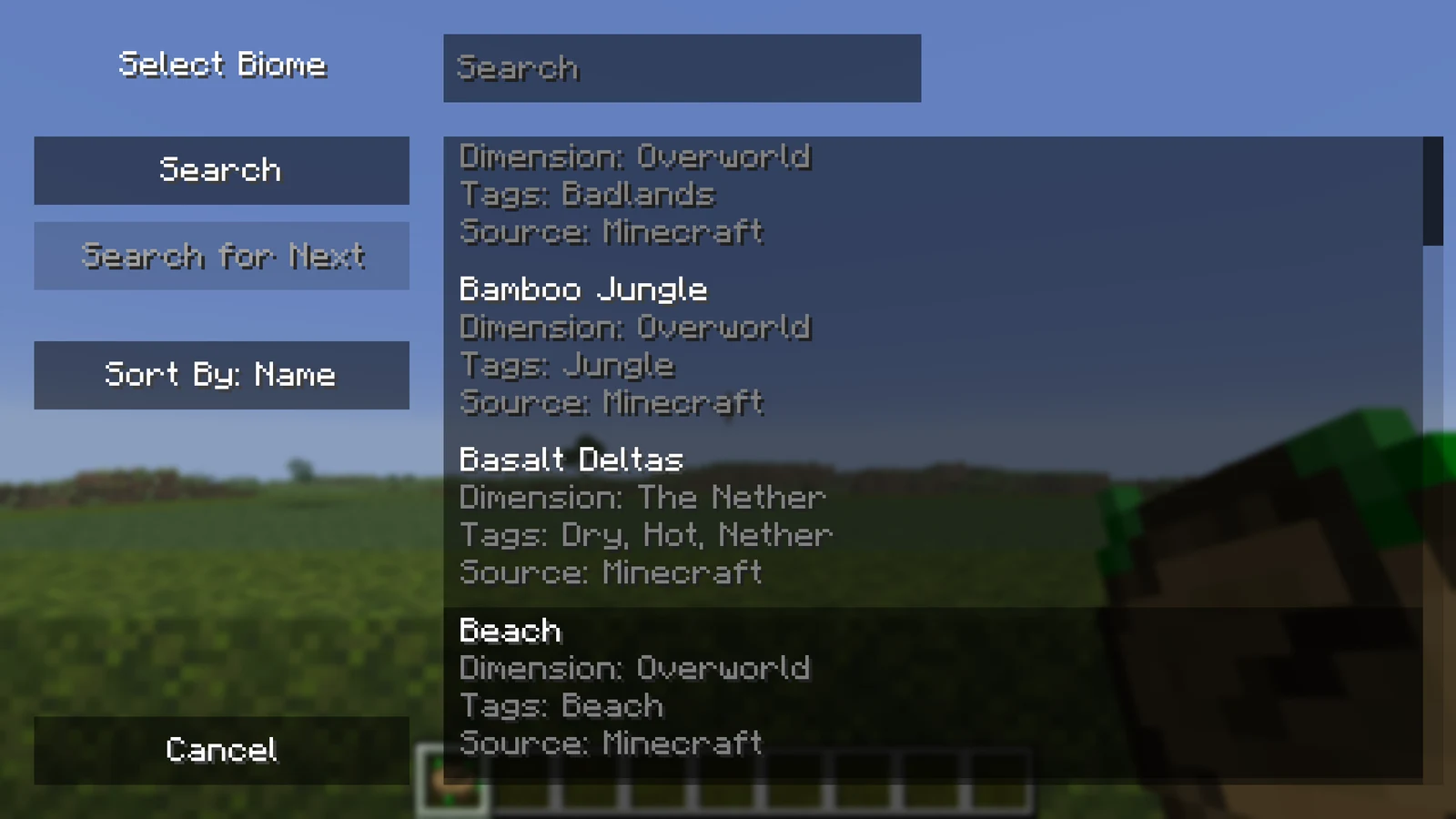
Put Nature's Compass in your main hand and use it. The screen is not a list of guesses. It exposes biome entries available to the running game, including their dimension, biome tags, and source namespace. That source line is especially useful in a large pack because it separates Minecraft biomes from entries supplied by a world-generation mod.
Type part of a name into the search box when the registry is long. Select a row, confirm that its dimension matches where you intend to search, then press Search. The compass looks outward from your current position until it finds a matching location or reaches the configured limits. Search for Next repeats the lookup while skipping locations already returned, which is useful when the first result is behind an ocean, inside explored terrain, or simply farther from your route than another instance might be.
Read the Registry Before You Start Walking
The selector provides more context than a simple biome name. Badlands and Bamboo Jungle were labeled as Overworld entries, Basalt Deltas as a Nether entry, and each row showed tags and its source. This lets you catch a wrong-dimension choice before spending time on a search. It also explains a common modpack surprise: two biomes with similar display names can be different registry entries from different sources.
Sorting by name is comfortable when you already know the target. Sorting by distance becomes more useful after searches have produced results. On a server with custom world generation, start with a common vanilla biome to prove the search path works, then try the pack-specific biome. That separates installation problems from a target that the current world generator never places.
A Found Result Is a Route, Not a Teleport
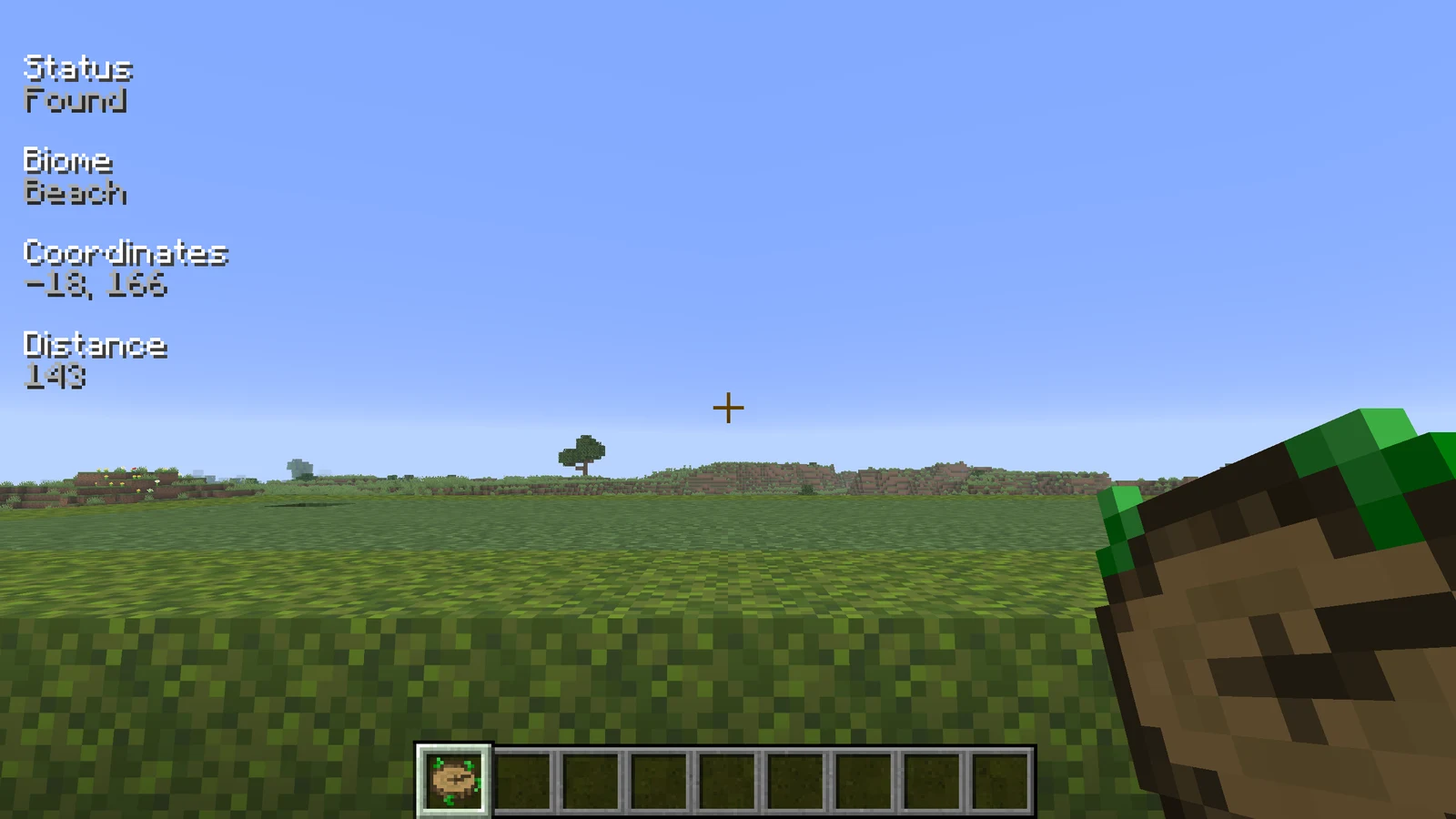
After a successful search, the HUD shows the status, biome, coordinates, and distance. The compass needle provides the direction while the numbers let you judge whether the trip fits your supplies. Once a target biome is located (such as a Beach 143 blocks away at -18, 166), the top-left HUD locks onto those exact coordinates and updates the remaining distance as you walk.
Normal survival use still expects you to travel. The current configuration can allow teleporting for creative players, operators, or cheat-enabled worlds, but that is an administration convenience rather than the core exploration loop. On a survival server, coordinates and direction preserve the journey while removing blind wandering. If a server hides exact coordinates, its owner can also disable coordinate display and leave the compass as the main guide.
How to Craft Nature's Compass
The current official shaped recipe is intentionally accessible early: one normal compass in the center, a log on each side, and saplings in all four corners. The recipe uses the standard log and sapling tags, so matching oak pieces are shown below but other valid tagged wood types can work. A modpack or data pack may replace the recipe, in which case the recipe viewer inside that pack is authoritative.
Server Settings Decide How Powerful the Search Feels
| Setting area | What it changes | Practical reason to tune it |
|---|---|---|
| Search radius | How far a lookup can travel from the player | Raise it for sparse biome packs; lower it to control search work |
| Sample spacing and maximum samples | How densely and how long the world is checked | Balance search reliability against server load |
| Biome blacklist | Removes selected registry entries from the selector | Hide broken, private, or progression-gated targets |
| XP levels | Charges a configurable level cost per search | Give biome finding a survival cost without changing the recipe |
| Compass durability | Consumes durability when used if enabled | Prevent one item from providing unlimited searches |
| Coordinate display | Shows or hides exact target coordinates | Keep navigation directional on exploration-focused servers |
| Teleport permission | Controls creative, operator, or cheat teleporting | Keep survival travel intact while supporting administrators |
The default current search is generous, with a large radius and sample budget, no XP charge, and durability disabled. That makes sense for a general-purpose installation, but it is not the only sensible balance. A lightweight vanilla-plus server can keep searches free and use the compass as an accessibility tool. A progression pack may add an XP cost, enable durability, or blacklist late-game biome entries.
Change one limit at a time. Increasing radius without a suitable sample budget can still miss small targets. Increasing both aggressively can make repeated searches more expensive for the server. The best setting is the smallest search space that reliably finds the biome scale created by your world-generation stack.
What Not Found Actually Means
| Symptom | Likely cause | Best next check |
|---|---|---|
| Common vanilla biome also fails | Install mismatch or server cannot perform the search | Match Minecraft version, loader, mod build, and dependencies on client and server |
| Only one rare biome fails | Target is outside radius or absent from this world generator | Try Search for Next, move to a new region, then review radius and worldgen |
| Biome appears in the list but never generates | Registry entry exists without valid placement in this world | Check the active world-generation pack rather than the compass UI |
| Search works in single-player but not multiplayer | Client and server files or configuration differ | Verify the server-side installation and restart after config changes |
| Wrong kind of destination | A structure was mistaken for a biome | Use Explorer's Compass for structures |
Not Found does not automatically mean the mod is broken. It means the search completed without locating that registry target inside its permitted work. First search for a common biome in the same dimension. If that succeeds, installation and networking are probably fine. The remaining variables are the target, the seed, generated terrain, world-generation mods, and search limits.
Moving before retrying can matter because every lookup starts around the player. Search for Next is better when the first target exists but is inconvenient. A larger radius is better when no nearby instance exists. Reinstalling the client is rarely the first useful response when the server log shows a clean completed search.
Nature's Compass and Explorer's Compass Solve Different Searches
| Mod | Search target | Examples | Install when you need |
|---|---|---|---|
| Nature's Compass | Biomes | Beach, Badlands, Cherry Grove, modded biomes | Terrain type, climate, wood, color palette, or biome-specific resources |
| Explorer's Compass | Structures | Village, monument, stronghold, modded structures | Buildings, dungeons, bosses, loot, or generated landmarks |
Nature's Compass earns its place in exploration packs because it removes unproductive searching without removing travel. The strongest setup is not necessarily the widest possible radius. It is a recipe and search cost that fit the pack, a sample budget the server can handle, and a result display that gives players enough information to plan the route.
For a personal world, the defaults provide a fast start. For multiplayer, install matching files on both sides, test one common biome, then tune radius, XP, durability, blacklist, and coordinates around the kind of exploration your server wants to preserve.
Official Downloads
Created by ChaosTheDudeClient and server mod
NATURE'S COMPASS
We do not host any Minecraft mod files directly on this site. We link to official sources to ensure mod developers receive proper credit and support for their work.