







Guide Index9 sections
Minecraft performance issues split into two distinct categories: visual rendering and world simulation. When walking past a crowded villager trading hall, standing beside a high-density animal farm, or running an automatic hopper sorting network, the game often hitches even when your FPS counter shows a high number. That hesitation is not a graphics card bottleneck. It occurs because the CPU loop responsible for updating world logic is running out of time to complete its calculations within each 50-millisecond tick window.
Developed by JellySquid and maintained by the CaffeineMC organization, Lithium is a general-purpose optimization mod engineered specifically to resolve this problem. It does not introduce new blocks, change graphics settings, or alter gameplay rules. Instead, it rewrites the internal calculations behind physics, entity collision checks, mob navigation, and chunk ticking so the CPU completes each game tick in less time.
Reading Tick Latency: MSPT vs TPS
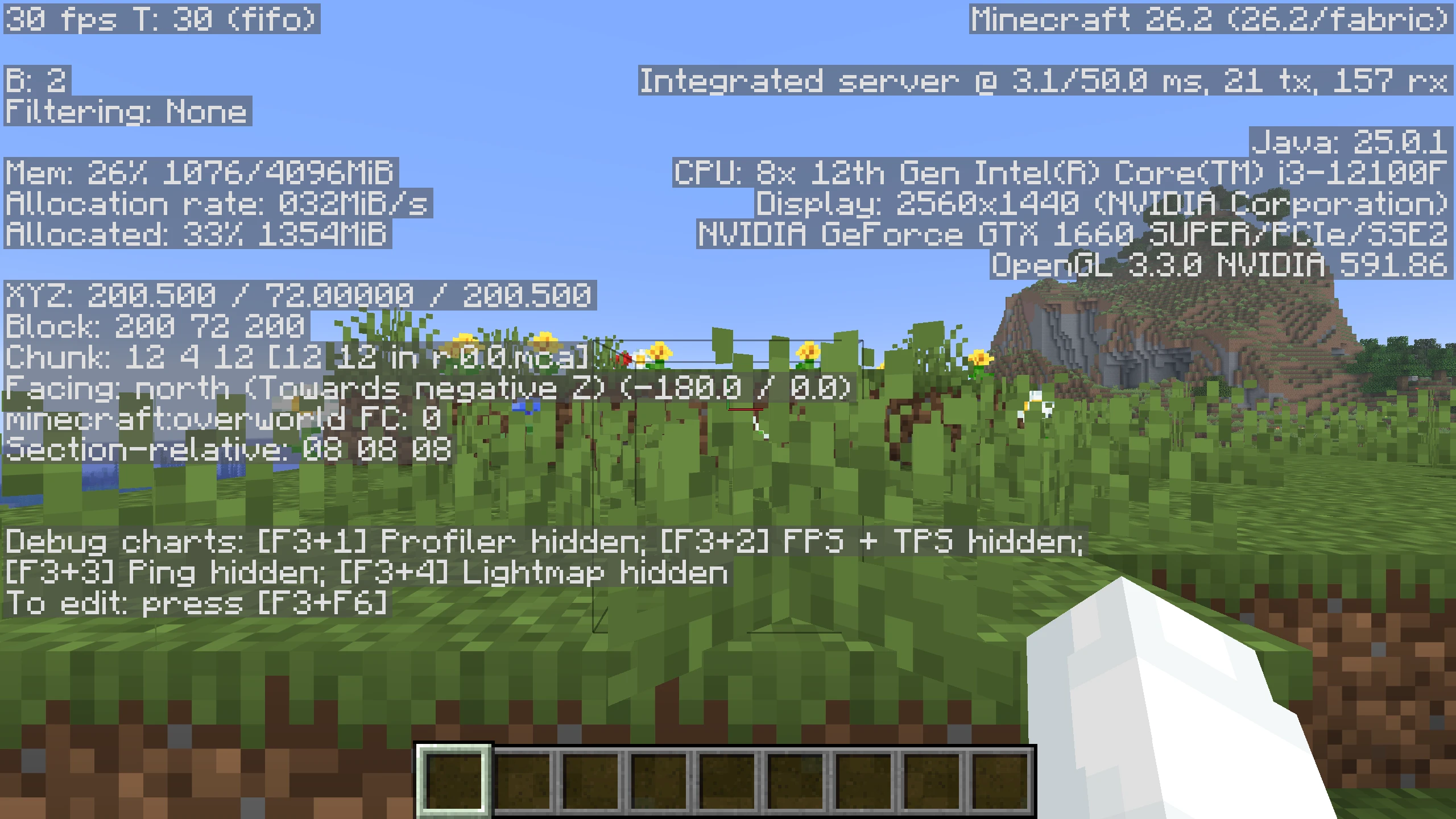
Minecraft targets 20 ticks per second (TPS). That cadence gives the game a fixed budget of 50 milliseconds per tick (MSPT). If your world completes its physics and entity updates in 12ms, the engine rests for the remaining 38ms, maintaining a rock-solid 20 TPS. If a tick requires 55ms, the game falls behind schedule, causing delayed block breaking, delayed item pickup, and rubberbanding.
Looking at TPS alone can be deceptive. A server running at 20 TPS with a 48ms tick time is on the verge of falling behind. A server running at 20 TPS with an 11ms tick time has substantial headroom to handle surprise mob spawns or multiple players exploring simultaneously. Lithium's value lies in driving down that MSPT number.
What Lithium Actually Accelerates
In vanilla Minecraft, many internal routines rely on straightforward but computationally expensive loops. When an entity moves, the game checks every nearby block shape for possible collisions. When dozens of mobs wander in a tight space, those calculations multiply rapidly.
Lithium replaces those bottlenecks with streamlined data structures:
- Collision detection: Uses spatial hashing and voxel shape caching to test collisions only against relevant blocks, skipping empty air spaces.
- Mob AI and pathfinding: Optimizes the brain logic of villagers, monsters, and animals so path calculations consume fewer CPU cycles.
- Chunk palette and block access: Rebuilds how Minecraft accesses block states in memory, accelerating scheduled ticks for hoppers, redstone wiring, and flowing liquids.
- Entity tracker efficiency: Streamlines the synchronization of entity position updates sent from the server logic to clients.
Where It Fits Beside Sodium and FerriteCore
Sodium and Lithium originate from the same development team, but they operate on completely different parts of the Minecraft codebase. They are designed to run side by side rather than as alternatives:
- Sodium: Replaces the client rendering engine. It optimizes chunk meshing, vertex formats, and GPU draw calls to increase visible frames per second (FPS).
- Lithium: Optimizes the server-side simulation loop. It reduces the milliseconds required to compute each game tick (MSPT), preventing sluggish mob movement and rubberbanding.
- FerriteCore: Targets memory management, rewriting blockstate caches and data structures to reduce Java heap RAM usage.
Running all three mods together creates a balanced performance stack: Sodium handles the monitor output, Lithium keeps the world simulation on schedule, and FerriteCore prevents memory pressure.
| Mod | Primary Target | Target Metric | Where to Install |
|---|---|---|---|
| Sodium | Chunk rendering, GPU draw calls, OpenGL pipelines | Higher FPS, smoother frame pacing | Client only |
| Lithium | Physics math, mob pathfinding, block ticking | Lower MSPT, stable 20 TPS | Client (Singleplayer) & Server |
| FerriteCore | Java heap allocations, blockstate caching | Lower RAM footprint, fewer garbage collection stutters | Client & Server |
Strict Vanilla Parity: Redstone and Farm Safety
Many server optimization software packages (such as Paper or Spigot) gain speed by cutting corners: reducing mob despawn radii, slowing down hopper transfer rates, merging items on the ground, or altering redstone tick orders. While effective for massive public minigame hubs, those aggressive shortcuts break technical mob farms, item sorters, and piston contraptions.
Lithium takes the opposite approach by enforcing strict vanilla parity:
- No gameplay nerfs: Item transfer timings, mob spawn rates, and redstone mechanics remain completely untouched.
- Identical mathematical output: Rather than skipping calculations, Lithium changes how the result is computed. Voxel math and spatial queries produce the exact same coordinates and collision states as vanilla code.
- Technical safety: Automated perimeter farms, slime-block flying machines, and complex logic circuits behave identically with Lithium installed.
Singleplayer Reality vs Dedicated Servers
Because Lithium is often described as a server optimization mod, solo players sometimes assume it does nothing on a personal computer. In reality, singleplayer Minecraft runs an integrated server on a dedicated thread in the background.
- In Singleplayer: Your CPU must run the graphics client and the internal world server at the same time. If your automated farms or animal pens drag down the integrated server, the entire game stutters. Installing Lithium on your client optimizes this internal server, freeing up CPU overhead for graphics and world loading.
- On Dedicated Servers: When running a standalone Fabric or NeoForge server, adding Lithium increases concurrent player capacity and stabilizes TPS under heavy loads. Players joining the server do not need to install Lithium on their personal clients.
Where Lithium Helps and Where It Cannot
An honest evaluation of any optimization mod requires understanding what it cannot fix:
- Where it shines: Populated villager trading centers, large mob farms, dense cattle ranches, complex hopper pipelines, and multi-player survival servers with active entity loads.
- Where it cannot help: Rapid Elytra flight into ungenerated terrain. Generating new world chunks is dominated by terrain noise mathematics and disk storage writing, which require dedicated chunk pre-generation rather than tick optimizations.
- Graphics limits: If your computer has a weak graphics card or an outdated driver, Lithium will not raise your base FPS on an empty field. That role belongs entirely to Sodium.
Configuration File and Modular Patches
Lithium works immediately after installation with zero required configuration. It does not add an in-game settings screen because all optimizations are enabled by default.
For modpack creators diagnosing compatibility issues, Lithium provides modular control through its config file:
- File location:
config/lithium.properties - Selective toggles: Optimizations are broken into isolated categories (such as
ai.pathing,world.tick,gen.biomes, andentity.collisions). If a specialized gameplay mod conflicts with a specific physics patch, you can set that individual rule tofalseinlithium.propertieswhile keeping all other performance improvements active. - Dependencies: Lithium runs standalone on Fabric Loader and NeoForge without requiring Fabric API.
Step-by-Step Installation Walkthrough
Step 1: Install Fabric Loader
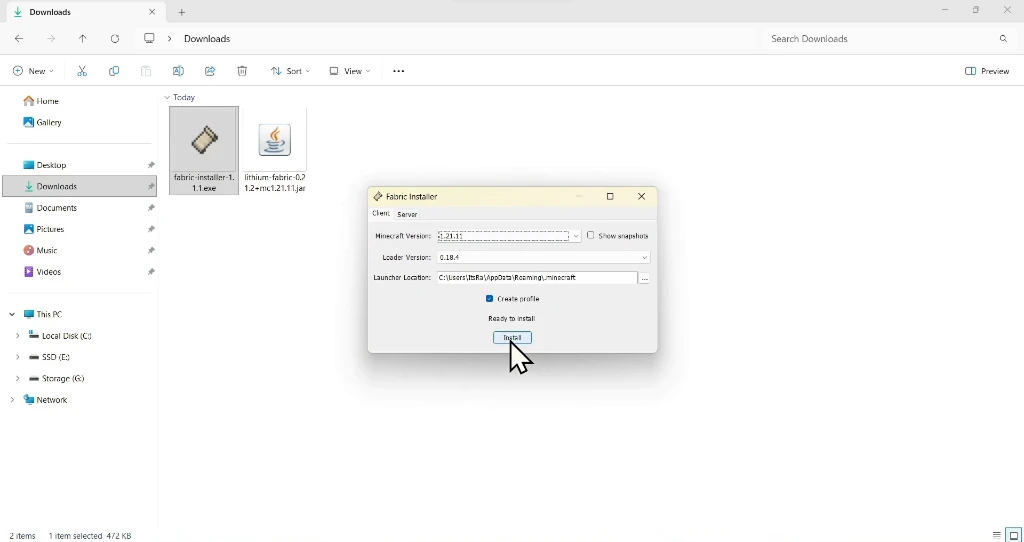
Lithium requires a mod loader to operate. Download the official installer from the Fabric website. Open the installer, select the 'Client' tab, choose your target Minecraft version (such as 1.21.4 or 26.2), make sure 'Create profile' is checked, and click 'Install'.
Step 2: Place Lithium in Your Mods Folder
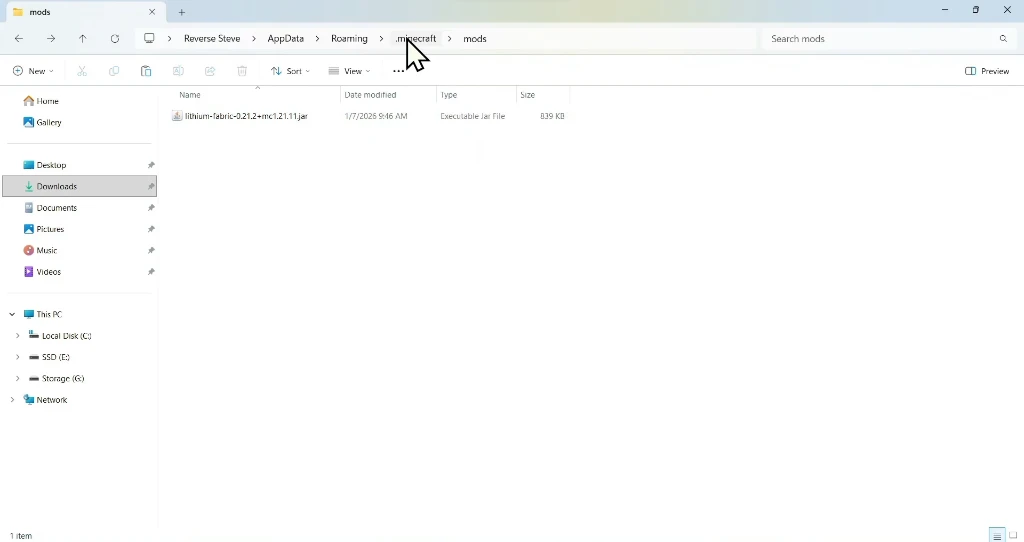
Download the matching Lithium JAR file from Modrinth. Press Win + R on your keyboard, type %appdata%\.minecraft\mods, and press Enter. Move the downloaded .jar file directly into this mods folder.
(On macOS, open ~/Library/Application Support/minecraft/mods/. On Linux, navigate to ~/.minecraft/mods/.)
Step 3: Select the Profile and Launch
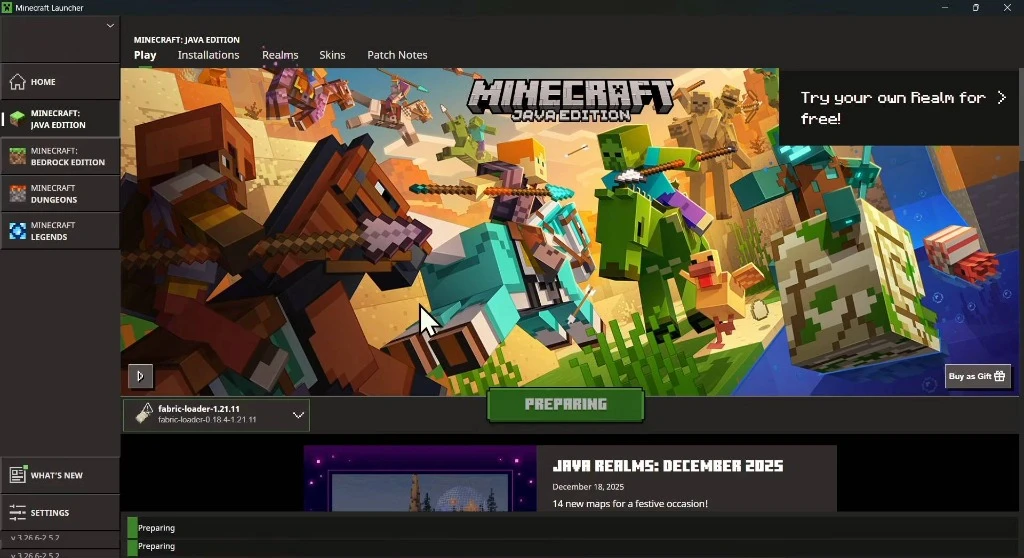
Open your Minecraft Launcher and choose 'Minecraft: Java Edition'. In the bottom-left version dropdown, select the newly generated fabric-loader profile. Click 'Play' (or 'Preparing' while files download) to launch the game with Lithium active.
Official Downloads
Created by CaffeineMCPhysics & World Simulation Optimization
LITHIUM
We do not host any Minecraft mod files directly on this site. We link to official sources to ensure mod developers receive proper credit and support for their work.