







Guide Index7 sections
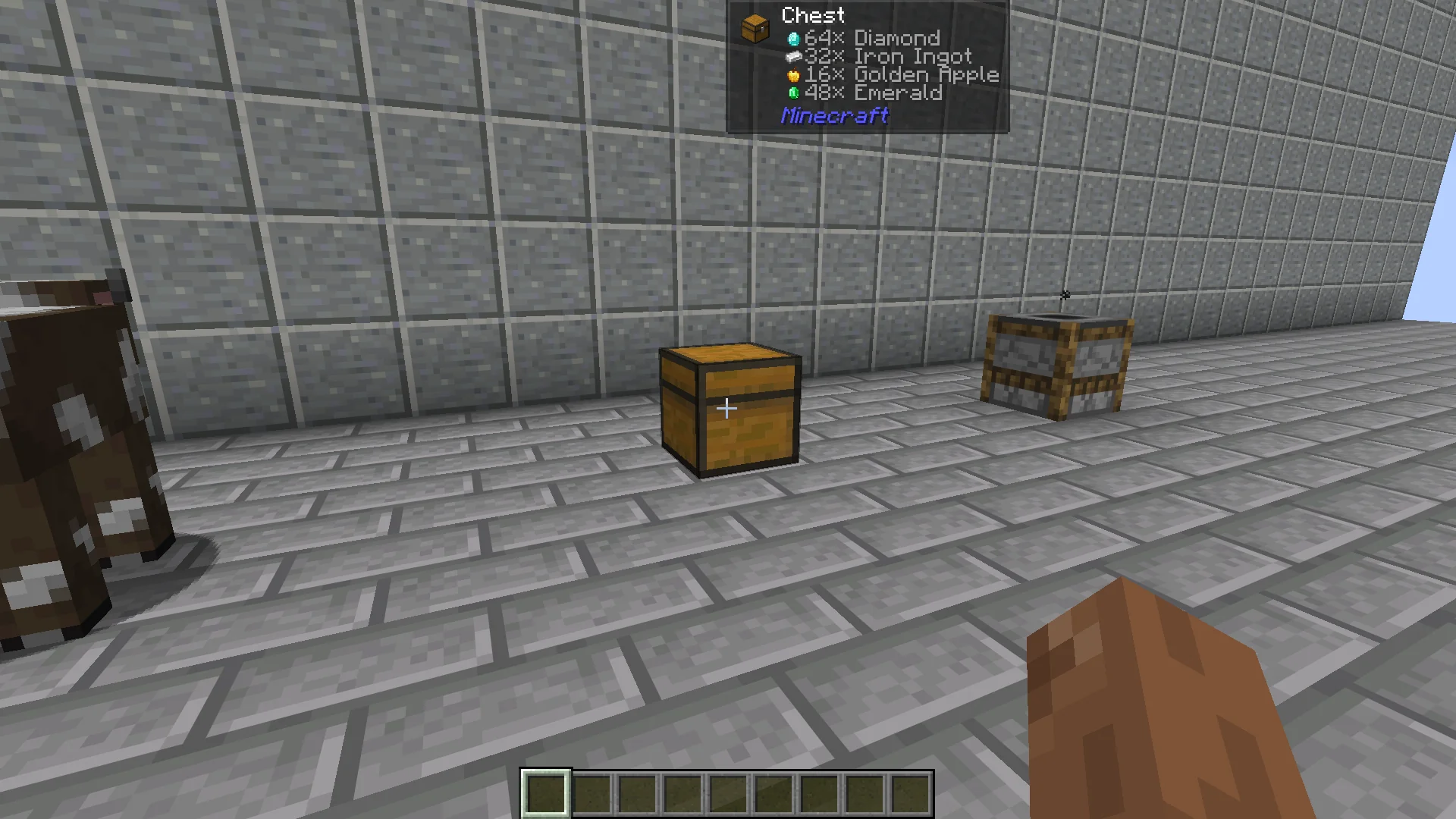
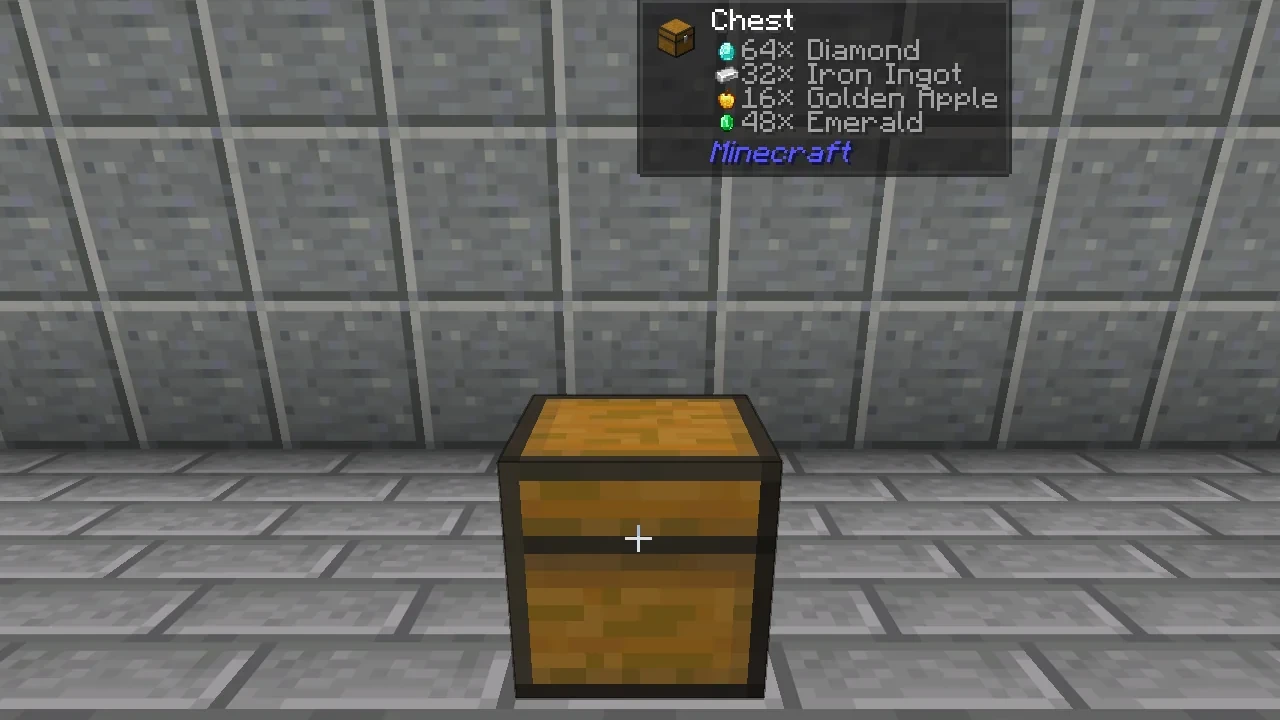
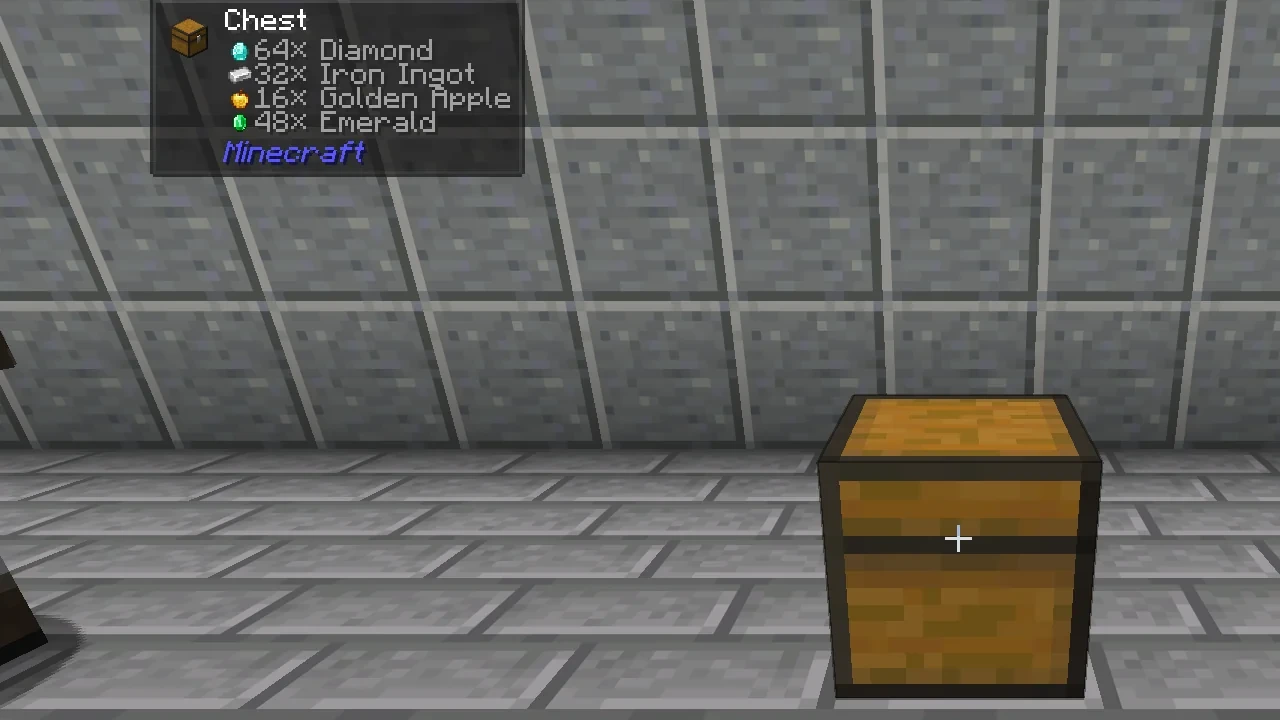
Looking directly at an unopened storage chest in Jade instantly displays its internal items, counts, and item icons directly on your heads-up display without opening the container menu. Targeting a chest containing diamonds, iron ingots, golden apples, or emeralds lists each stack with clear numerical counts and item icons at the top of the screen. Jade acts as a modern continuation of the classic Waila and Hwyla lineage for Minecraft 1.16 and newer, translating block state properties and entity metadata into instant visual feedback.
Jade runs on Fabric (requiring Fabric API), NeoForge, and Forge across modern Minecraft releases. Installing the JAR adds an automatic context-sensitive HUD overlay at the top of your screen that identifies whichever block, container, or entity you look at.
Storage containers and functional workstations
In singleplayer survival and creative testing, Jade provides immediate access to container contents. When looking at a chest, the overlay presents an itemized list showing exact stack counts alongside item icons, identifying sixty-four diamonds, thirty-two iron ingots, sixteen golden apples, and forty-eight emeralds at a glance. This preview avoids the repeated opening and closing of chests when organizing bulk storage.
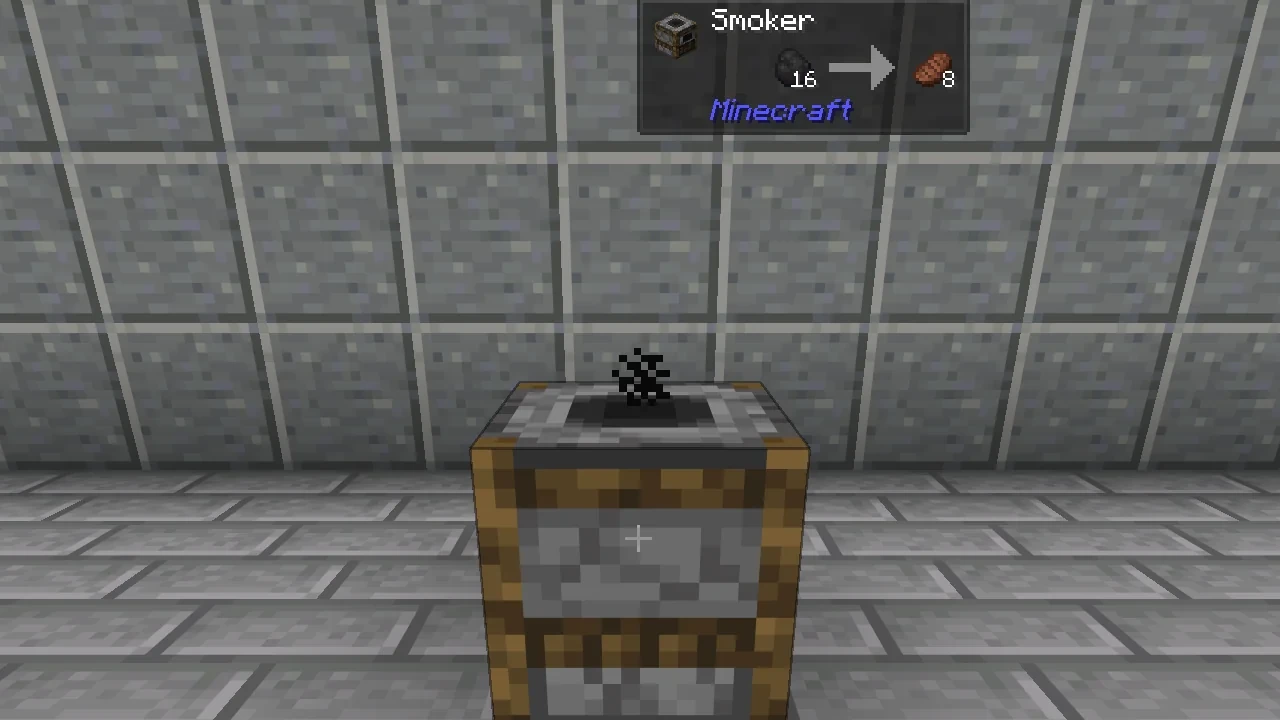
Functional workstations receive dedicated status readouts. Aiming at an active, lit smoker reveals the remaining fuel reserve of sixteen coal, the current cooking output of eight cooked beef, and an animated progress arrow indicating smelt progress. You can check a cook without opening the smoker.
Mob identification and health meters
When targeting living creatures, Jade replaces ambiguity with clear health and identity meters. Looking at a cow named Dairy Cow shows its custom name, five hearts (ten health points) and the source, Minecraft.

Hostile entities present identical precision. Aiming at a zombie displays its name, a full twenty hit point health gauge across ten hearts, and one armor icon. Zombies have two armor points; like the vanilla armor bar, one icon stands for two points.

Crop growth stages and beehive monitoring
Agricultural management benefits substantially from Jade block state inspection. When aiming at immature wheat planted on farmland, the tooltip reports Growth: 57% alongside the crop name and seed icon. Vanilla wheat progresses through eight growth stages from zero to seven; stage four corresponds precisely to fifty-seven percent progress. This removes the guesswork of distinguishing subtle texture differences between mid-stage crops.

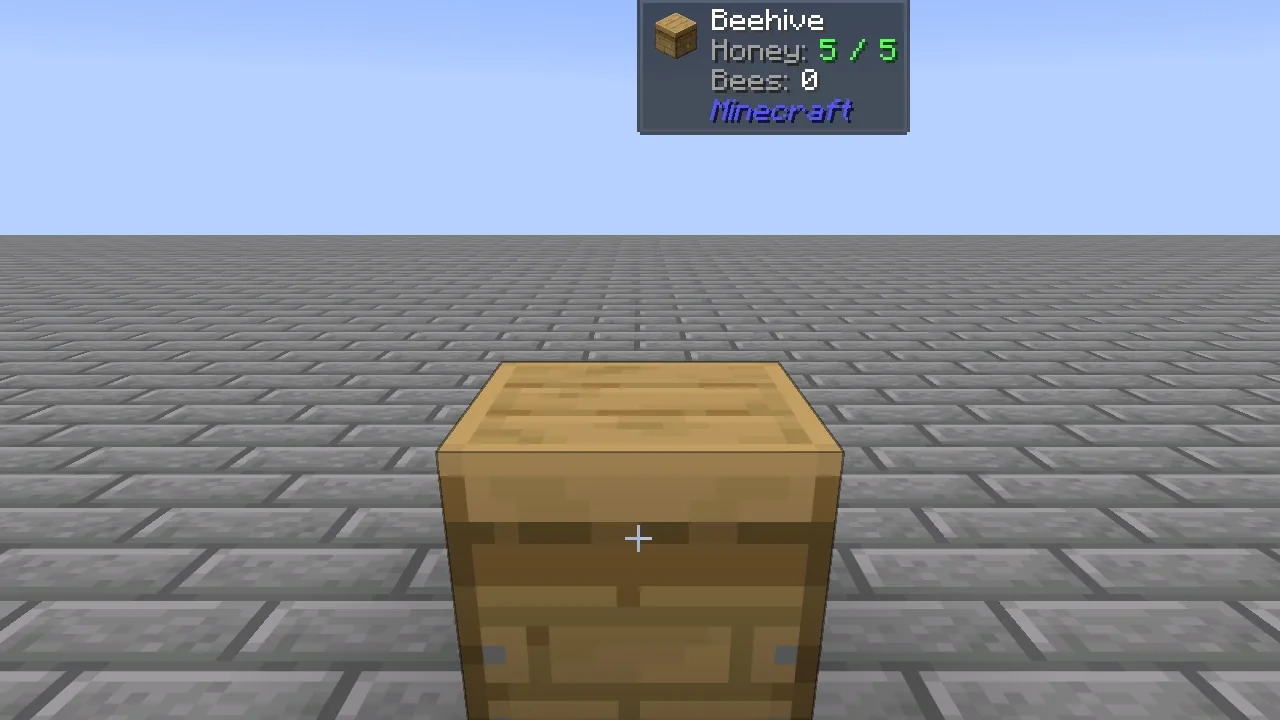
Beehives provide another example of telemetry surfaced by the mod. Our beehive showed Honey: 5 in green, the maximum honey level, so it was ready to harvest with shears or a glass bottle, and Bees: 0, the number of bees inside.
Client-only versus server-side features
Understanding how Jade divides its features between client and server is essential for multiplayer setups. In singleplayer, the internal integrated server supplies full block and entity data automatically, enabling all container, workstation, and hive tooltips without extra configuration.
In multiplayer, you can join any vanilla server with Jade installed only on your client to see basic block names, crop growth states, and entity health. However, inspecting internal server-authoritative NBT data - such as chest and barrel inventory contents, furnace smelting timers, brewing stand fuel, and exact bee counts inside a beehive - requires Jade to be installed on the server as well.
Jade provides dedicated keybindings out of the box. As the official page outlines, Keypad 0 opens the main configuration interface, Keypad 1 toggles overlay visibility on and off, and Keypad 2 toggles liquid display settings. Additional default shortcuts include Keypad 3 and Keypad 4 for recipe and usage lookups when Just Enough Items is present, while Keypad 5 triggers speech narration for accessibility.
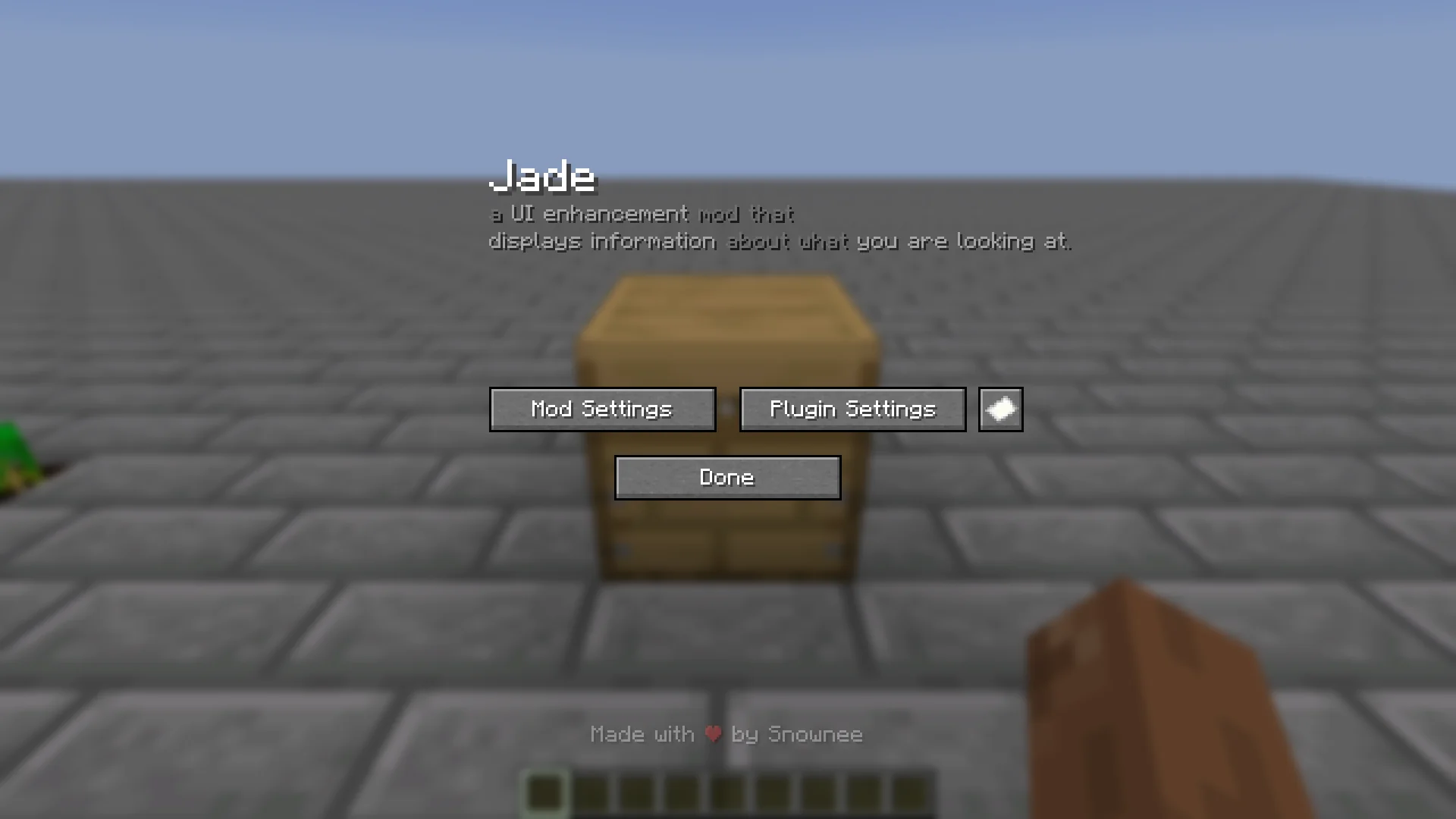
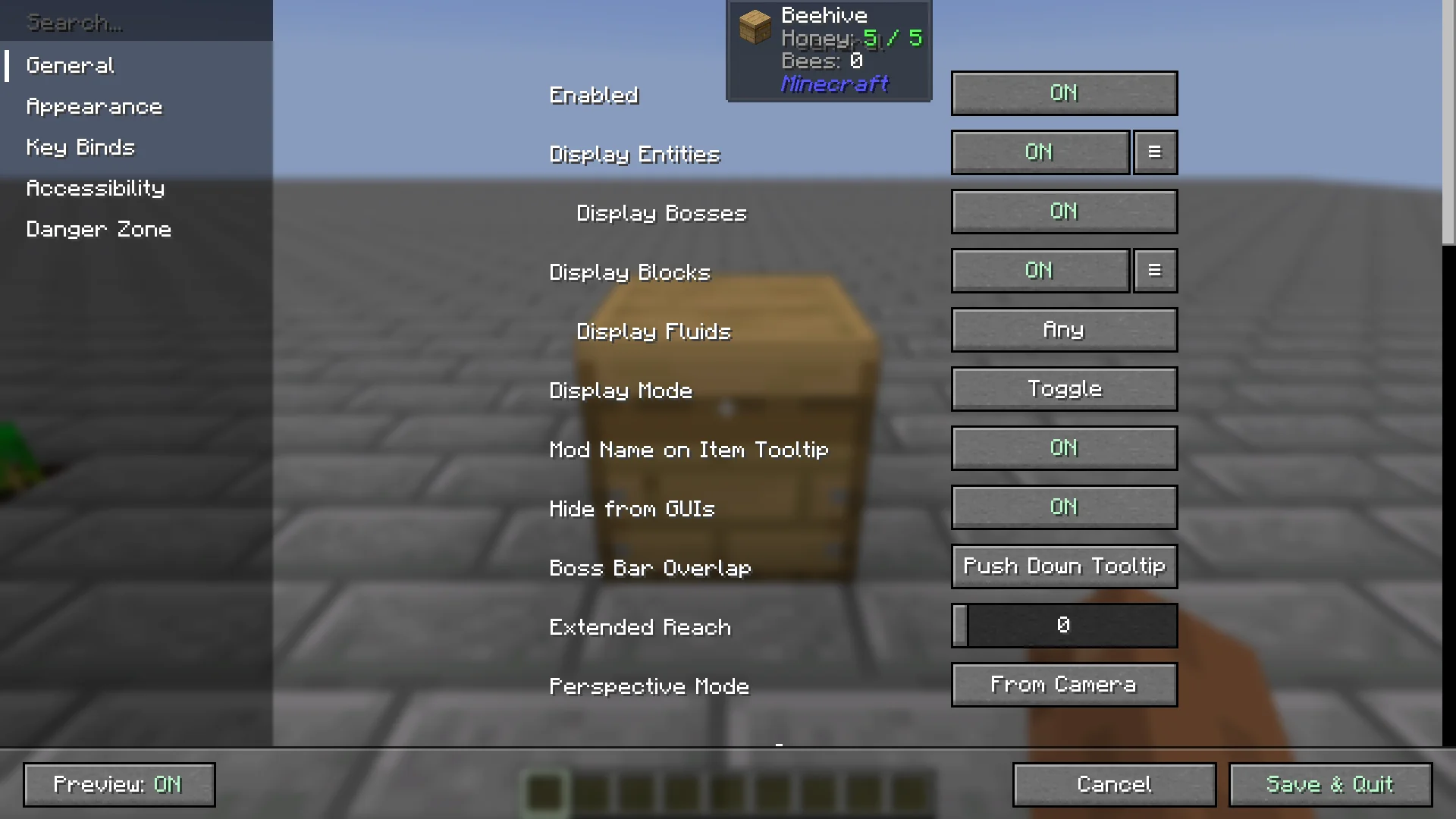
Mod Settings opens Jade's own settings screen. Here players can toggle individual display categories, including entities, bosses, blocks, and fluids, or enable mod name attribution on item tooltips. The General tab also has an Extended Reach setting and a live preview toggle.
One of the most practical customization options is adjusting overlay screen placement. By default, Jade anchors tooltips at the top center of the screen. While Jade defaults to top-center positioning, the in-game configuration menu allows anchoring tooltips to the top-left, bottom corners, or custom screen offsets to match your preferred HUD layout.
Installation and loader compatibility
Jade supports modern Minecraft versions across Fabric, NeoForge, Forge, and Quilt loaders. For Fabric on Minecraft 26.3, Jade requires Fabric API as a prerequisite dependency. Place both the Fabric API JAR and the Jade JAR into the mods folder of your launcher instance.
Official Downloads
Created by Snownee70M+ downloads
JADE
We do not host any Minecraft mod files directly on this site. We link to official sources to ensure mod developers receive proper credit and support for their work.