




Minecraft resource pack guide
Sunbathing Godrays Review: Settings, Visuals, and FPS
Tested light shafts, Polytone configuration, and framerates in Minecraft 26.2
Java Edition · 16x · by MehVahdJukaar
+5 moreHide versions
All 9 listed versions (releases 1.21 to 26.2)
- 26.x
- 26.2 · 26.1.2 · 26.1.1 · 26.1
- 1.21
- 1.21.11 · 1.21.10 · 1.21.9 · 1.21.1 · 1.21
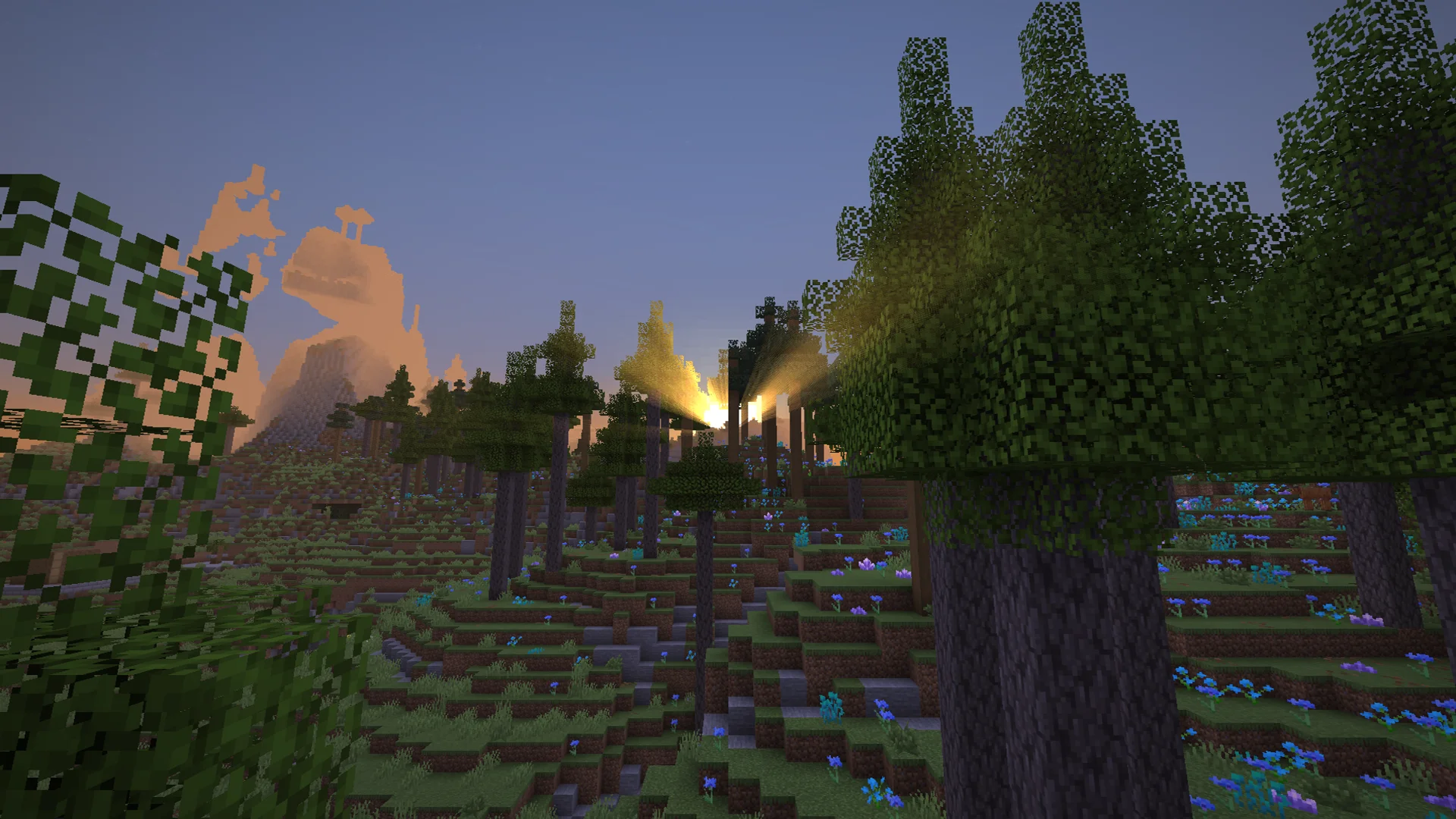
A hands-on review of the Sunbathing Godrays resource pack, evaluating light shaft visibility, Polytone configuration options, and framerate overhead on Minecraft 26.2.
In this guide6 sections
At default settings, Sunbathing Godrays is subtle enough that many players may not notice the rays without changing the settings. Out of the box, the pack sets Sun Intensity to 0.5 and Moon Intensity to 0.1. Pack on and off frames differ only slightly, showing a mean pixel difference of 1.6-1.8 out of 255 at spruce sunrise and ridge sunset spots. Turned up, the rays are clearly visible. You can adjust settings in the Polytone config screen, opened from the resource pack screen, or in config/polytone_options.json. The project page describes it as "a simple pack that adds sun and moon godrays". The pack requires Polytone (Polytone 26.2-6.8.6 for Fabric).
Visual Comparison: Pack Off vs Maximum Intensity
Side-by-side frames captured at identical coordinates and camera angles
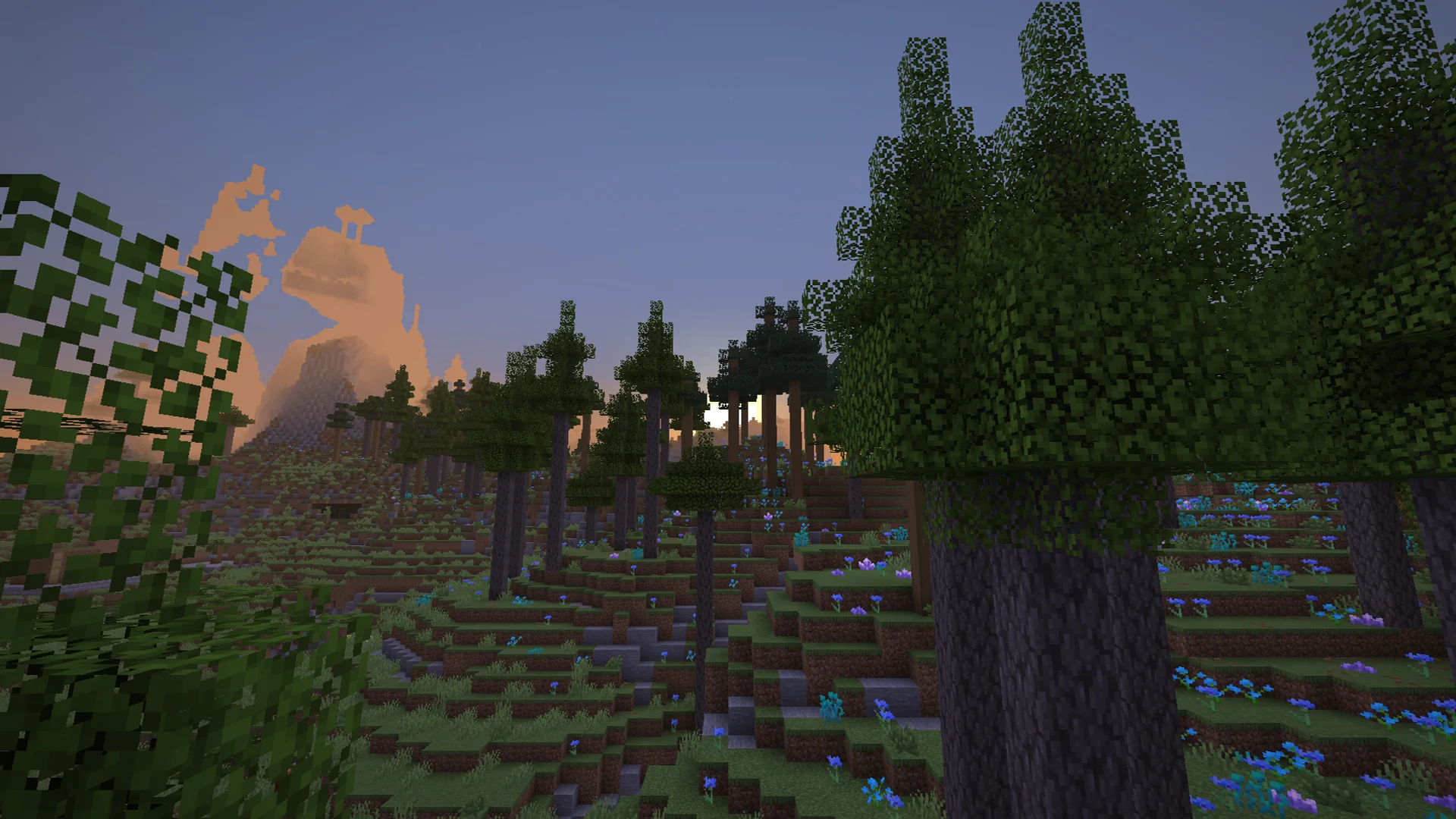
The difference between vanilla lighting and the pack becomes obvious when looking toward the sun through tree foliage. At sunrise (coordinates 125, 82, 180), vanilla Minecraft renders tree crowns as dark blocks against a flat morning sky. With the pack enabled and Sun Intensity set to 2.0 (the maximum), golden shafts break between the spruce foliage. Tree trunks block the light, creating defined shadows between the illuminated beams.
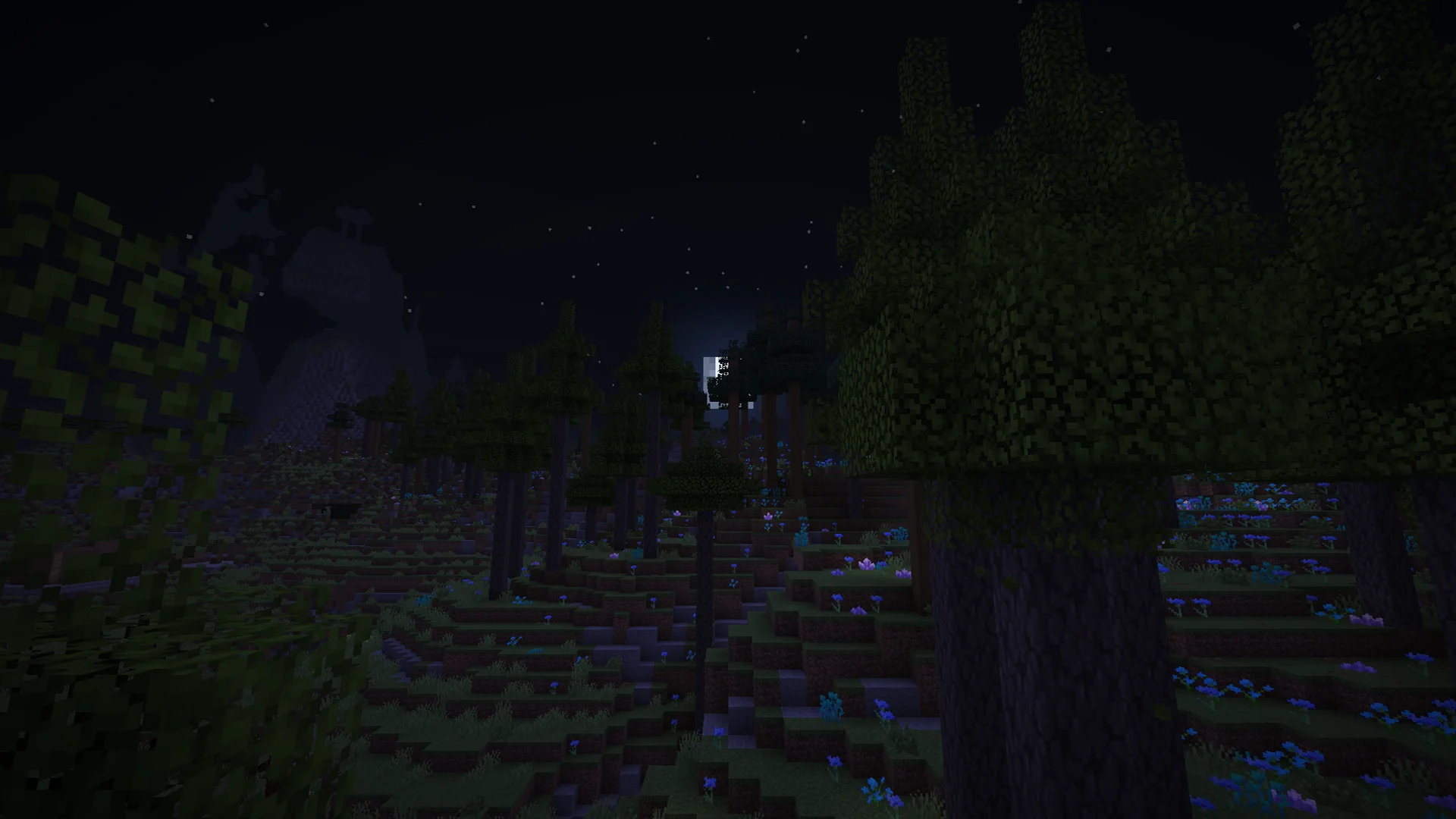
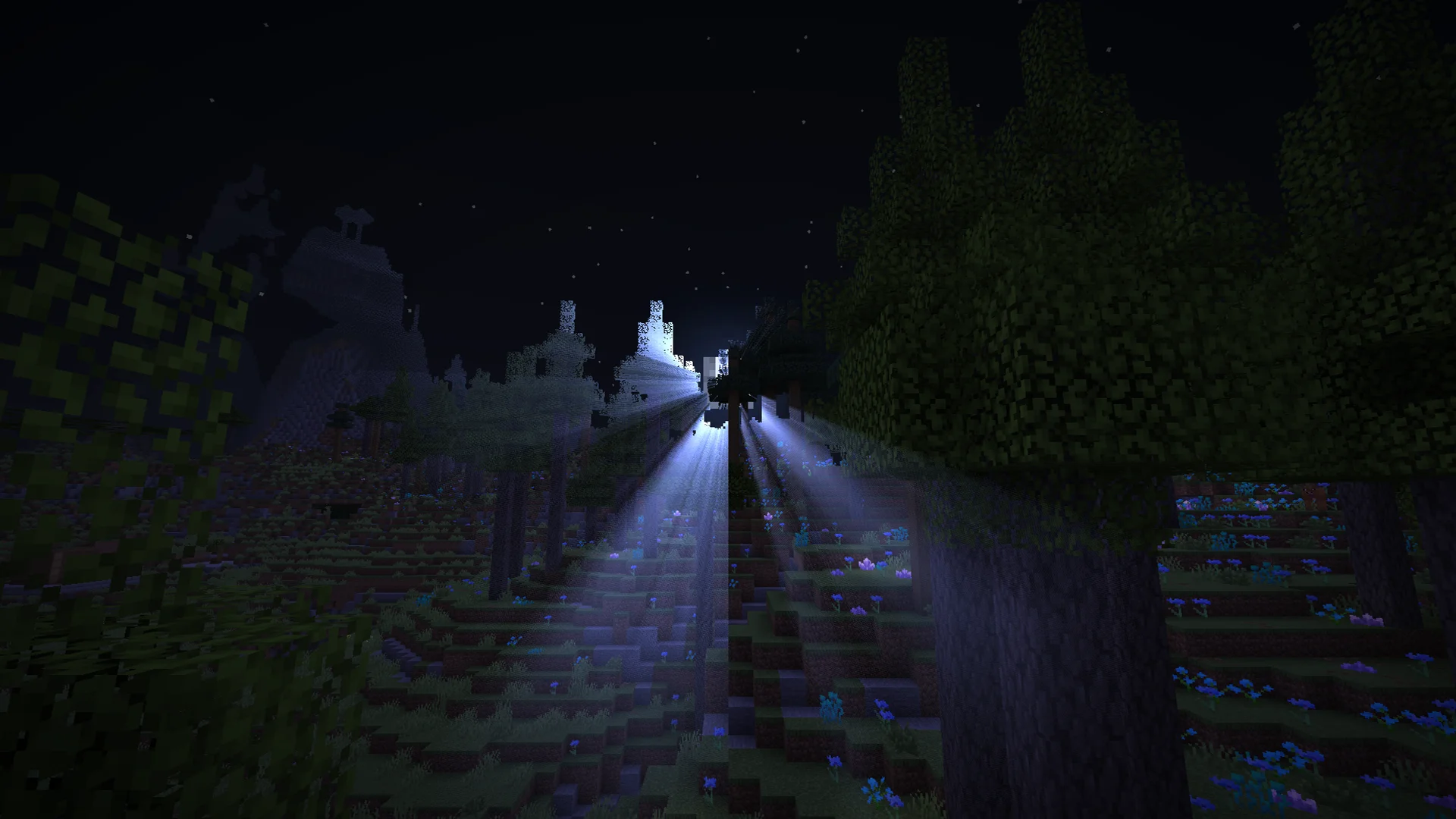
Night lighting shows an even clearer change. With Moon Intensity turned up to 2.0, strong moonlight beams fan through the trees. Cool light cuts between the spruce boughs and lights the hillside below. The change here is larger than in the sunrise pair. At the default Moon Intensity of 0.1, the same night scene looks almost the same as vanilla.
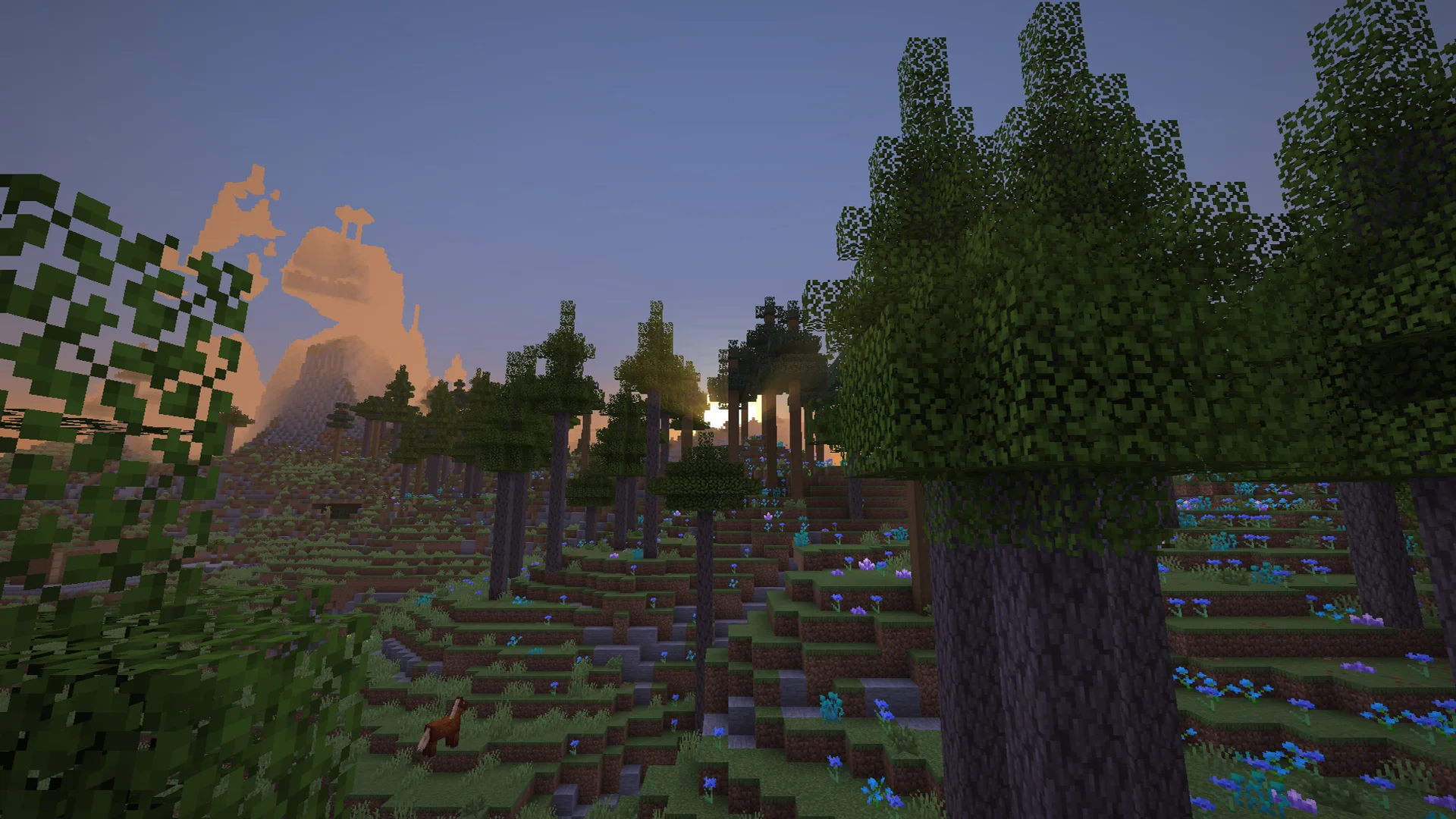
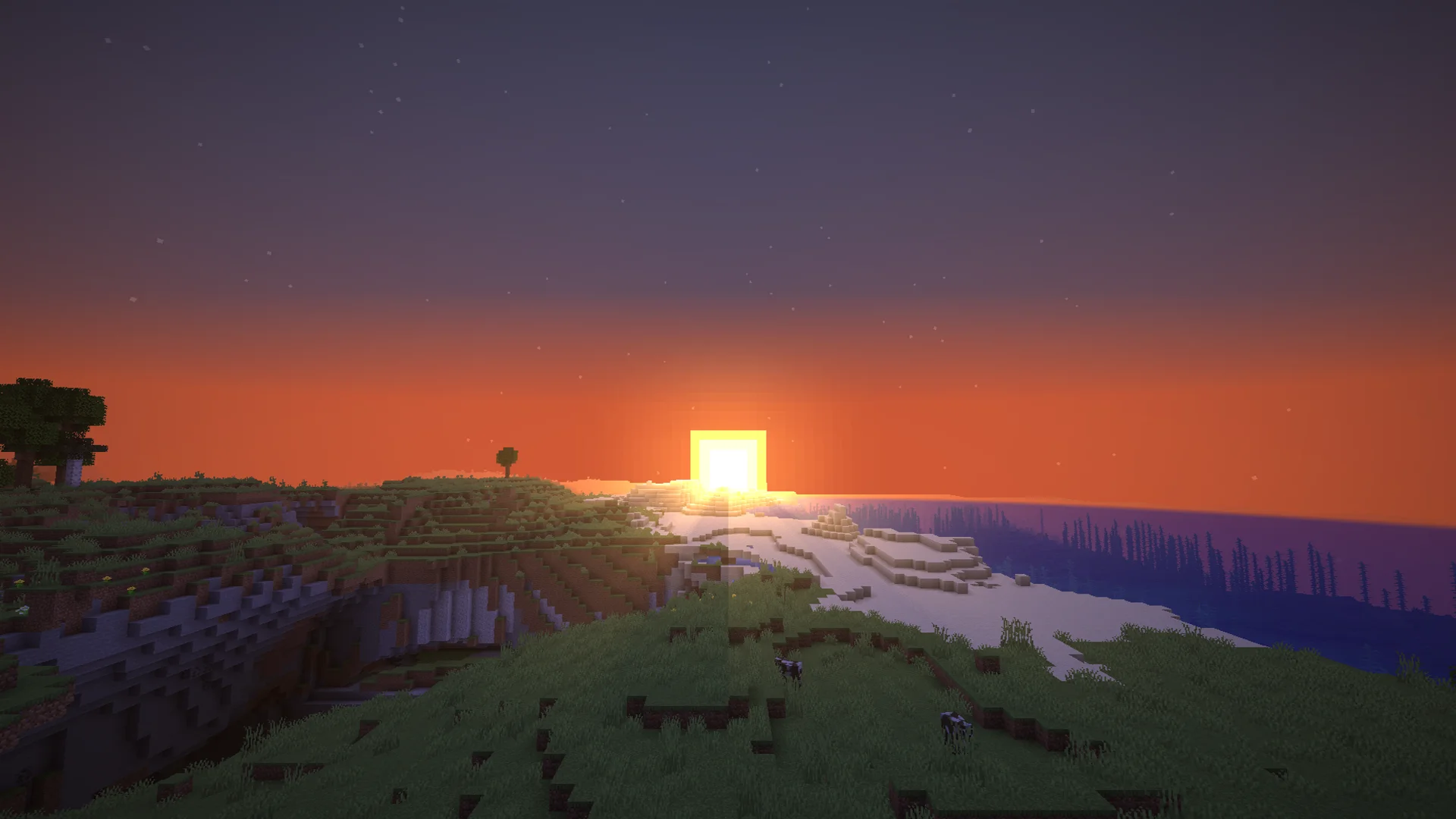
Comparing the default configuration against the maximum setting shows why adjusting the sliders matters. At Sun Intensity 0.5, the morning rays are faint and barely stand out from the sky background. Moving the slider up to 2.0 makes the golden shafts prominent and sharp across the terrain. On open terrain without trees, such as an ocean ridge sunset at coordinates 100, 85, 180, the effect is milder: a faint glow shows on the ridge rim at sunset.
The Rays in Motion
Observing beam direction changes during a horizontal camera pan
When the camera pans across the spruce hillside at sunrise, the light shafts adjust smoothly in real time. As your view turns toward the light source, the sun shifts across the screen while golden volumetric rays track its position, casting dynamic streaks through gaps in the spruce canopy and across uneven hillside terrain.
Activation Conditions and Weather Limits
Where and when the light shafts appear in game
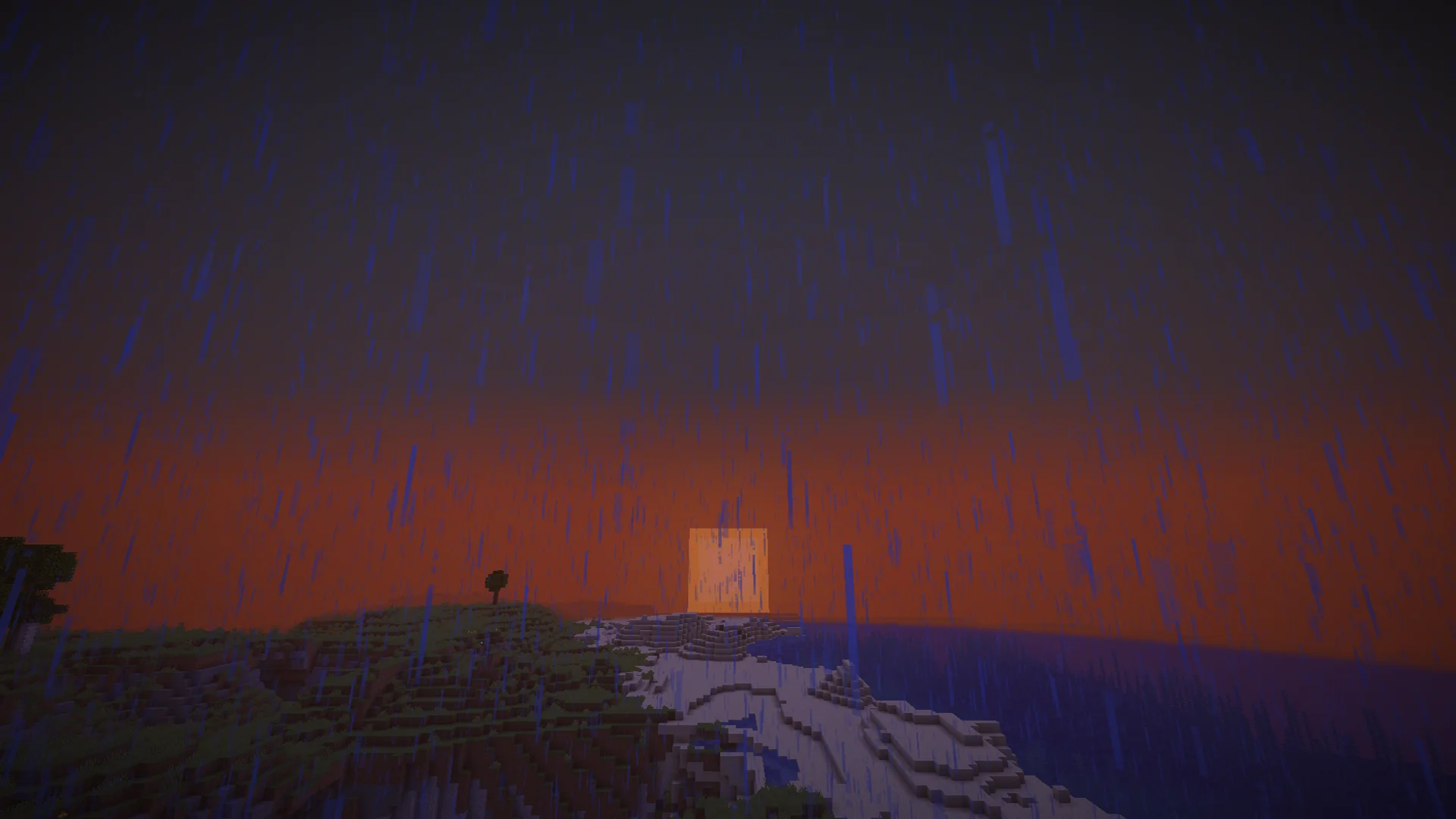
The pack's own files enable the effect only in the Overworld sky and only while the rain level is 0.1 or lower. When we set rain with /weather rain at sunset, the rays faded out completely. The square sun was still visible through the rain, but no light shafts appeared until the rain cleared. There are no godrays in the Nether or the End.
Settings and Polytone Configuration
Configurable options in the Polytone menu and config file
Settings live in the Polytone config screen, accessed from the resource pack screen, and in config/polytone_options.json. The pack defaults from the pack's config files are:
- Sun Intensity: 0.5 (range 0-2)
- Moon Intensity: 0.1 (range 0-2)
- Quality: 30 (range 4-60)
- Density: 0.92
- Decay: 0.99
- Lens Flare: 0 (range 0-1)
- Shadows: off (intensity 0.5)
- Depth of Field: 0
Because the default values are mild, raising Sun Intensity and Moon Intensity toward 2.0 is necessary if you want distinct beams.
Performance Benchmarks and Sodium Test
GTX 1660 SUPER framerate measurements and compatibility checks
Framerate readings on GTX 1660 SUPER at coordinates 100, 85, 180 facing west at sunset (1920x1080, render distance 12).
| Configuration | Reading 1 (30s) | Reading 2 (40s) | Reading 3 (50s) | Average FPS |
|---|---|---|---|---|
| Vanilla Baseline (Pack OFF) | 899 FPS | 929 FPS | 954 FPS | 927 FPS |
| Pack ON (Default: Sun 0.5) | 346 FPS | 363 FPS | 331 FPS | 347 FPS |
| Pack ON (Max: Sun 2.0) | 377 FPS | 392 FPS | 365 FPS | 378 FPS |
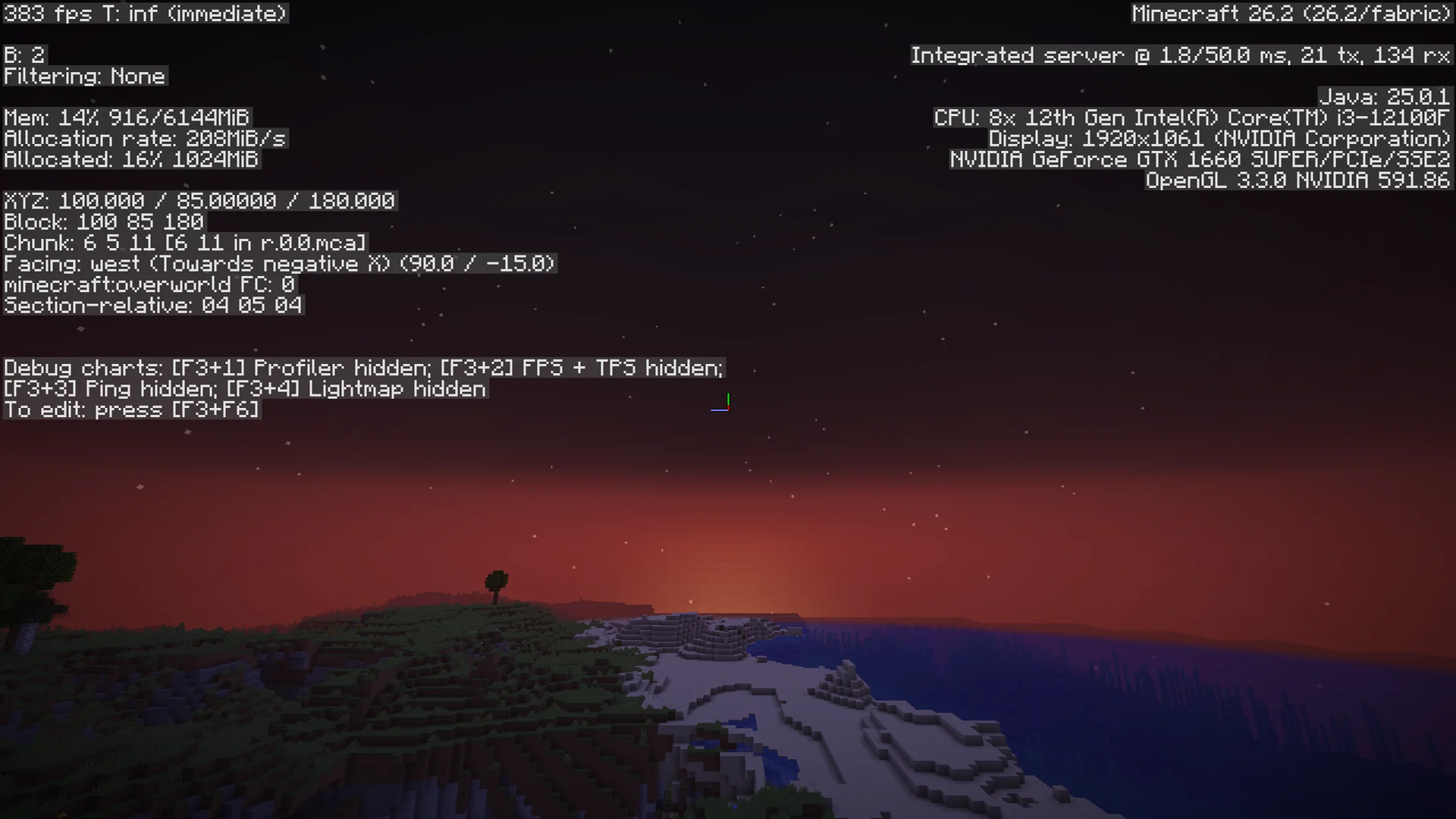
Benchmarks ran on an Intel Core i3-12100F and GTX 1660 SUPER at 1920x1080 with render distance 12 at the same sunset spot (coordinates 100, 85, 180). With the pack off, runs recorded 899, 929, and 954 FPS (average 927). With the pack on at default, runs recorded 346, 363, and 331 FPS (average 347). At Sun Intensity 2.0, runs recorded 377, 392, and 365 FPS (average 378). The pack costs a large share of frames here, but stays above 300 FPS. Raising the intensity did not cost more in our runs.
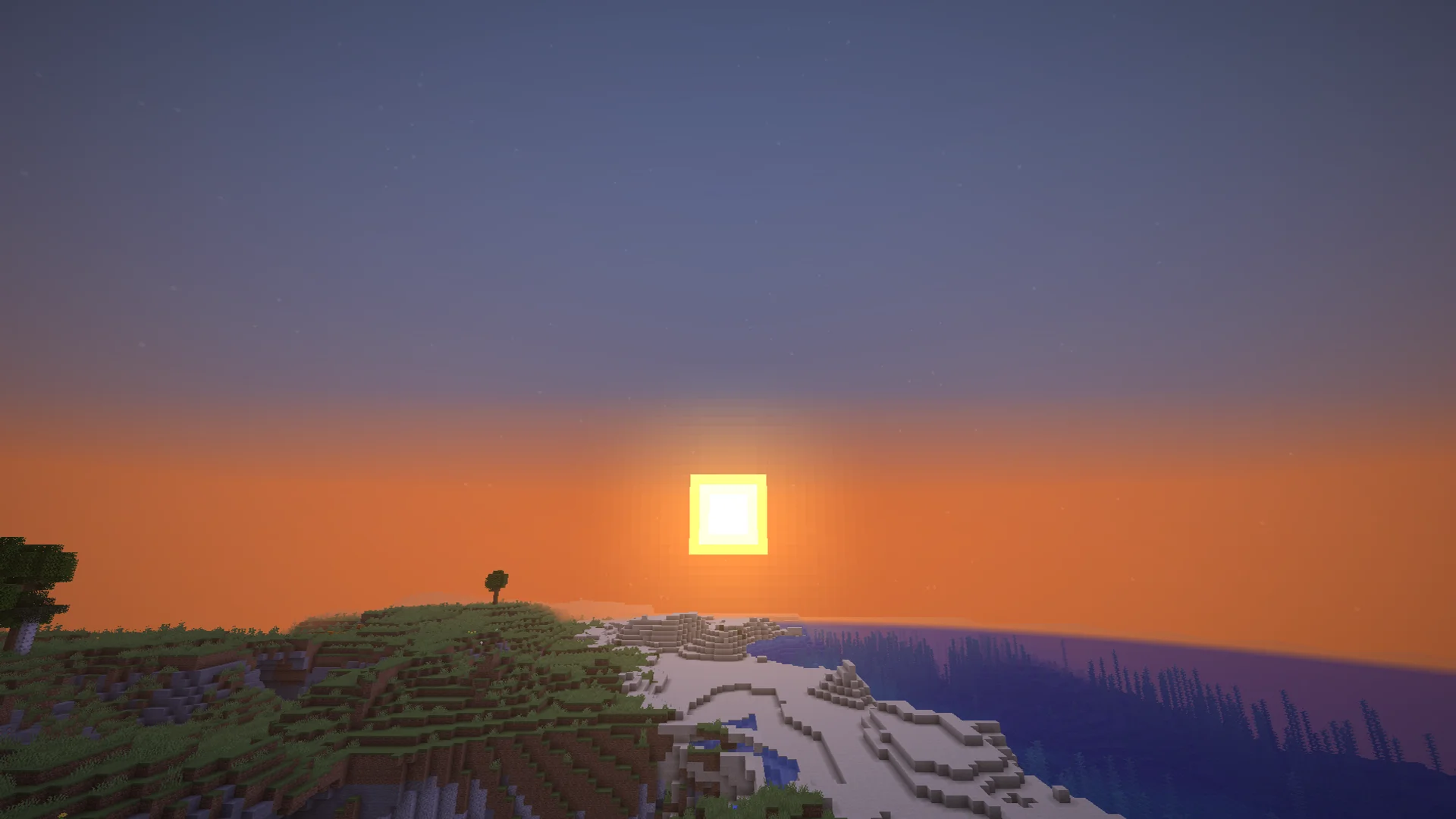
The pack requires Polytone (Polytone 26.2-6.8.6 for Fabric). We also ran it with Sodium installed. In that test the glow around the setting sun rendered normally over the ridge and the water, with no visible glitches.
Our test setup
| C P U | Intel Core i3-12100F |
|---|---|
| G P U | NVIDIA GeForce GTX 1660 SUPER |
| R A M | 32 GB |
| Minecraft | 26.2 |
| Loader | Fabric 0.19.3 |
| Mod | Polytone 26.2-6.8.6 |
| Resolution | 1920x1080 |
| Render Distance | 12 chunks |
Download and install
Choose the Java Edition file for your exact game version on the creator’s page. In Minecraft, open Options → Resource Packs → Open Pack Folder, place the ZIP there, then move the pack into the selected column.
The download is hosted by the creator, not MC Toolbox. Check the file and version before installing.
Common questions
Why can't I see the rays?
At the defaults (Sun Intensity 0.5, Moon Intensity 0.1) the rays are subtle and blend into the sky. The pack also works only in the Overworld sky, switches off in rain, and needs Polytone installed.