



Minecraft resource pack guide
Default Dark Mode
A charcoal GUI that keeps vanilla icons and layouts, compared screen by screen on Minecraft 26.2.
Java Edition · 16×16 · by nebuIr
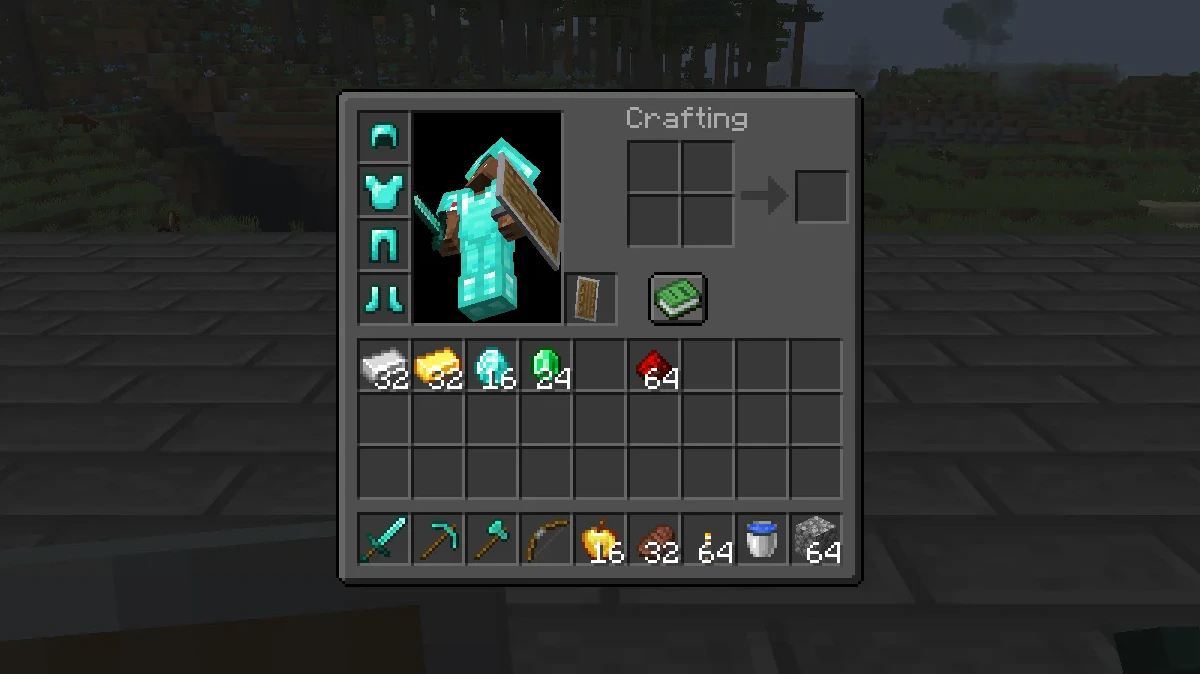
Default Dark Mode recolours Minecraft's container screens, buttons and advancement frame to charcoal while keeping vanilla icons and layouts. A small text shader keeps the grey screen titles readable. We compared eight screens on Java 26.2.
In this guide9 sections
Swap Minecraft's light grey menus for charcoal and the first problem is the titles. The game draws "Crafting", "Inventory" and the other screen labels in dark grey, #404040, which almost disappears on a dark panel. Default Dark Mode handles that with a small core shader: it looks for text drawn in exactly that colour and redraws it as #aaaaaa. In our screenshots the labels turn light grey, while item counts, enchantment costs and every other text colour stay as they were.
The rest of the pack is texture work. Container backgrounds, slots, buttons and the advancements frame are repainted; item icons, slot positions and screen layouts stay vanilla. We tested version 2026.6.0 for Minecraft 26.2 (Default-Dark-Mode-26.2-2026.6.0.zip) on a Fabric client at GUI scale 3, with no other resource packs loaded.
Eight screens, before and after
Each pair shows the same screen holding the same items, vanilla first. Drag the divider to compare.
Inventory and crafting table
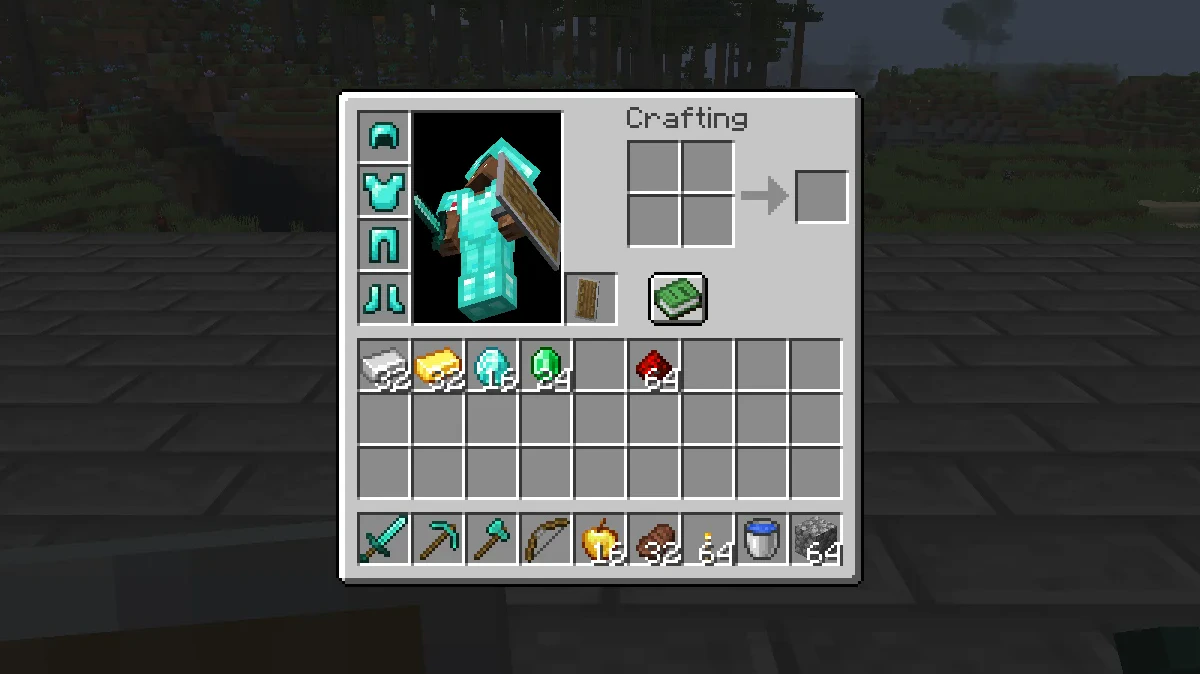
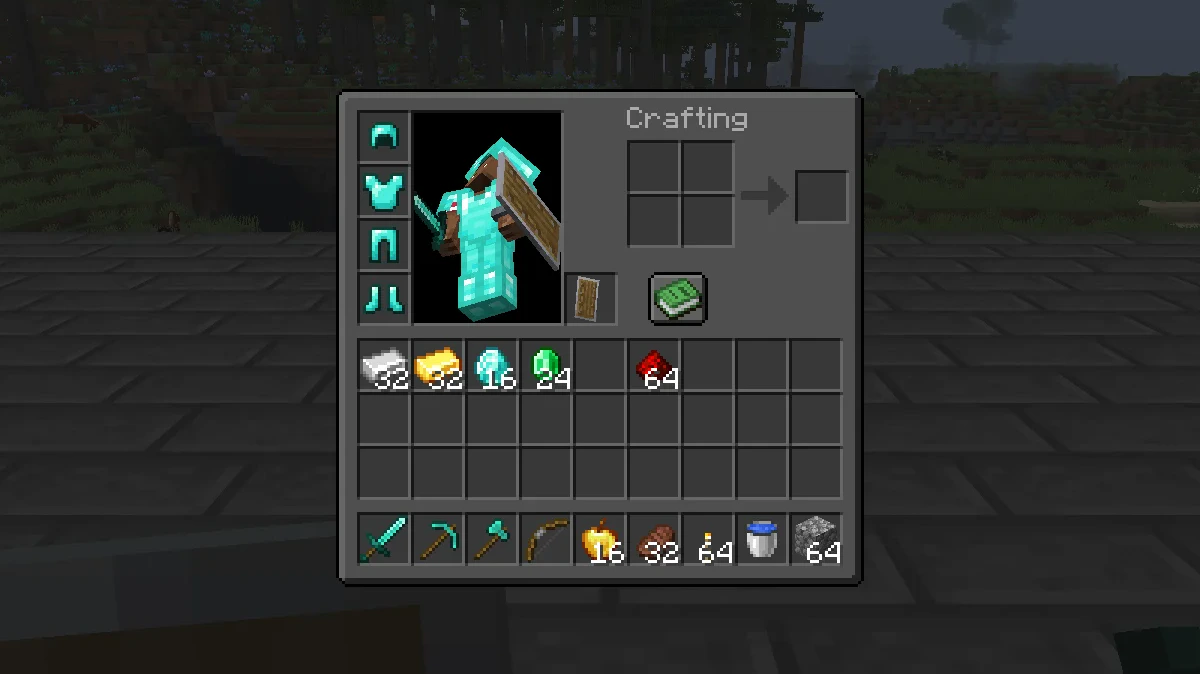
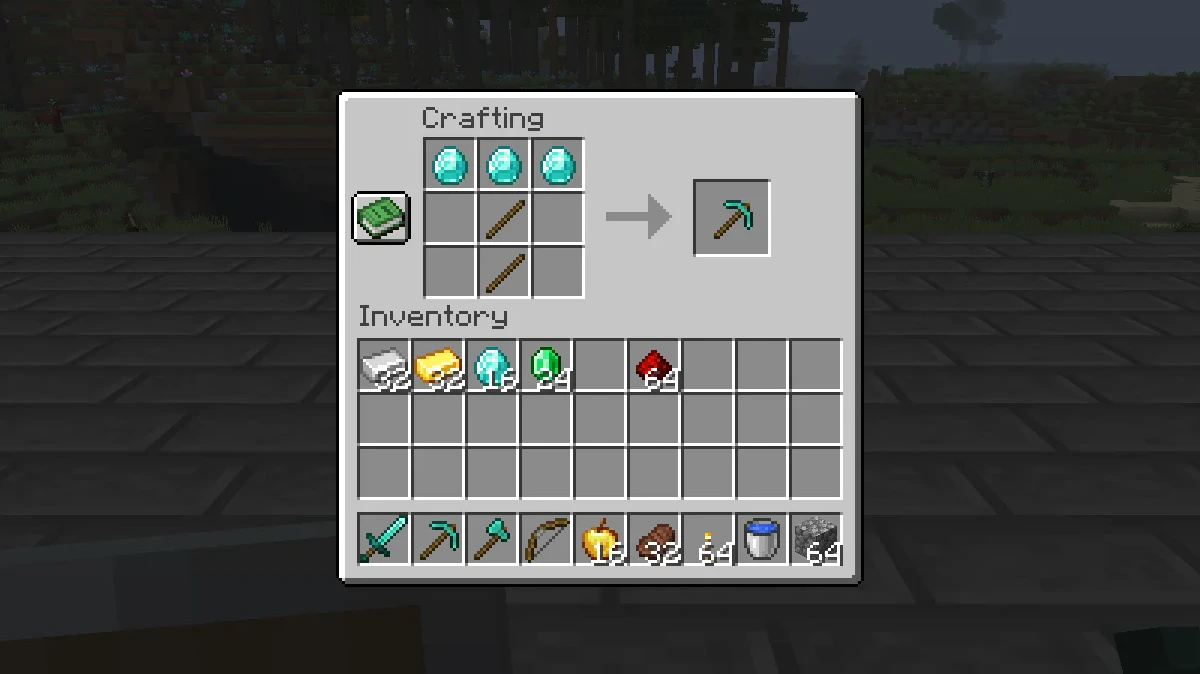
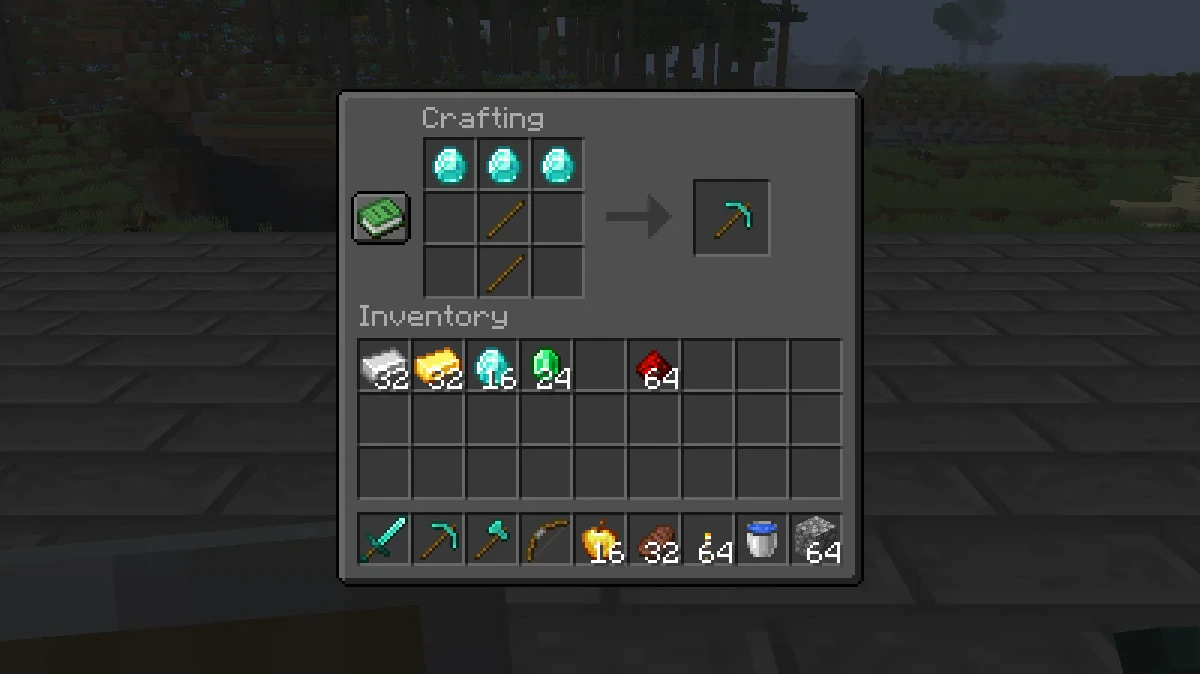
The player preview keeps its dark backdrop, which now blends into the rest of the panel instead of standing out as a black box. Empty slots become dark wells separated by a lighter grid, so filled slots are easier to pick out than on vanilla grey. The green recipe book button is unchanged.
Furnace and large chest
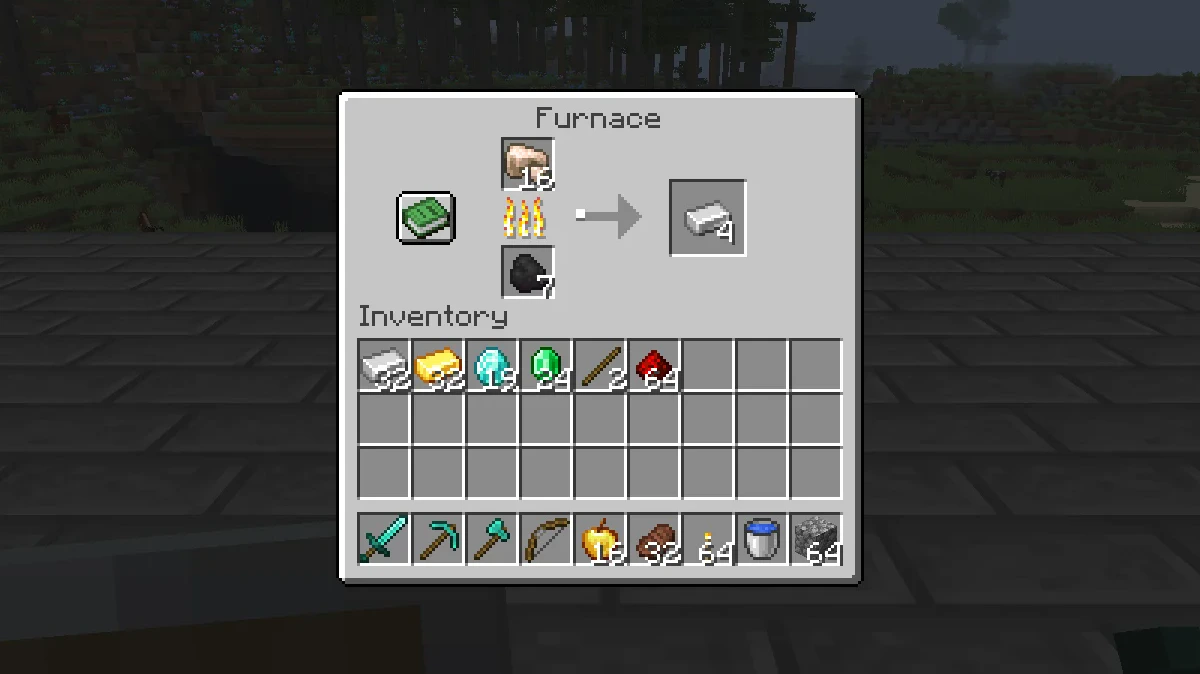
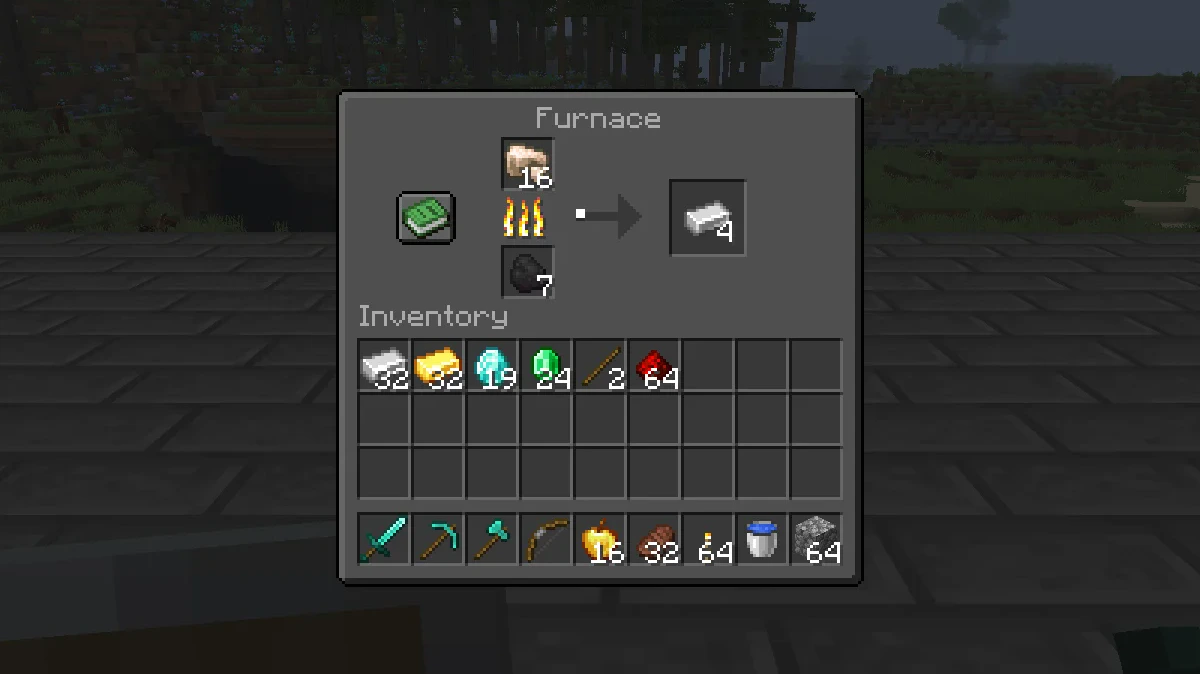
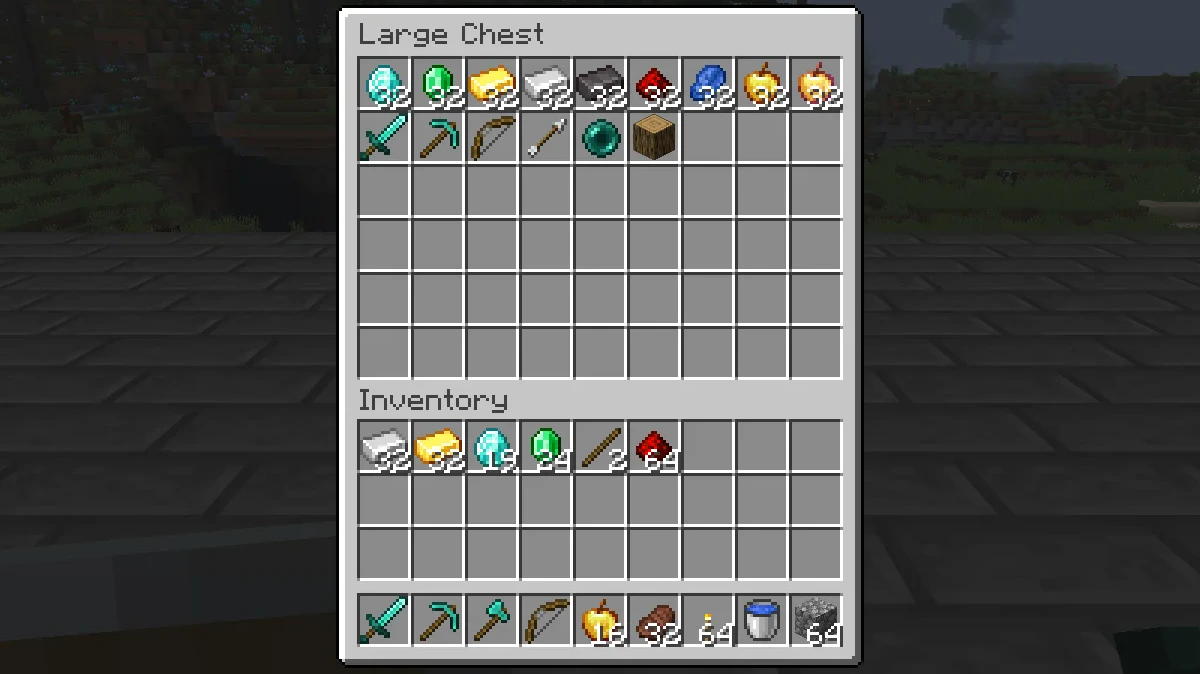
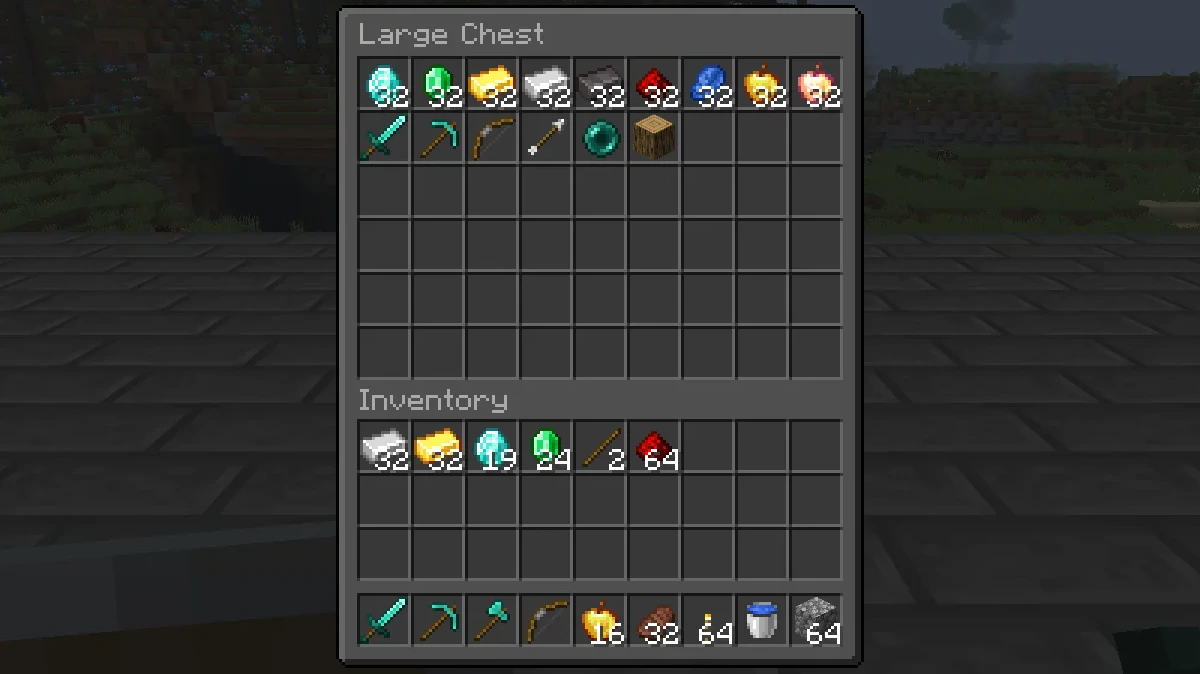
The furnace flame and progress arrow keep their vanilla look against the darker panel. In the large chest all 54 slots switch to the dark style, and the "Large Chest" and "Inventory" labels come out light grey through the shader.
Anvil and enchanting table
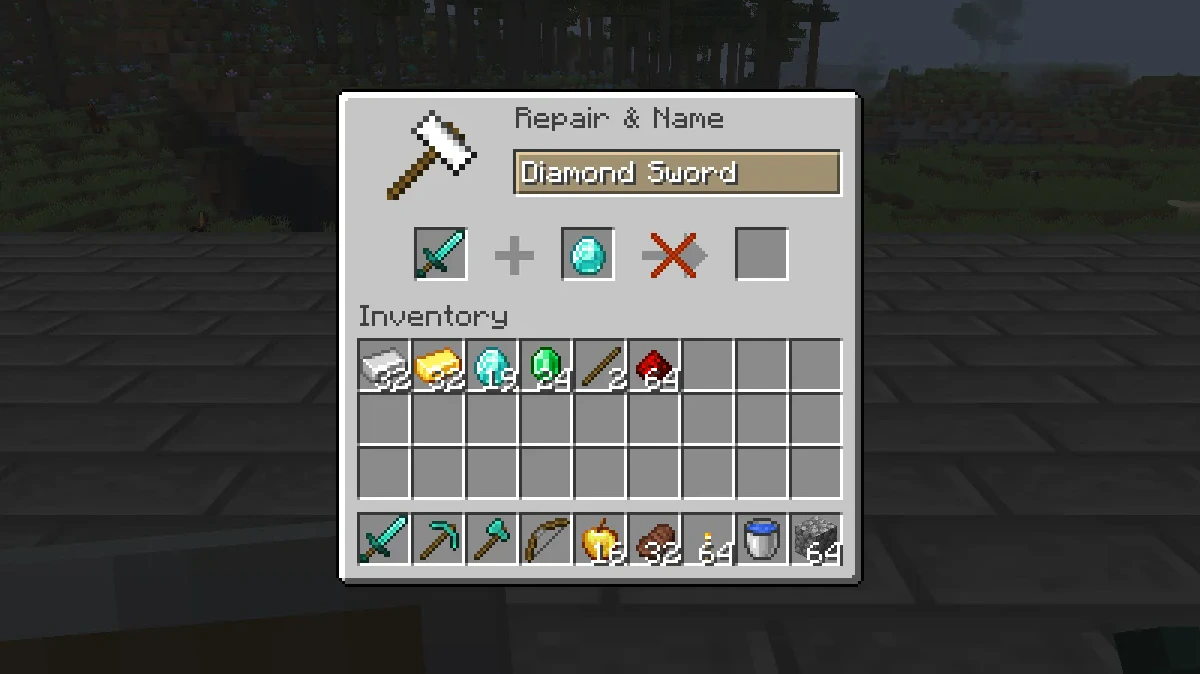
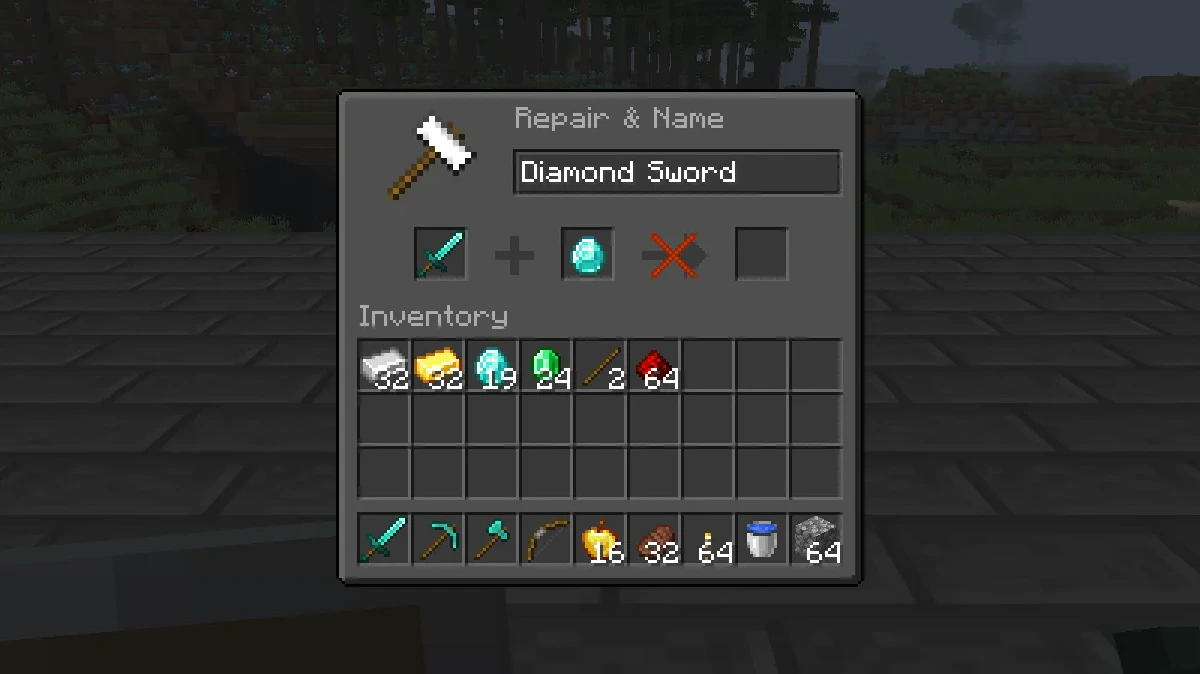
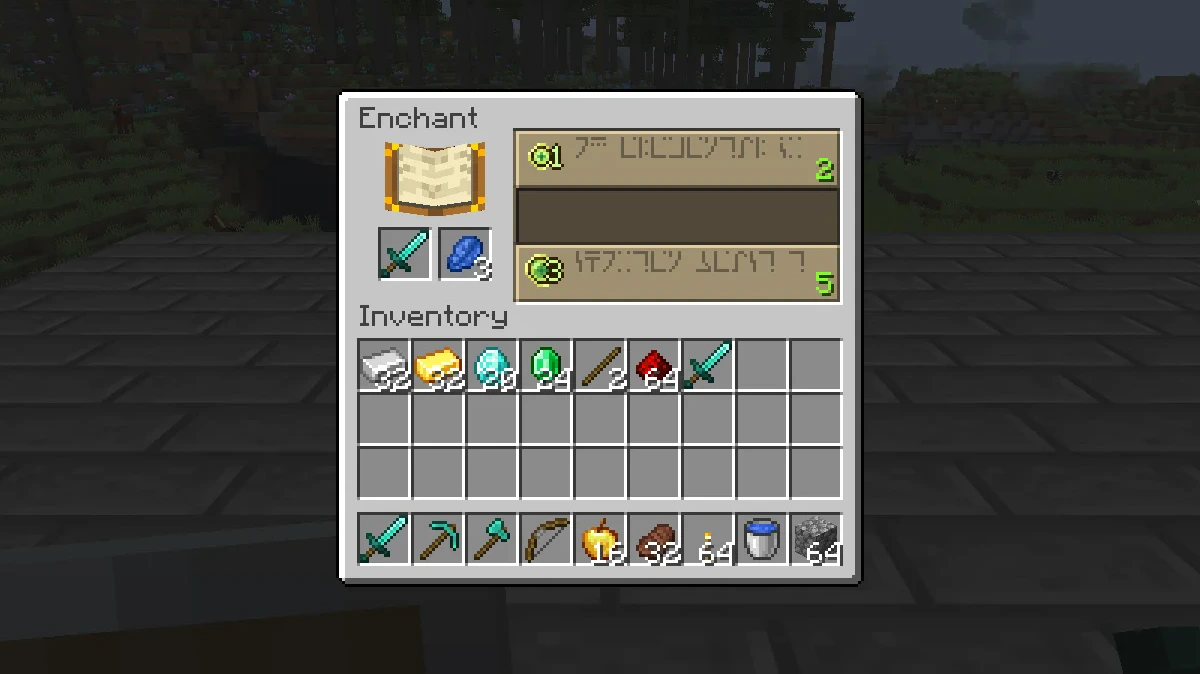
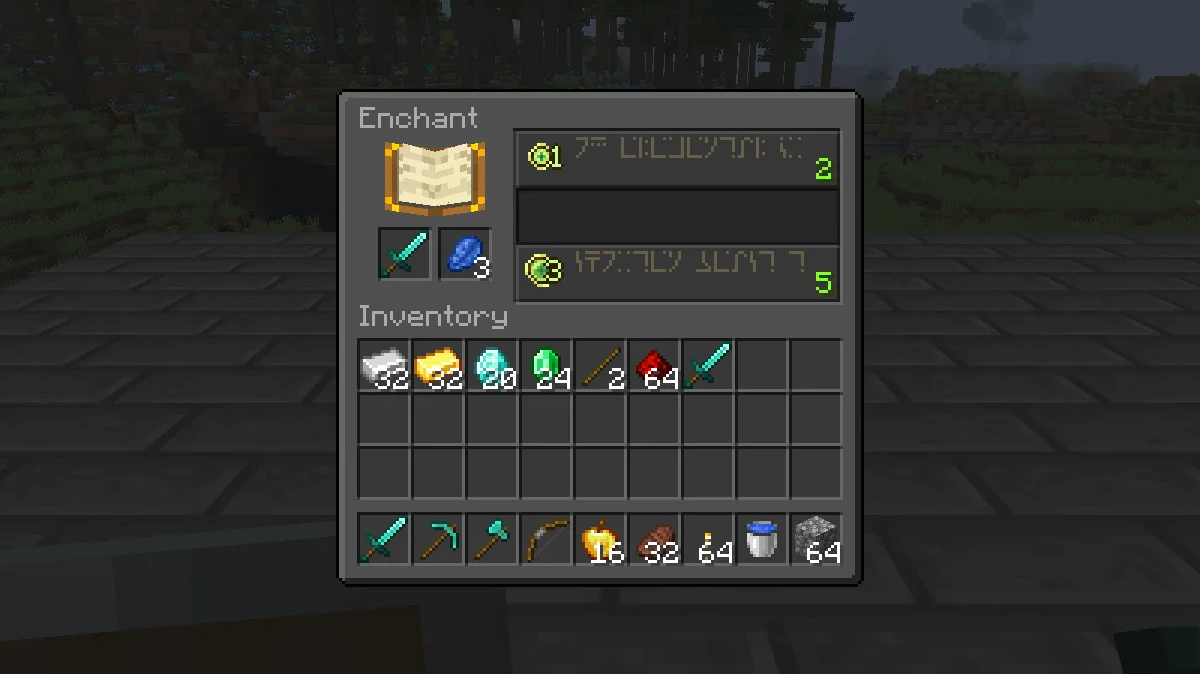
The anvil's name field turns dark with the item name still in light text, and the red cross over the arrow still marks a combination that gives no result. On the enchanting table the option bars become dark grey; the green level costs (2 and 5 in our shot) and the lapis cost icons keep their colours.
Options menu and advancements
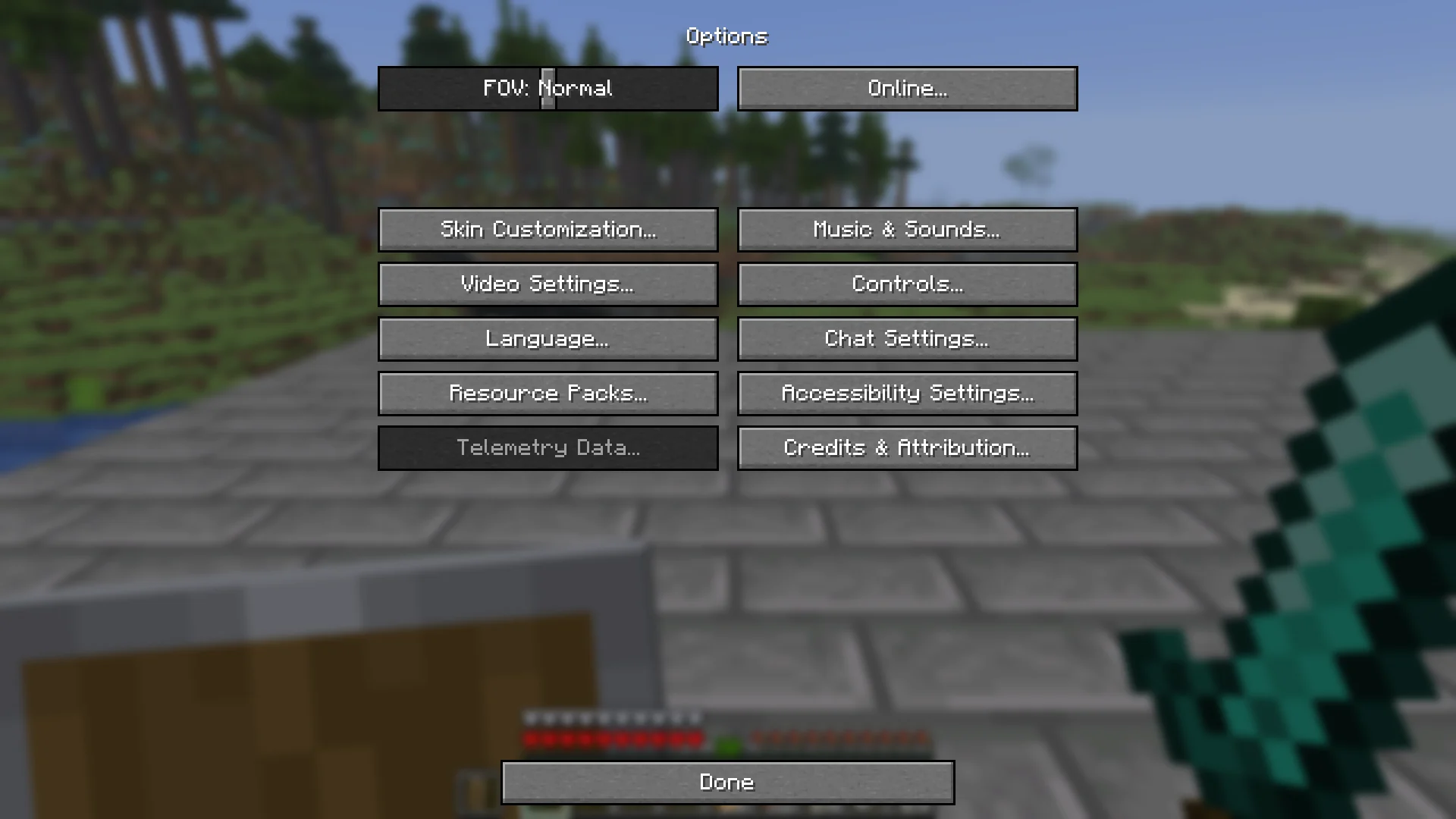
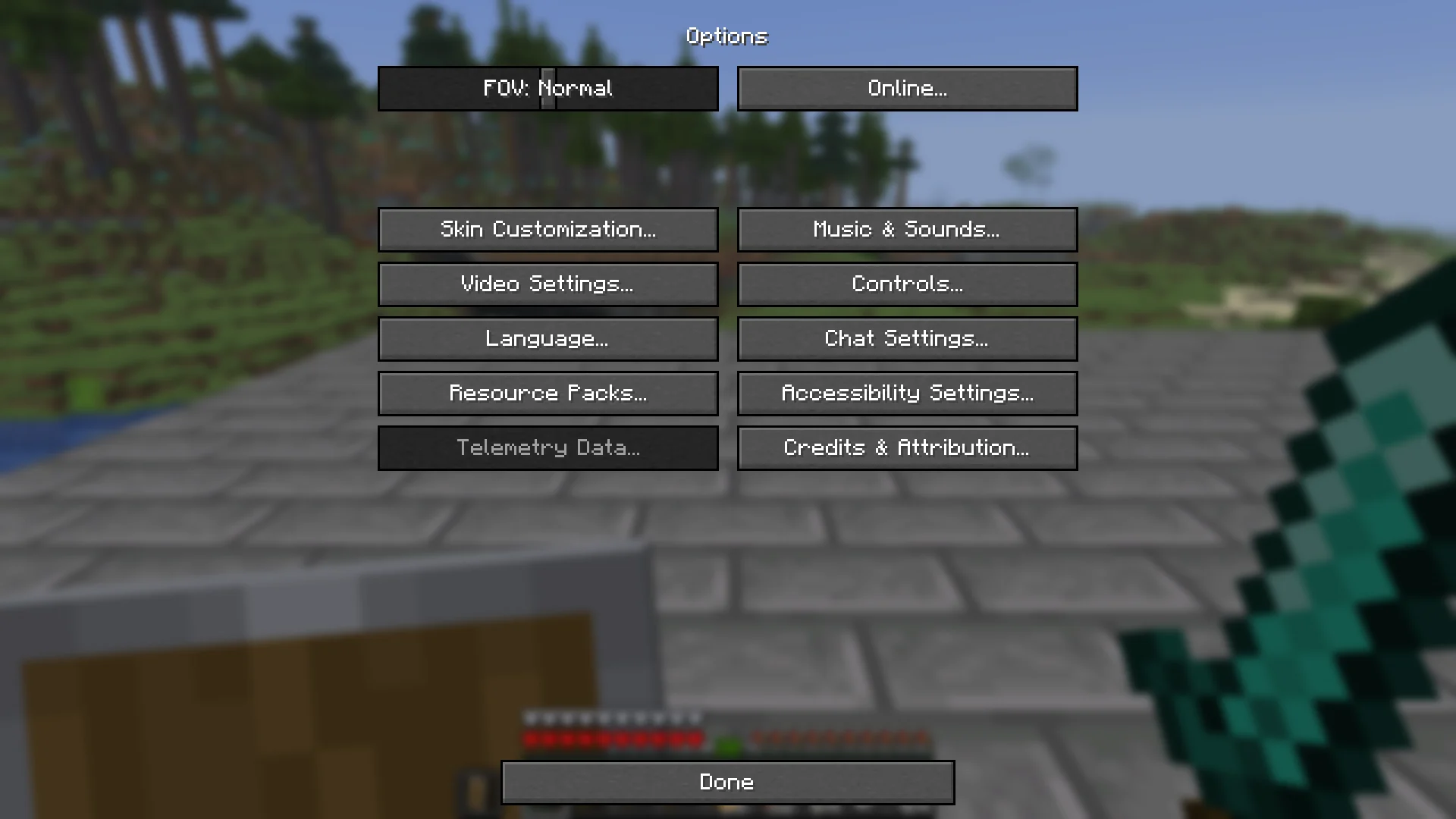
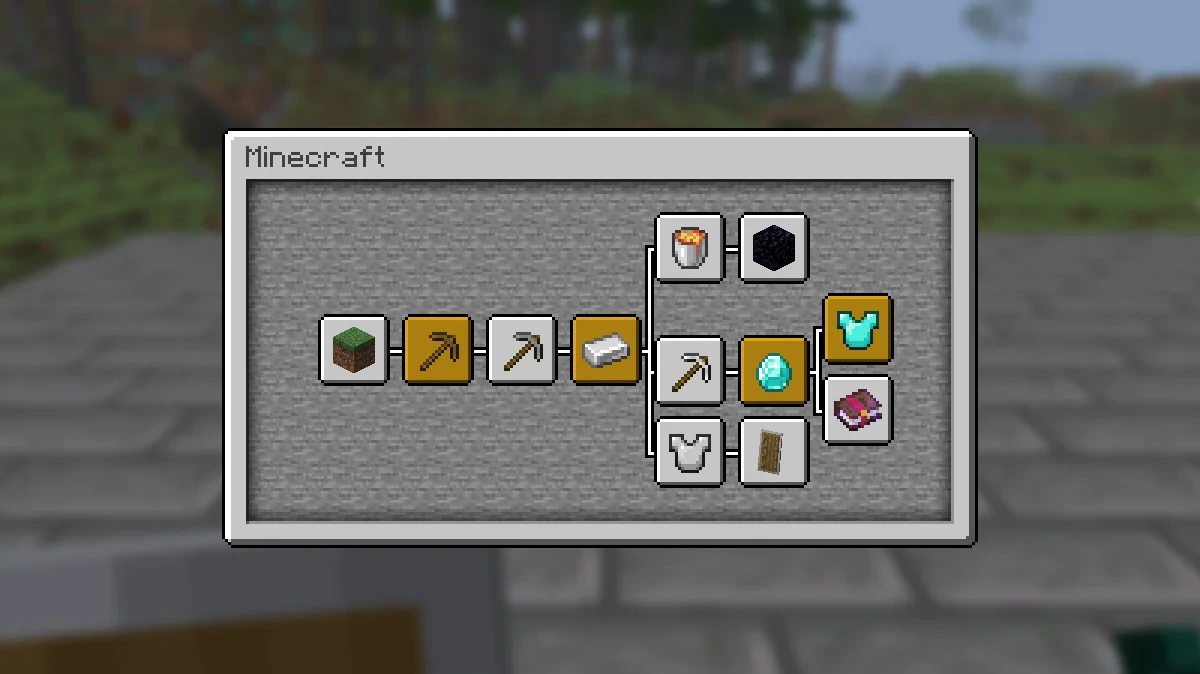
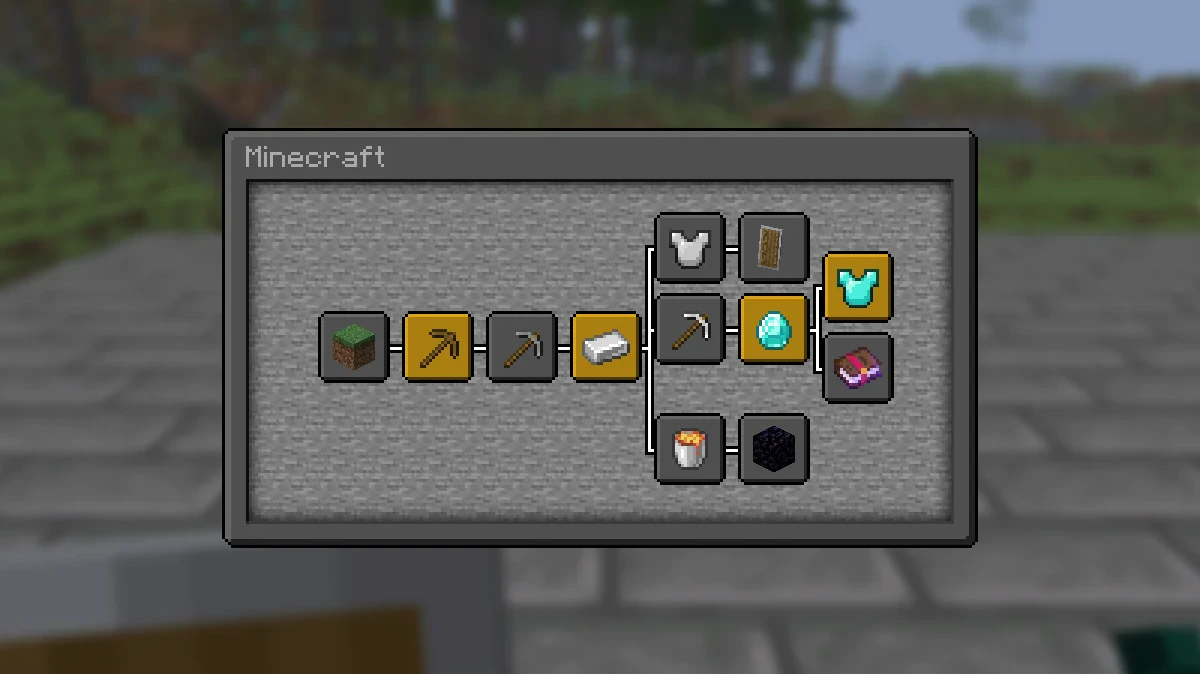
In the options menu only the buttons change: they turn dark grey with light labels. The blurred world behind the menu comes from the game, not from the pack, so it looks the same either way. The advancements screen gets a dark frame, while the tab's own background inside it stays vanilla.
What it does not cover
The pack replaces textures in the minecraft namespace, so screens added by mods keep their own colours unless the pack ships textures for them. The project page lists GUI support for a set of mods, but that table stops at Minecraft 1.20, and players are still filing support requests on GitHub, such as one for Macaw's Furniture opened in October 2026.
According to the project page, the dark loading screen is the one feature that needs OptiFine. Everything shown above works in a plain resource pack slot.
Darkomizer: building your own variant
The author also runs Darkomizer, a web customizer based on this pack. You pick a Minecraft version, adjust the colours and the text colour (a custom text colour needs 1.17 or later), then generate a download. Its version menu stops at "1.21.6+", and we did not test a Darkomizer build on 26.2, so check that one loads before you switch to it.
Installing
- 1
Pick the file for your version
File names include the game version, for example
Default-Dark-Mode-26.2-2026.6.0.zip. - 2
Open the pack folder
In Minecraft, go to Options, then Resource Packs, and click Open Pack Folder.
- 3
Add the zip
Copy the zip into that folder. Do not unzip it.
- 4
Enable it
Move Default Dark Mode to the Selected list and click Done. If you also use other GUI packs, place Default Dark Mode above them so its textures take priority.
Our test setup
| client | Fabric |
|---|---|
| minecraft Version | 26.2 |
| pack Version | 2026.6.0-26.2 |
| gui Scale | 3 |
Download and install
Choose the Java Edition file for your exact game version on the creator’s page. In Minecraft, open Options → Resource Packs → Open Pack Folder, place the ZIP there, then move the pack into the selected column.
The download is hosted by the creator, not MC Toolbox. Check the file and version before installing.