




Data packs allow players and creators to customize Minecraft gameplay mechanics, loot tables, advancements, crafting recipes, custom structures, and automated functions without installing client-side mod loaders like Fabric, Forge, or NeoForge. Because data packs run entirely on Minecraft's internal server engine, they remain native to vanilla Java Edition and affect players who join without requiring them to install the pack.
Depending on whether you are preparing a fresh survival run, updating an active survival world, or running a dedicated multiplayer server, follow the official method below.
Method 1: Enabling data packs during world creation (Recommended)
The cleanest way to add data packs is during the initial world generation process. This ensures custom world generation, custom biomes, and starting advancement triggers initialize properly from chunk zero.
- From the Minecraft main title screen, click Singleplayer.
- Click Create New World in the bottom-right corner.
- Navigate to the More tab (or Game Settings depending on version) at the top of the interface and click on Data Packs.
- Click the Open Pack Folder button at the bottom-left of the screen. This opens your operating system file explorer at the temporary world's datapack staging directory.
- Copy or drag-and-drop your downloaded data pack (either a
.zipfile or an uncompressed folder) directly into this folder. - Return to Minecraft. The data pack will instantly appear in the Available list on the left-hand side.
- Hover your cursor over the data pack and click the right arrow (>) button to move it into the Selected column on the right.
- Click Done, configure your remaining world preferences, and click Create New World.
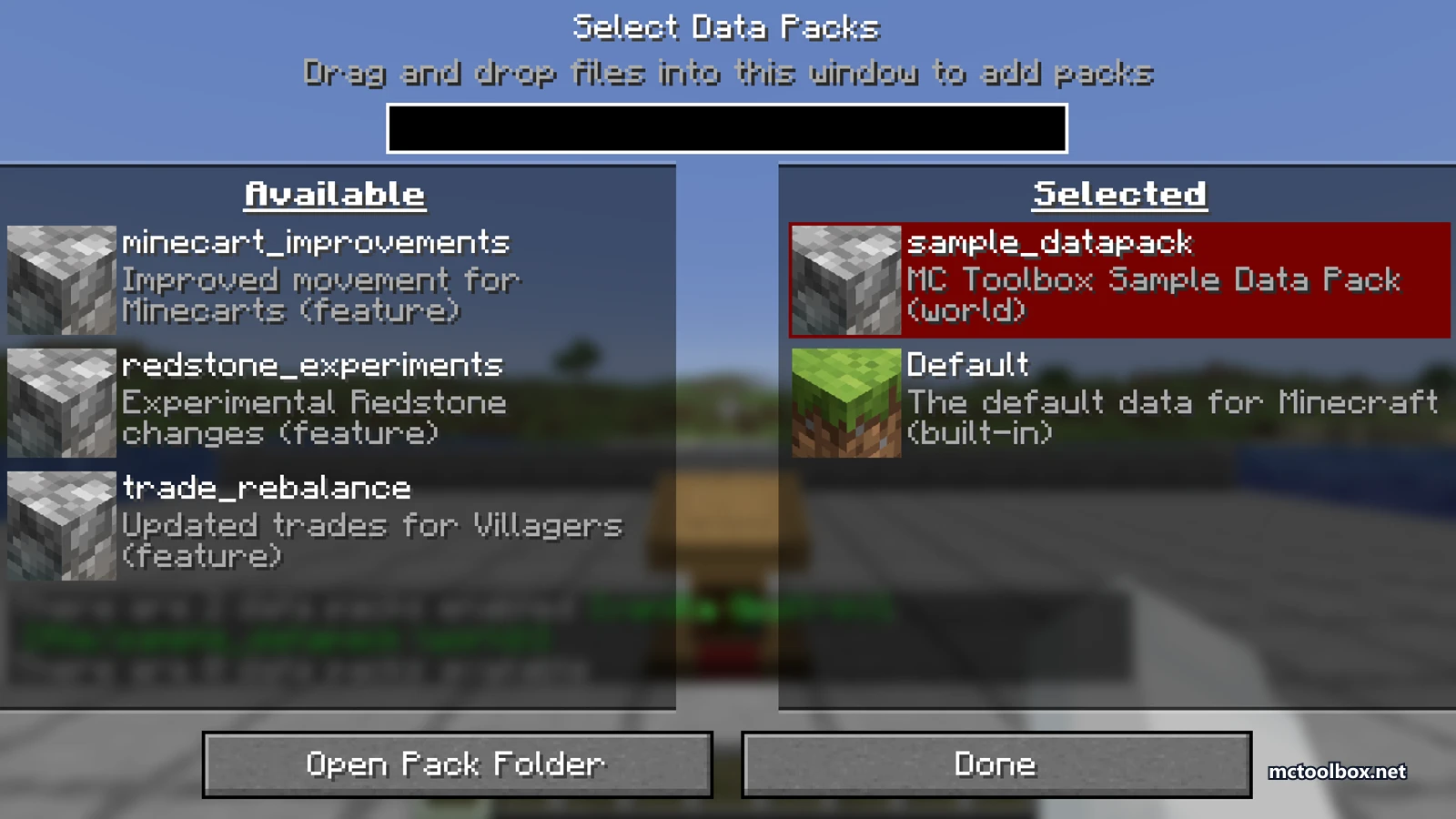
Priority Order Tip: The top of the Selected list has the highest resource priority. If two data packs modify the same recipe or loot table, the pack positioned highest in the list takes precedence.
Method 2: Enabling data packs in an existing singleplayer world
If you already have an ongoing survival world and want to add utility packs (such as timber tree capitators, multiplayer sleep, or custom crafting recipes), you can install them into your save directory while keeping your build progress intact.
- Open Minecraft and click Singleplayer.
- Click on your existing world from the list once to highlight it, then click the Edit button at the bottom.
- Click Open World Folder. This directly opens your specific save directory.
- Open the
datapackssubfolder inside your world directory. - Paste your data pack
.ziparchive or unpacked folder into thisdatapacksfolder. - Launch the world save.
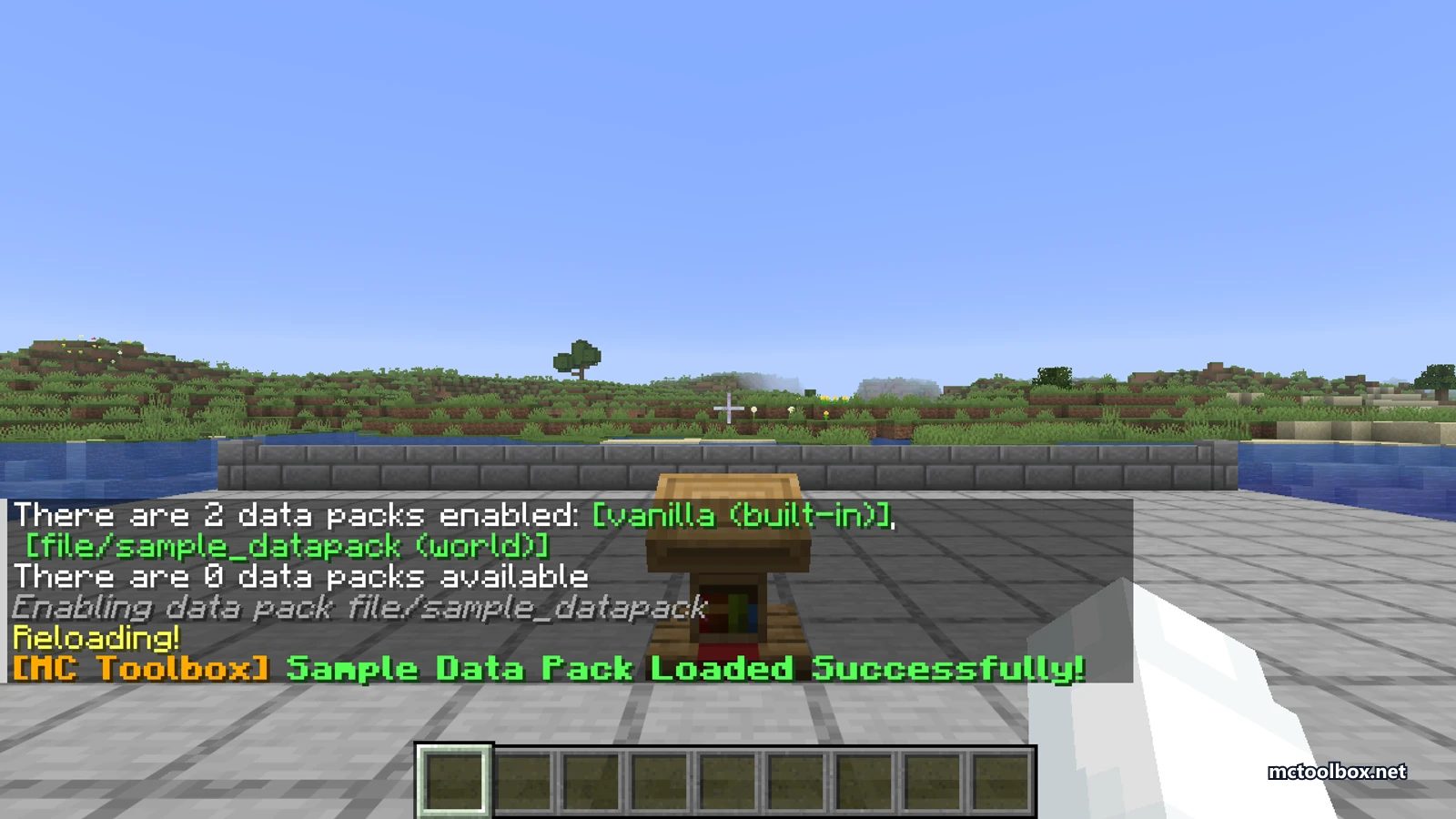
Once inside your world, open the chat bar by pressing / or T and run the verification command:
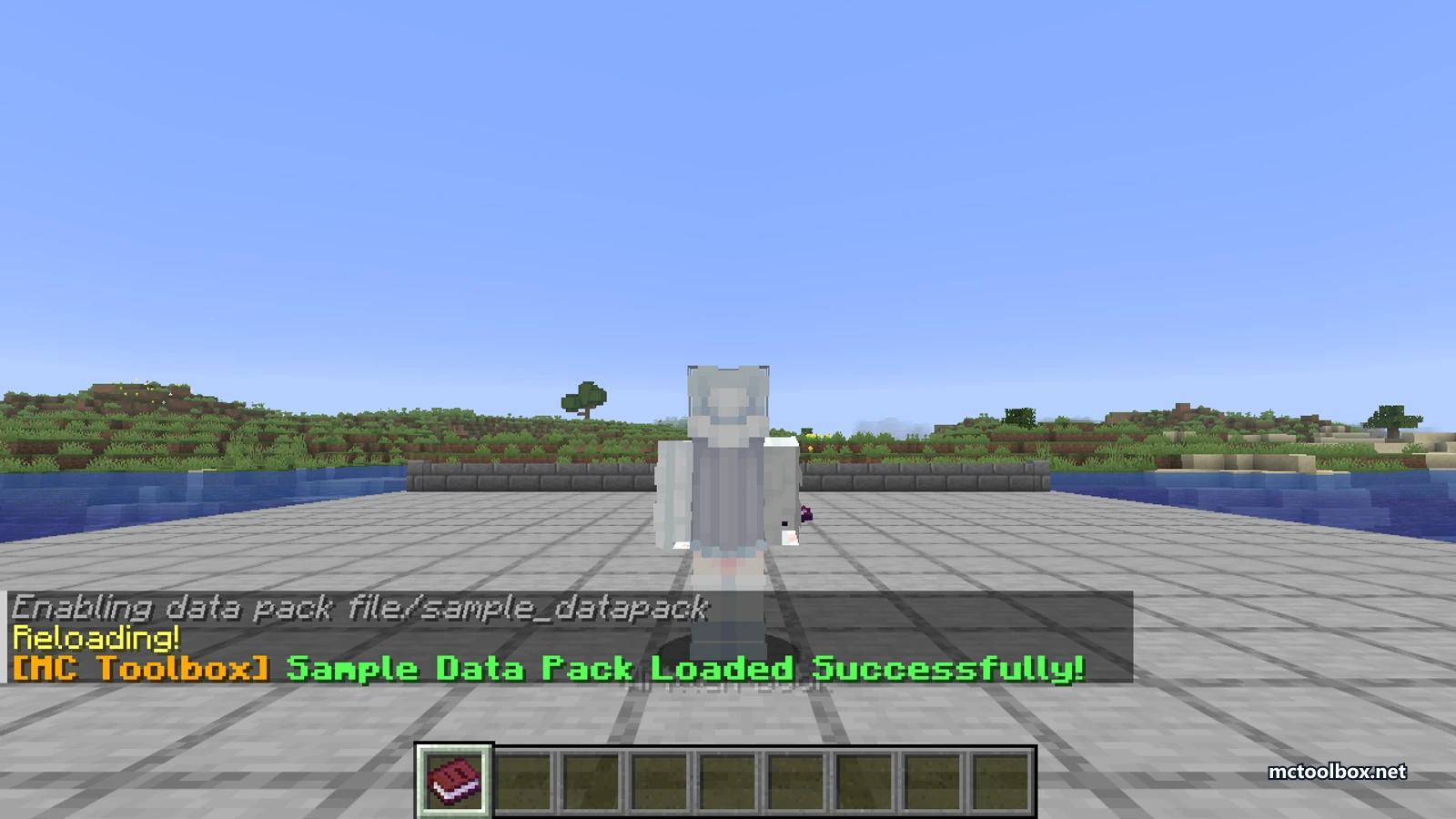
/datapack listIf Minecraft displays the data pack under "There are X data packs enabled" in green text, the pack is already active. If it appears under "There are X data packs available", enable it manually with:
/datapack enable "file/<pack_folder_or_zip_name>"Whenever you edit, add, or tweak data pack files while inside the game, run /reload to refresh all functions and recipes without exiting to the main menu.
Method 3: Enabling data packs on a dedicated Minecraft server
Installing data packs on a dedicated multiplayer server (Vanilla, Paper, Purpur, Fabric, or Forge) works identically to singleplayer saves, but targets the server's root level directory:
- Access your server files via FTP, SFTP, or your hosting control panel's File Manager.
- Locate the server's world directory. On standard servers, this folder is named
world(or custom names specified inserver.propertiesunderlevel-name). - Navigate inside
world/datapacks/. - Upload your data pack
.zipor uncompressed directory into this folder. - Open the server console (or log into the game as an OP operator) and execute:
/reload - Confirm successful loading by typing
/datapack list. The console will print all active data packs.
On vanilla Java, data packs load from the primary world’s datapacks folder and can affect every dimension. Plugin servers may handle additional worlds differently.
Check for nested pack folders
A common installation mistake is nested folders. When downloading a data pack archive, many third-party unzipping tools create an additional outer wrapper folder (e.g., datapacks/MyPack/MyPack/pack.mcmeta).
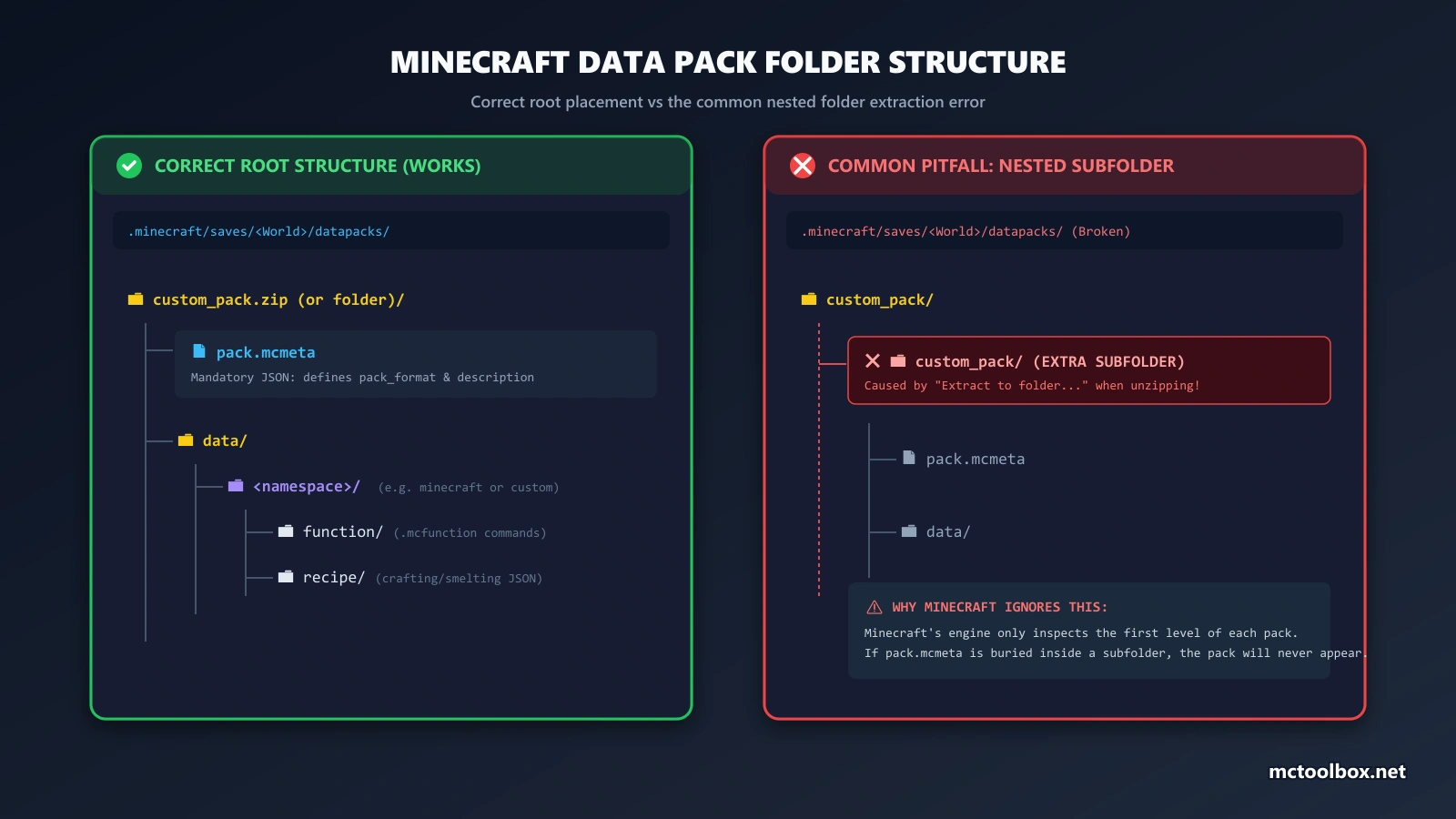
For Minecraft to recognize and enable a data pack, the root of the pack folder or ZIP archive must immediately contain two items:
pack.mcmeta: The required JSON metadata file defining the pack's format version and description.data/: The directory containing your namespaces (e.g.minecraft/,custom_namespace/) and feature subfolders (function/,recipe/,loot_table/,tags/).
If you open your data pack folder and see another folder with the same name before reaching pack.mcmeta, move the inner contents up one level.
Minecraft data pack version compatibility & pack_format table
Java 26.3 uses data-pack version 121.0. Current pack metadata uses min_format and max_format; older packs used pack_format. If the format number does not match your current Minecraft release, the game will highlight the pack in red with a warning prompt: "Made for an older/newer version of Minecraft".
| Minecraft Version | Pack Format | Folder Convention | Key Update Changes |
|---|---|---|---|
| Java 26.3 | 121.0 |
Singular (function, recipe) |
Use metadata and data files compatible with 26.3. |
| Java 26.1.x | 101.1 |
Singular | Internal data structure upgrades. |
| Java 1.21.4 | 61 |
Singular | The Garden Awakens; format 61. |
| Java 1.21.2 – 1.21.3 | 57 |
Singular | Bundles of Bravery; format 57. |
| Java 1.21 – 1.21.1 | 48 |
Singular | Folder names converted from plural to singular (functions to function, recipes to recipe). |
| Java 1.20.5 – 1.20.6 | 41 |
Plural | Armadillo, wolf armor, and initial item component overhaul. |
| Java 1.20.3 – 1.20.4 | 26 |
Plural | Tick rate controls and crafter block registries. |
| Java 1.20 – 1.20.1 | 15 |
Plural | Trails & Tales update (cherry blossom, sniffer, pottery sherds). |
| Java 1.19.4 | 12 |
Plural | Display entities and interaction elements. |
| Java 1.18.2 | 9 |
Plural | Custom structure placement tags. |
| Java 1.16.2 – 1.16.5 | 6 |
Plural | Nether update biome and dimension registries. |
| Java 1.13 – 1.14.4 | 4 |
Plural | Original introduction of data packs in Update Aquatic. |
Understanding the red 'Incompatible' warning
An incompatibility warning means the pack’s declared format range does not include this game version. Back up the world and use a release of the pack made for Java 26.3. Enabling an incompatible pack does not convert its files or prove that its functions, recipes or world generation work.
However, packs created before version 1.21 (format 48) that use legacy plural directory names (functions/ instead of function/) will fail to load their commands on modern 1.21+ versions until the subfolders are renamed to their singular forms.
Complete /datapack command reference
| Command Syntax | Function & Usage |
|---|---|
/datapack list |
Displays all enabled and available data packs in chat. |
/datapack list enabled |
Filters the list to show only active data packs. |
/datapack list available |
Filters the list to show disabled data packs present in the datapacks/ folder. |
/datapack enable "file/<name>" |
Enables a data pack with its default insertion position. |
/datapack enable "file/<name>" first |
Enables a data pack and assigns it the lowest execution priority. |
/datapack enable "file/<name>" last |
Enables a data pack and assigns it the highest execution priority (overrides others). |
/datapack enable "file/<name>" before "file/<other>" |
Places the pack immediately below another specified pack in priority. |
/datapack disable "file/<name>" |
Disables an active data pack without deleting its files from disk. |
/reload |
Reloads data-pack resources across the server; errors are reported during the reload. |
Building and editing data packs online
If you want to create your own custom crafting recipes, custom smelting outputs, advancement trees, or function commands without manually writing JSON files by hand, you can design and export complete packs with the online MC Toolbox Data Pack Studio.
To inspect specific command syntax, custom player inventory commands, or global gamerules that integrate with your data packs, explore the Minecraft Commands Master Guide, configure rule overrides in the Gamerule Command Generator, or test item attributes with the Minecraft Give Command Builder.
Frequently asked questions
Can I enable data packs in Minecraft Bedrock Edition (Consoles, Mobile, Windows)?
No. Data packs are exclusive to Minecraft Java Edition. Bedrock Edition uses Behavior Packs and Add-Ons (packaged as .mcpack or .mcaddon files) to modify entity behaviors, recipes, and loot. You cannot load Java data pack files into a Bedrock world.
Do data packs disable achievements or advancements?
No. In Minecraft Java Edition, Advancements remain active and fully functional when data packs are loaded. Data packs can even add custom Advancement trees to your world alongside vanilla milestones.
Why does /reload say 'Unknown or incomplete command'?
This error appears when cheats (commands) are disabled on your player profile. To resolve this in singleplayer, press Esc to open the Pause Menu, click Open to LAN, toggle Allow Cheats: ON, and click Start LAN World. You will then have permission to run /datapack and /reload.
Should I keep data packs as a .ZIP or extract them into a folder?
Both formats work equally well. Keeping the pack as a compressed .zip file is convenient for sharing and keeps your folder tidy. Extracting into an uncompressed folder is ideal if you plan to edit .mcfunction files, change recipe values, or customize loot tables directly.
How do I safely uninstall or remove a data pack?
Follow the pack author’s uninstall instructions, then run /datapack disable "file/<pack_name>". Disabling does not undo blocks, entities or saved data created by the pack. Then exit the world, navigate to your save's datapacks/ folder, and delete the corresponding .zip or folder. Finally, re-enter the world and run /reload.