





Press / to open chat with a command prefix, or T to open normal chat on a keyboard. On Bedrock touch controls, use the chat button.
Executing console commands allows you to modify time and weather, teleport instantly across infinite coordinates, grant unlimited experience levels, summon custom mobs, and receive high-tier enchanted gear. World-changing commands require sufficient permission. Commands such as /help can be available without enabling cheats.

Enabling cheats in singleplayer and multiplayer
Depending on whether you are generating a fresh world or exploring an existing survival save, you can enable operator commands using two official methods.
Method 1: Enabling commands during world creation (Recommended)
When creating a new singleplayer world in Minecraft Java Edition, cheats can be toggled on permanently directly from the setup menu:
- From the Minecraft main title screen, click Singleplayer.
- Click the Create New World button in the bottom-right corner.
- Navigate to the Game tab at the top of the interface.
- Scroll down and toggle the Allow Commands button to ON.
- Click Create New World at the bottom to launch your sandbox world.

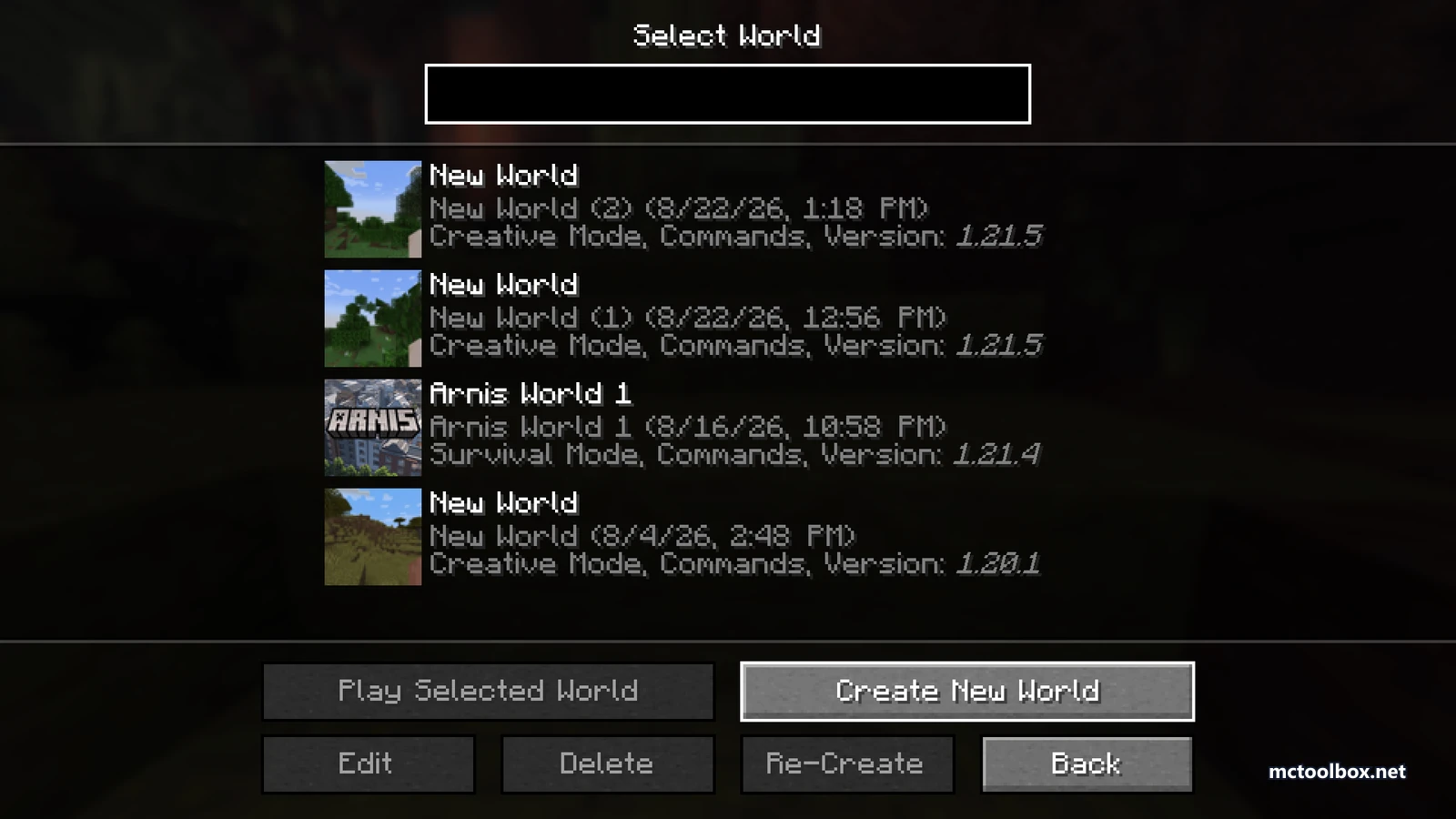

Note on Hardcore Mode: If you select Hardcore Mode on the world creation screen, the game automatically locks the 'Allow Commands' button to OFF and greys it out to preserve hardcore difficulty integrity. If you want to use commands in a Hardcore world (e.g., to recover from a world glitch or test redstone), generate the world first and use Method 2 below.
Method 2: Enabling commands in an existing world (The LAN workaround)
If you already have an active survival world or a Hardcore world where cheats were disabled, you can enable them temporarily without restarting:
- While inside your active world, press the Esc key to open the Pause Menu.
- Click on the Open to LAN button.
- Toggle the Allow Cheats setting from OFF to ON.
- Click Start LAN World.
Note: This LAN permission remains active for your current play session until you exit and reload the world save.
Opening the console and executing commands
Once cheats are enabled, press / in-game. The game will open the chat window with a forward slash already typed, activating the real-time syntax helper.
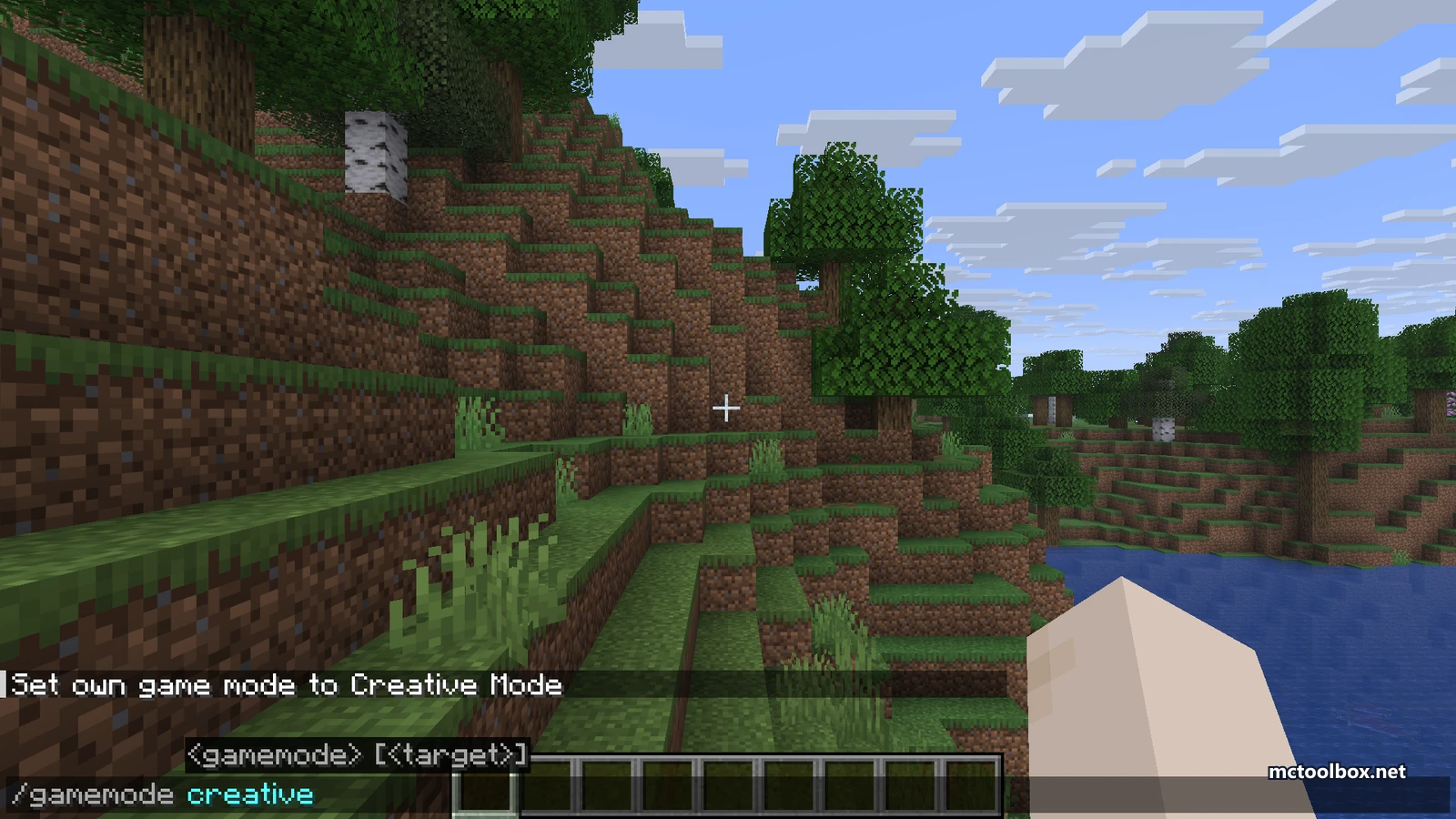
The Tab auto-complete shortcut
You never need to memorize exact spellings for hundreds of blocks or mobs. Type the base command and the first few letters (e.g. /give @s netherite_), then press the Tab key. Minecraft's command engine will automatically complete the name (e.g. netherite_sword). Pressing Tab repeatedly cycles through all valid matching options.
Relative coordinates (~ and ^)
Instead of typing absolute global numbers like 1450 64 -320, you can use relative coordinates based on your character's current standing position:
- Tilde notation (
~): Represents your current XYZ coordinates. Typing/tp ~ ~10 ~teleports you exactly 10 blocks straight up into the air. Typing/setblock ~ ~-1 ~ stoneplaces a stone block directly under your feet. - Caret notation (
^): Represents local coordinates relative to the direction your character's eyes are facing (Left/Right, Up/Down, Forward/Backward). Typing/tp ^ ^ ^5teleports you 5 blocks forward in the direction you are looking.
Target selectors explained (@s, @p, @a, @r, @e)
When executing commands that target players or entities, typing long player usernames can be tedious. Use these official target selectors instead:
| Target Selector | Target Name | Who or What It Targets |
|---|---|---|
@s | Self | The executing entity, usually a player. A command block is not an entity, so @s is empty unless execution is changed with /execute as. |
@p | Nearest Player | The single closest player to the execution coordinates. |
@a | All Players | Every active player currently connected to the world or server. |
@r | Random Player | A randomly selected player in the game. |
@e | All Entities | Every living mob, player, dropped item, armor stand, and vehicle. |
Essential Minecraft commands list (Java 26.3)
1. Game Mode & World Management
| Command Syntax | Functional Effect |
|---|---|
/gamemode creative | Switches to Creative Mode (flying, invulnerability, access to Creative inventory). |
/gamemode survival | Switches to Survival Mode (health, hunger, resource gathering). |
/gamemode spectator | Switches to Spectator Mode (fly through solid walls, invisible to mobs). |
/gamerule minecraft:keep_inventory true | Prevents losing items, armor, and experience levels upon dying. |
/time set day | Sets the world clock to early morning (1000 ticks) immediately. |
/time set night | Sets the world clock to nightfall (13000 ticks) immediately. |
/weather clear 300s | Dispels rain or thunderstorms and sets clear sunny skies for 5 minutes. |
/weather thunder | Triggers heavy thunderstorm weather with dark skies and lightning strikes. |
/difficulty peaceful | Removes hostile mobs and prevents hunger depletion. |
/setworldspawn | Sets the default global spawn point for all new players at your current coordinates. |
Need more game rule adjustments? Use the interactive MC Toolbox Gamerule Generator to toggle mob griefing, fire spread, and daylight cycle with one click, or test the Gamemode Switcher Tool.
2. Teleportation & Structure Discovery
| Command Syntax | Functional Effect |
|---|---|
/tp <x> <y> <z>Example: /tp 120 70 -450 | Teleports your character to the exact coordinates specified. |
/tp @s <player_name>Example: /tp @s Alex | Teleports your character directly to another player's location. |
/tp <player_name> @sExample: /tp Steve @s | Pulls another player directly to your standing location. |
/locate structure #minecraft:village | Finds the nearest village and displays its exact coordinates in chat. |
/locate structure ancient_city | Locates the closest Deep Dark Ancient City structure. |
/locate biome minecraft:cherry_grove | Returns the coordinates of the nearest Cherry Blossom biome. |
/seed | Displays the world seed string, allowing you to recreate the terrain in the Seed Map Explorer. |
Pro-Tip for Teleporting: When you run /locate structure or /locate biome, Minecraft prints the coordinates in green text inside your chat window. Simply left-click on the green coordinate text in the chat to auto-fill the complete /tp command into your chat bar!
Traveling through the Nether? Use the Nether Coordinate Calculator to calculate 8:1 portal links accurately without getting lost.
3. Experience, Status Effects & Survival Buffs
| Command Syntax | Functional Effect |
|---|---|
/experience add @s 100 levels | Instantly grants 100 full experience levels (ready for enchanting). |
/experience add @s 500 points | Adds 500 individual experience points to the player's XP bar. |
/effect give @s night_vision infinite 1 true | Grants Night Vision until cleared, with hidden particles. |
/effect give @s strength infinite 5 true | Grants Strength VI until cleared (massive melee attack damage boost). |
/effect give @s speed 120 2 true | Grants Speed III for 120 seconds. |
/effect clear @s | Immediately removes all active potion and status effects from your character. |
/spawnpoint | Sets your personal bed/respawn coordinate to your current standing position. |
To create custom potion buffs with exact amplifiers and particles, use the Minecraft Effect Command Generator.
4. Item Management & Modern Component Syntax (Java 26.x)
Java 1.20.5 introduced bracketed item data components. Java 26.x uses those components, including the flat enchantment map shown below. Old cheat codes from legacy websites will produce parsing errors.
| Command Syntax | Functional Effect |
|---|---|
/give @s minecraft:diamond 64 | Gives your character a full stack (64) of raw diamonds. |
/give @s netherite_sword[enchantments={sharpness:5,looting:3,unbreaking:3}] 1 | Spawns a Netherite Sword pre-enchanted with Sharpness V, Looting III, and Unbreaking III. |
/give @s netherite_pickaxe[enchantments={efficiency:5,fortune:3,mending:1}] 1 | Spawns an enchanted Netherite Pickaxe using modern component data. |
/clear @s | Wipes your entire active inventory, armor slots, and off-hand items. |
/clear @s poisonous_potato | Removes only poisonous potatoes from your inventory while keeping other gear safe. |
To generate custom items with colored names, lore, unbreakable tags, and custom attributes, use the Minecraft Give Command Generator, lookup IDs in the Item IDs Database, or build custom enchants with the Enchantment Generator.
5. Building, Excavation & Mob Summoning
| Command Syntax | Functional Effect |
|---|---|
/fill ~-5 ~-1 ~-5 ~5 ~-1 ~5 stone | Constructs an instant 11×11 stone platform beneath your feet. |
/fill ~ ~ ~ ~10 ~10 ~10 air | Clears an 11×11×11 volume, including its interior. |
/fill ~-5 ~ ~-5 ~5 ~5 ~5 air replace water | Clears all water in an 11×11 area without destroying solid walls. |
/summon minecraft:iron_golem ~ ~ ~ | Spawns a friendly Iron Golem defender at your current position. |
/summon minecraft:ender_dragon ~ ~ ~ | Summons the Ender Dragon in any dimension. |
/kill @e[type=zombie,distance=..30] | Eliminates all zombies within a 30-block radius while sparing players and pets. |
6. Command Blocks & Advanced Automation
If you want to automate repetitive cheat codes, build custom adventure maps, or trigger complex chained mechanics, obtain a Command Block:
/give @s minecraft:command_block 1Place the block, right-click to open its GUI, and paste any standard command inside. You can power it with Redstone dust, levers, or configure it to Repeat mode for continuous automated execution. If you need to chain conditional logic without writing complex code by hand, you can build and test advanced command chains using the MC Toolbox Execute Command Builder.
Understanding command syntax logic
Every Minecraft command follows a structured, logical sequence similar to programming functions:
Action (/give) to Target (@s) to Item (diamond_sword) to Components ([enchantments={...}]) to Quantity (1)
Mastering this syntax gives you complete creative control over world generation, custom mini-games, server moderation, and survival utility.
Common command syntax errors and questions
Why is 'Allow Commands' locked to OFF in Hardcore Mode?
In Hardcore Mode, the world creation menu intentionally locks 'Allow Commands' to OFF and greys out the button to prevent accidental cheating. To run commands in Hardcore (for example, to recover from a world glitch), open the pause menu, click Open to LAN, and set Allow Cheats: ON.
Why does the game say 'Unknown or incomplete command'?
Check your command permissions and spelling. An unavailable command or outdated item-component syntax can also cause a parsing error.
Does enabling cheats disable achievements / advancements?
On Bedrock Edition (consoles and mobile), enabling cheats permanently disables Xbox achievements for that world save. On Java Edition, achievements are tracked per-world as Advancements and remain active, and commands do not disable them.
What is the difference between Java and Bedrock command syntax?
Both editions have /tp, /gamemode, /time and /weather, but their accepted arguments and duration syntax can differ. However, Bedrock Edition uses raw integer data values or unique JSON components for /give, whereas Java Edition uses modern bracketed Data Components [...].
What happens if I type /kill without any parameters?
Typing bare /kill will immediately kill your own character. To target a specific hostile mob type within a radius, specify the entity type and radius, such as /kill @e[type=skeleton,distance=..20].