




To fix the "Multiplayer is disabled. Please check your Microsoft account settings" error in Minecraft, you must enable multiplayer permissions in your Xbox Live privacy settings. Log into account.xbox.com/settings, navigate to Privacy & online safety, and set both "You can join multiplayer games" and "You can join cross-network play" to Allow. If the player uses a family-managed child account, a parent or family organizer must sign in and grant these permissions.
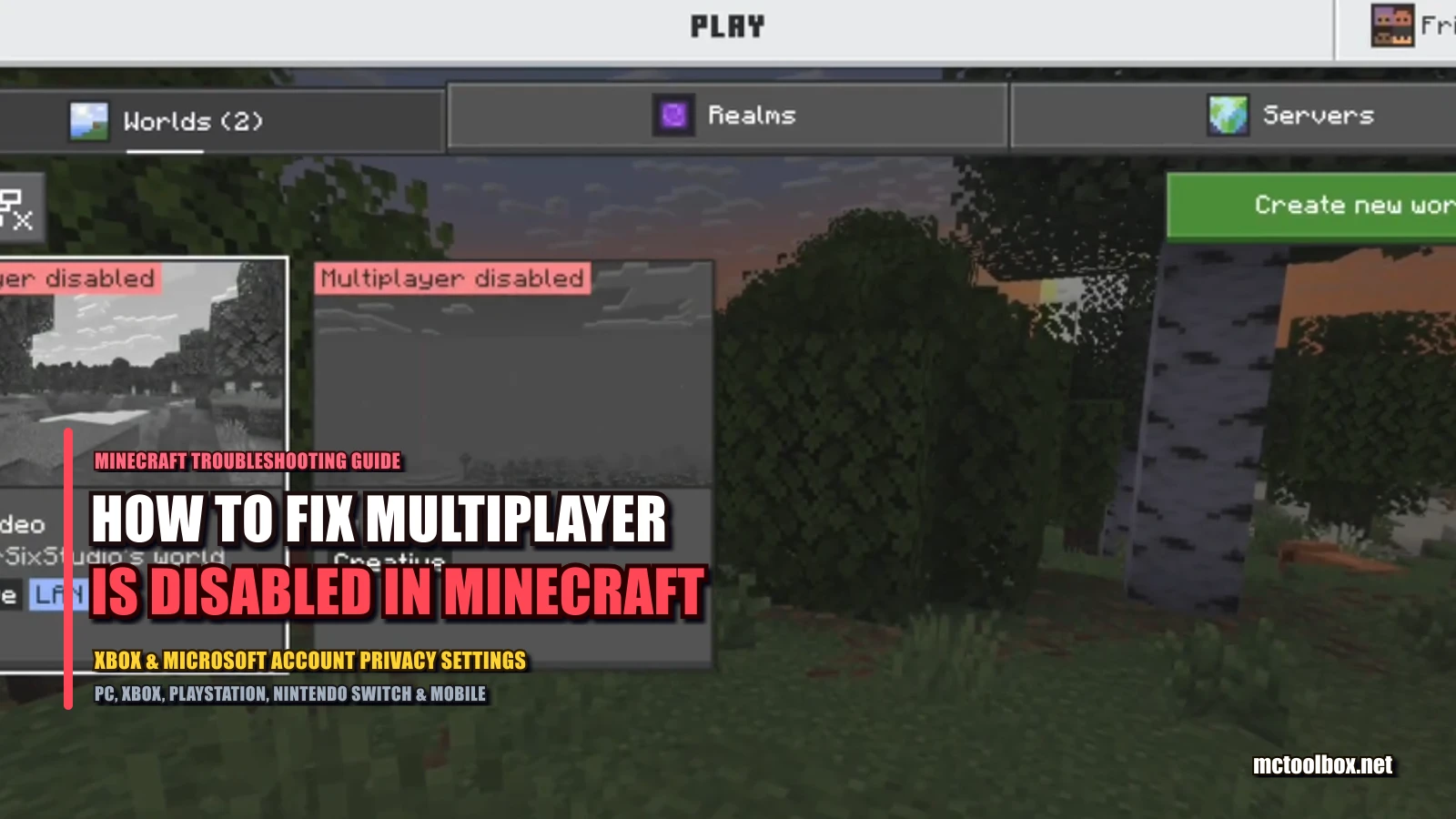
Why Does Minecraft Say "Multiplayer is Disabled"?
Minecraft Bedrock Edition (on Windows PC, Xbox, PlayStation, Nintendo Switch, iOS, and Android) uses Microsoft account permissions for cross-platform online multiplayer; local and same-platform options depend on the device. The game locks multiplayer access when your account triggers any of these conditions:
- Default Privacy Restrictions: An account’s multiplayer privacy setting can block joining online games; a Friends-only communication setting does not by itself disable multiplayer.
- Child / Family Safety Accounts: Child-account restrictions depend on the account’s age, country or region, and family settings. By default, multiplayer and club access are disabled until a parent authorizes them.
- Cross-Network Play Blocked: If "You can join cross-network play" is turned off, your console cannot join worlds hosted by players on other gaming hardware (such as mobile or Nintendo Switch).
- Inactive Console Subscription: On Xbox, PlayStation, or Nintendo Switch, joining online worlds also requires that platform's multiplayer tier (Xbox Game Pass Core, PlayStation Plus, or Nintendo Switch Online).
How the Error Appears in Minecraft
When multiplayer restrictions are active on your account, Minecraft communicates the block across two distinct screens:
1. Red "Multiplayer disabled" Tag on World Cards
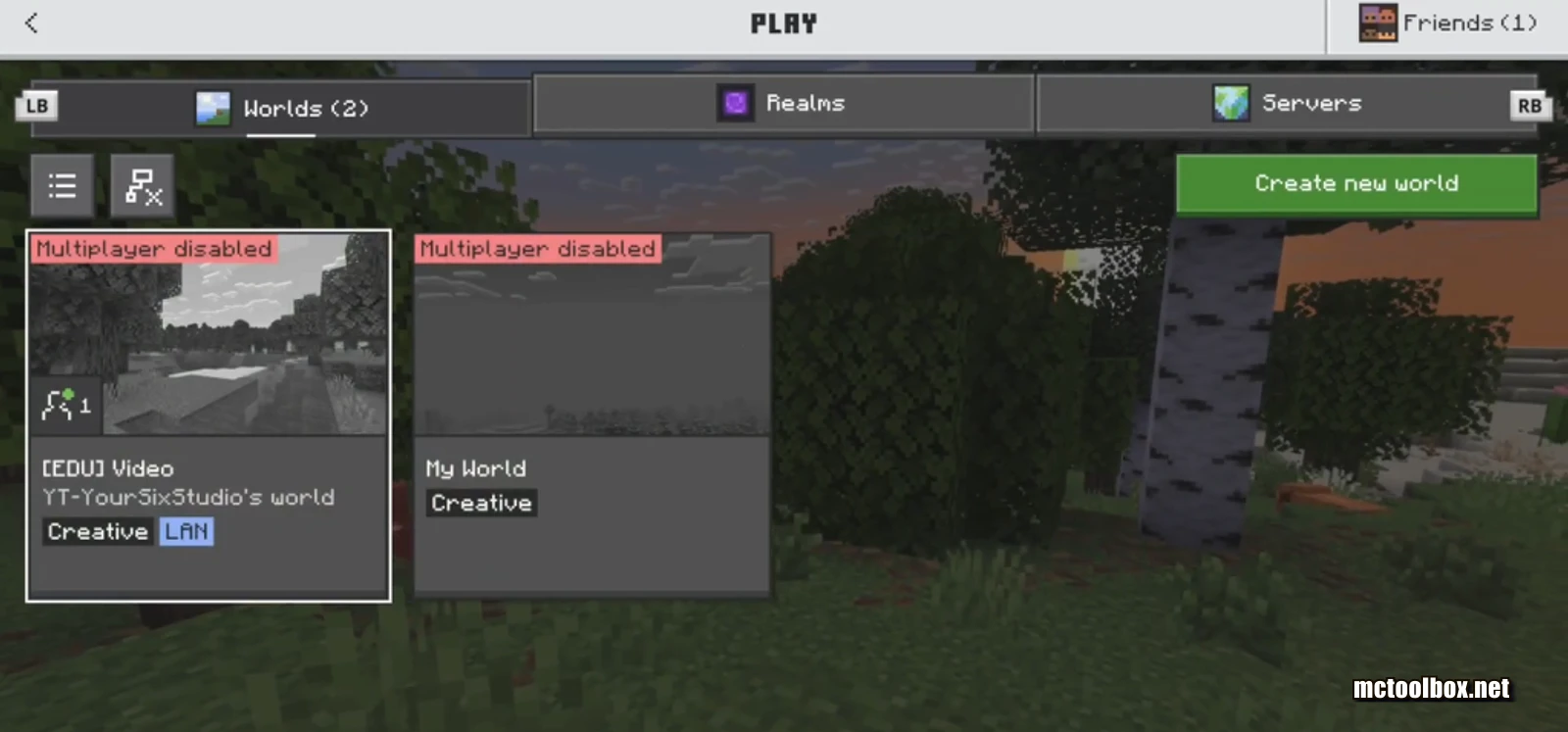
On the main Play screen under the Worlds tab, every existing world card receives a red banner labeled "Multiplayer disabled", and the world thumbnail icon is desaturated to grayscale.
2. Grayed-Out Multiplayer Toggle in World Settings
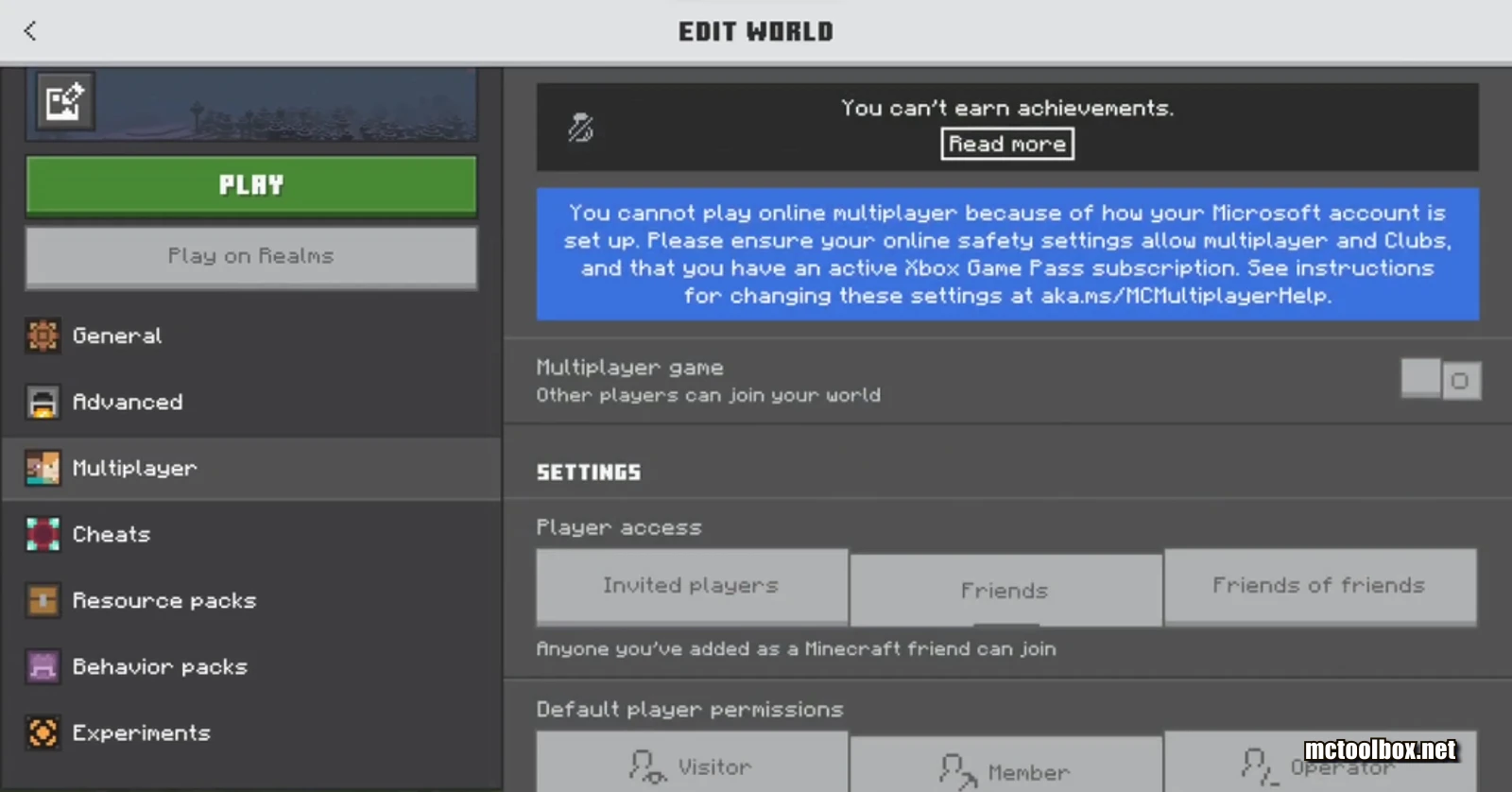
If you click the pencil edit icon next to any world and open the Multiplayer tab on the left, Minecraft displays a prominent blue alert box:
"You cannot play online multiplayer because of how your Microsoft account is set up. Please ensure your online safety settings allow multiplayer and Clubs, and that you have an active Xbox Game Pass subscription. See instructions for changing these settings at aka.ms/MCMultiplayerHelp."
Directly beneath this message, the Multiplayer game toggle is grayed out and unavailable while the restriction is active. You cannot click or drag this toggle inside Minecraft; the fix must be completed in your Microsoft account settings.
Method 1: Fixing the Error on Xbox Consoles (Xbox Series X|S & Xbox One)
If you play on an Xbox console, you can update your online safety preferences directly through the system dashboard without opening a web browser.
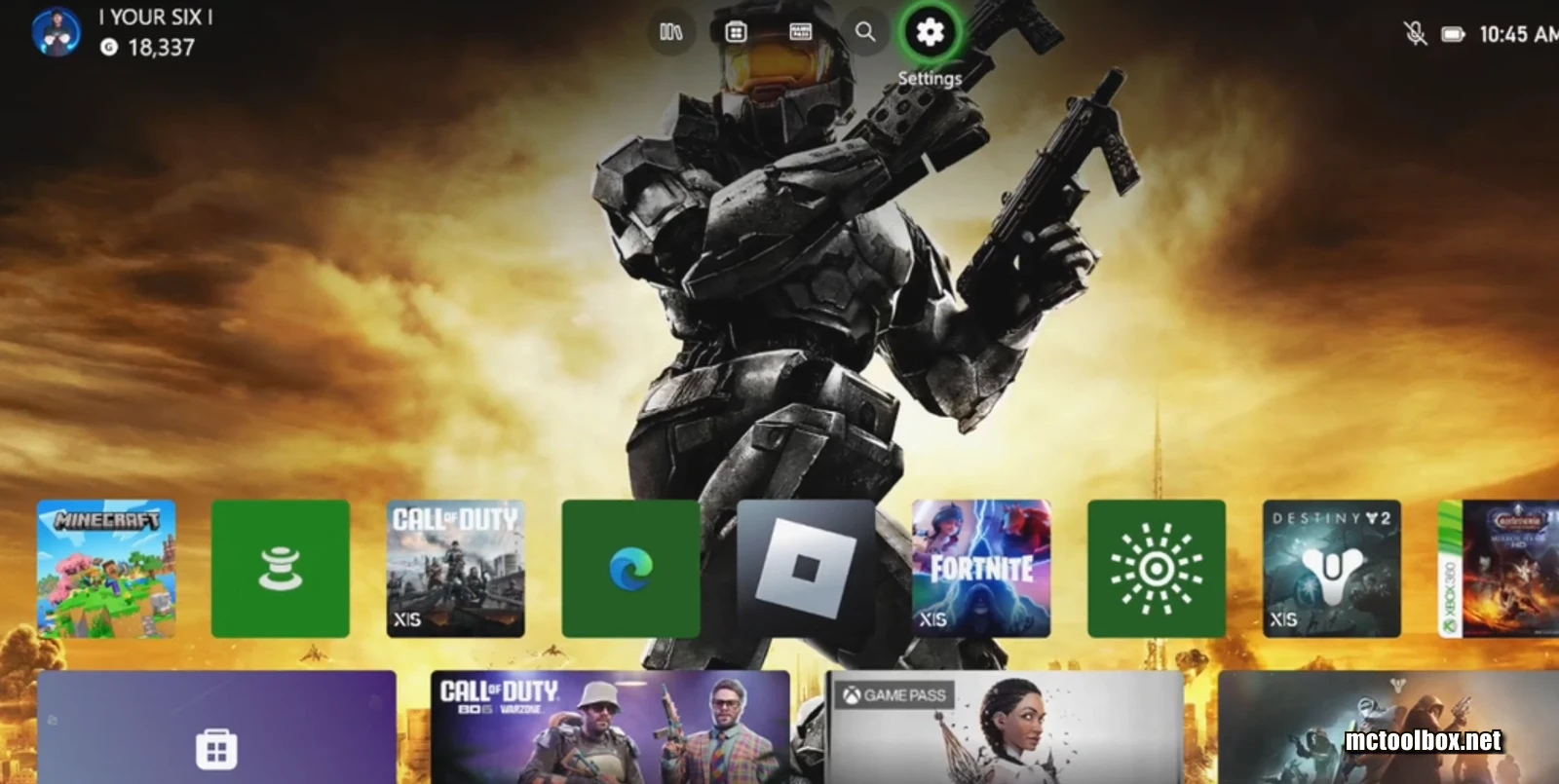
- Open Xbox Settings from the Home Dashboard: On your Xbox Home screen, navigate to the top icon row and select the Settings gear icon.
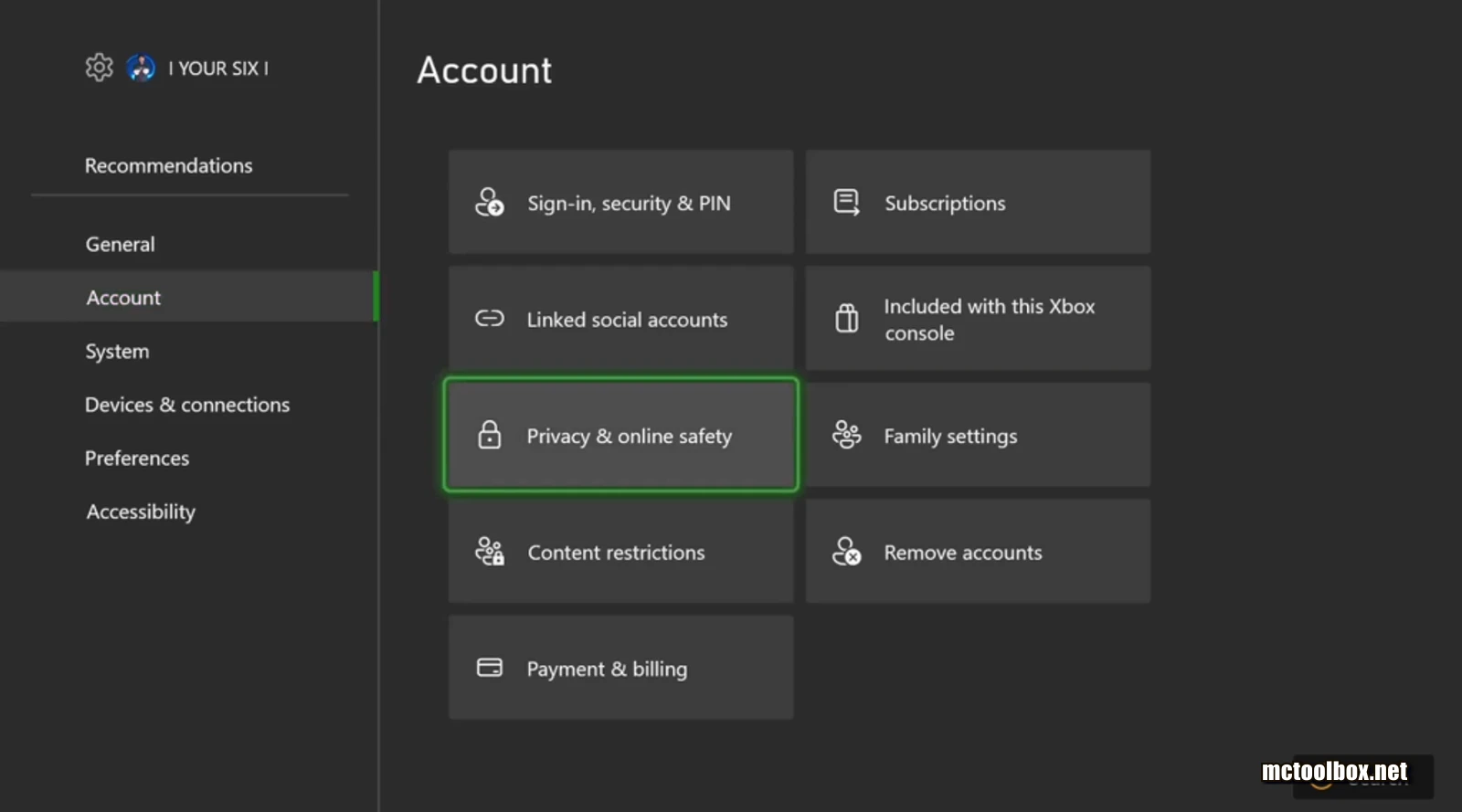
- Navigate to Privacy & Online Safety: In the Settings menu, select the Account tab in the left column, then choose Privacy & online safety.
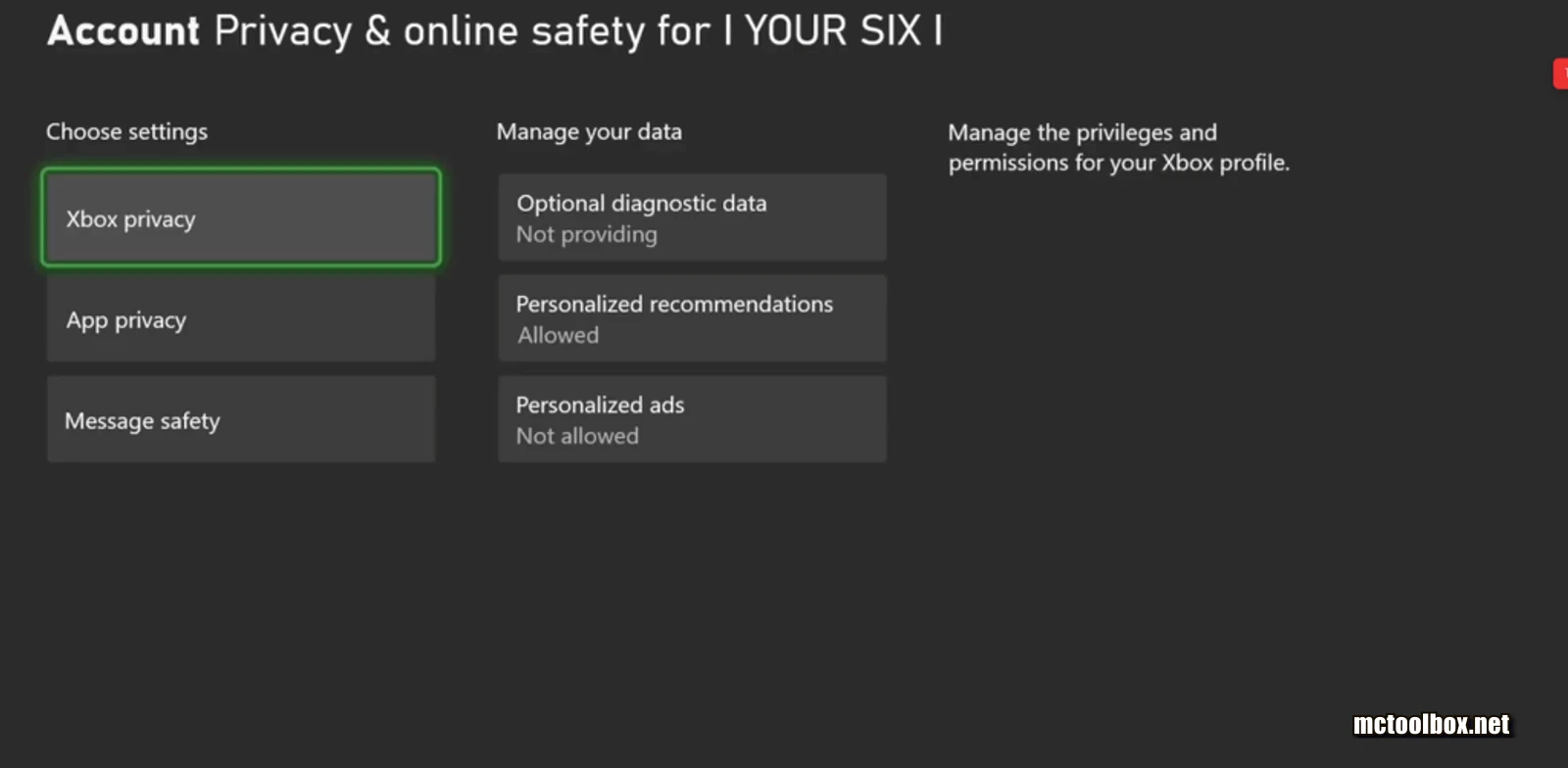
- Select Xbox Privacy: Under Choose settings, select the Xbox privacy tile. If prompted for a passkey or PIN, enter your console login credentials.
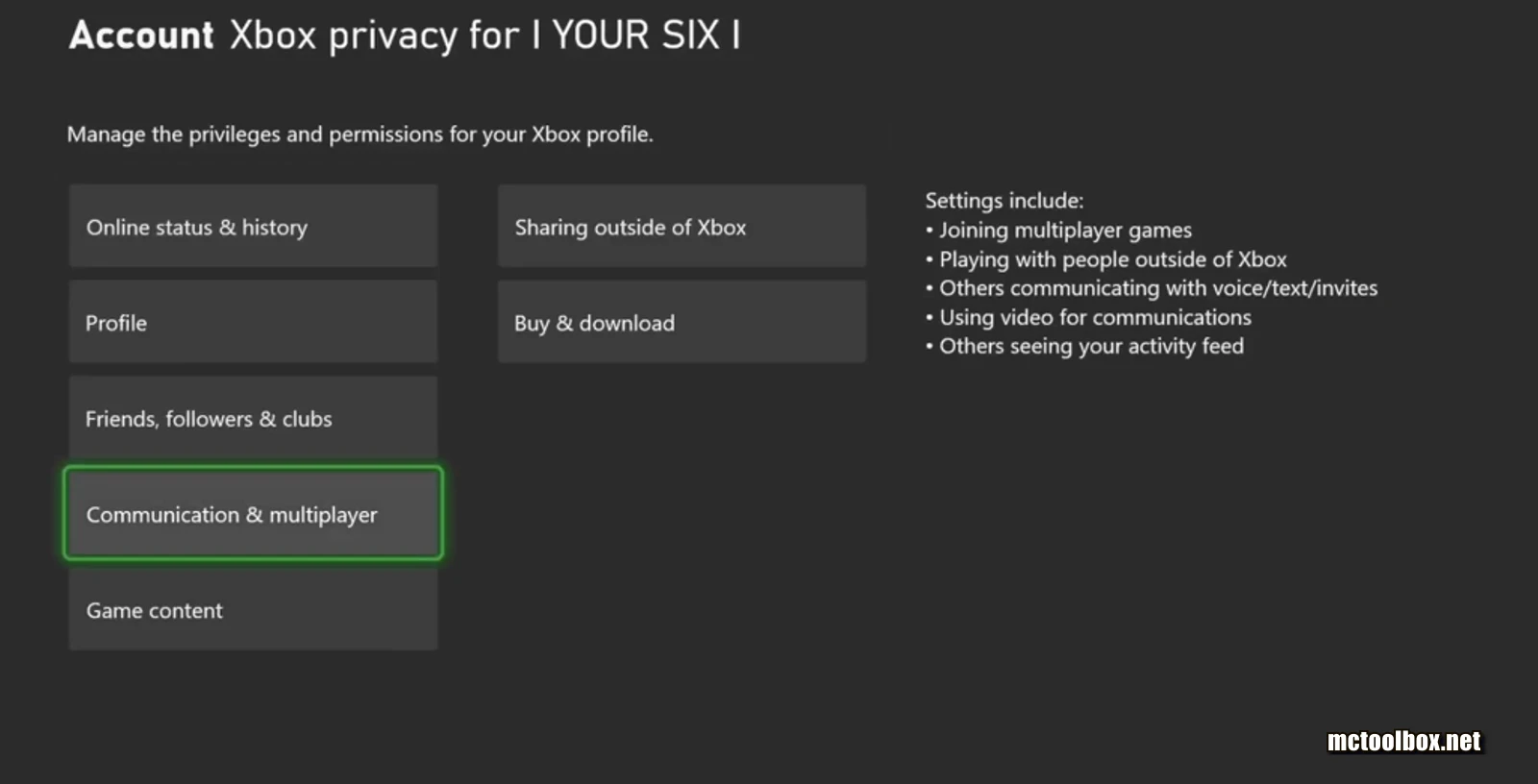
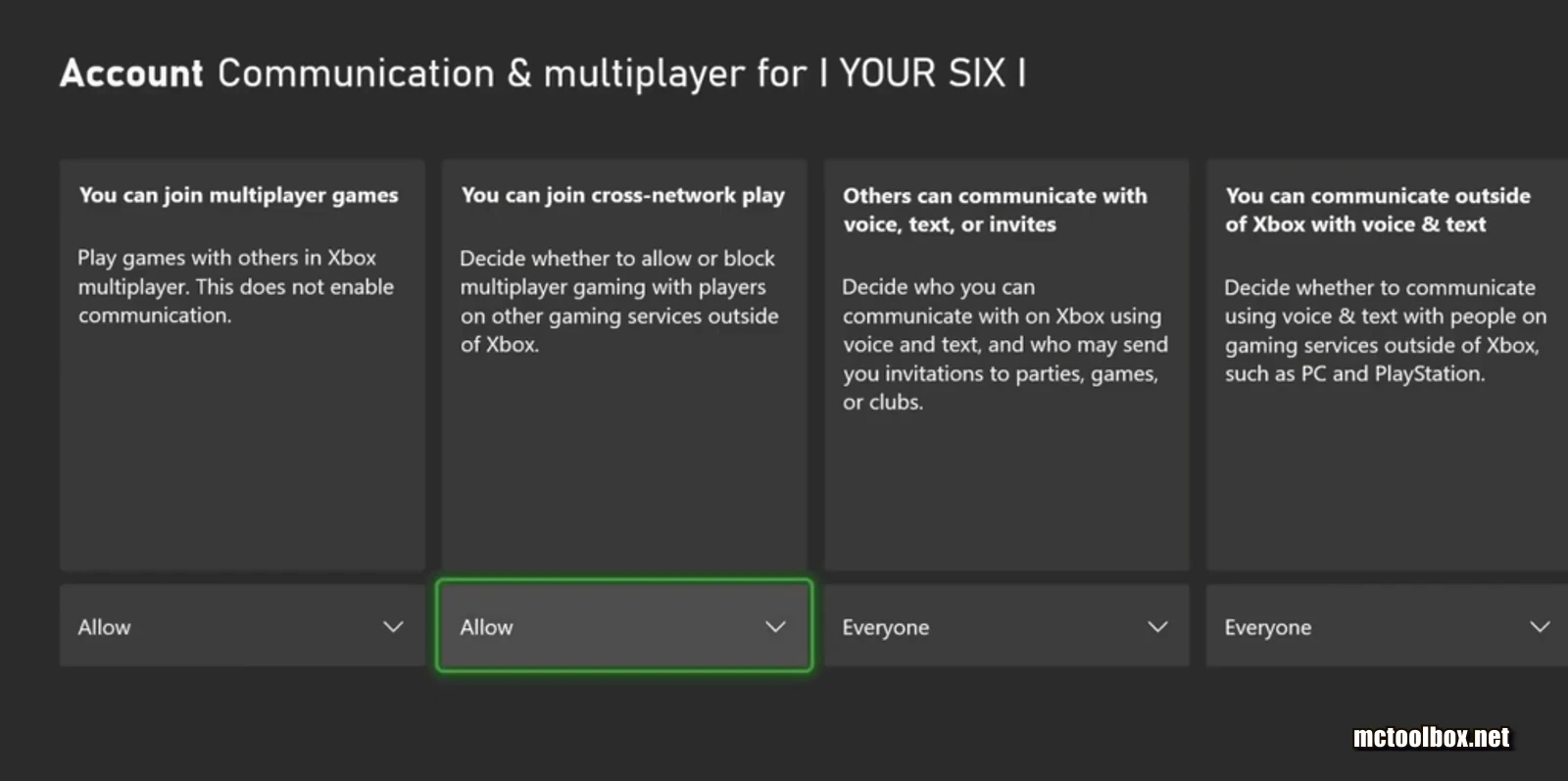
- Open Communication & Multiplayer: Choose Communication & multiplayer from the category list on the left. This section controls joining multiplayer games and communicating outside of Xbox.
- Enable Multiplayer and Cross-Network Play: Adjust the following key preferences:
- You can join multiplayer games: Set to Allow. (This unlocks the grayed-out multiplayer toggle in your Minecraft world settings).
- You can join cross-network play: Set to Allow. (This allows connecting with friends on PC, mobile, PlayStation, and Switch).
- Others can communicate with voice, text, or invites: Set to Friends or another setting approved by the account organizer.
- You can communicate outside of Xbox with voice & text: Choose the communication level appropriate for the account.
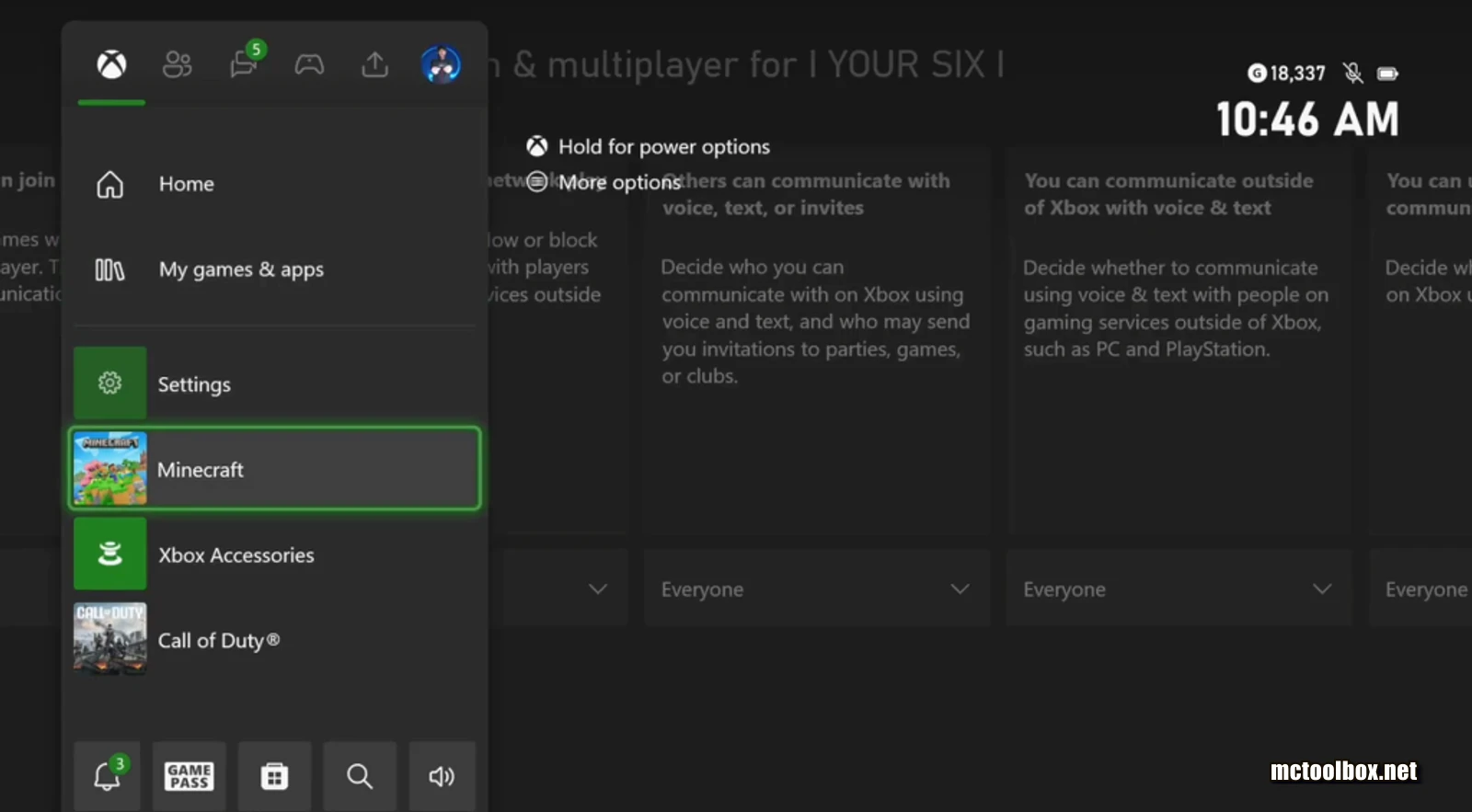
- Exit Back to Minecraft: Press the Xbox guide button on your controller to open the quick guide overlay and select Minecraft to return directly to your game session. For best results, press the
Menubutton (three horizontal lines) over Minecraft and choose Quit, then relaunch the game to refresh your credentials.
Method 2: Fixing the Error on PC, Nintendo Switch, PlayStation & Mobile (Web Browser)
If you play Minecraft on a Windows PC, Nintendo Switch, PlayStation 4/5, iPhone, iPad, or Android device, you can manage the Microsoft account’s Xbox privacy settings in a browser. Menu names vary by platform and account type.
- Visit the Xbox Settings Portal: Open your browser and navigate directly to
account.xbox.com/settings. - Sign In: Enter the exact Microsoft email address and password connected to your Minecraft gamertag.
- Select Xbox and Windows 10 Online Safety: Click on the Xbox and Windows 10 Online Safety tab at the top of the privacy options.
- Change Permissions to Allow: Scroll through the list and toggle the following options:
- "You can join multiplayer games" to Allow
- "You can join cross-network play" to Allow
- "You can add friends" to Allow
- "Others can communicate with voice, text, or invites" to Choose the account’s preferred communication setting
- Click Submit: Scroll to the very bottom of the page and click the green Submit button. Do not navigate away until the confirmation banner appears.
- Refresh Your Game Session: Open Minecraft on your device. Go to Settings to Account, click Sign Out of your Microsoft Account, and then click Sign In for Free to download the updated security tokens.
Method 3: Unlocking Child and Family Accounts
If you attempt to open account.xbox.com/settings and the website automatically redirects you to an Xbox Support help page or a Family Safety dashboard, check whether your account is managed as a child account. A redirect alone does not prove its age or family status. Microsoft prevents child accounts from modifying their own multiplayer permissions.
To resolve this, an adult organizer in your Microsoft Family group must adjust the settings:
- Parent Signs In: The parent or family organizer logs into
family.microsoft.comusing their adult Microsoft account. - Select Child Profile: Locate the family member's tile on the dashboard and click the three dots, then choose Manage permissions or navigate to
account.xbox.com/settingswhile still signed in as the parent. - Select the Child's Gamertag: On the Xbox settings page, you will see tabs for each family member. Click on the child's gamertag.
- Apply Allow Settings: Switch to the Xbox and Windows 10 Online Safety tab, set "You can join multiplayer games" and "You can join cross-network play" to Allow, and click Submit.
If parents want to allow their children to play Minecraft with classmates while restricting unknown online strangers, you can set "You can join multiplayer games" to Allow, but configure "Others can communicate with voice, text, or invites" to Friends Only instead of Everyone.
Checking In-Game Settings After the Fix
Once your Microsoft account has been updated, relaunch Minecraft Bedrock Edition. Verify that your in-game network options and world toggles are responsive:
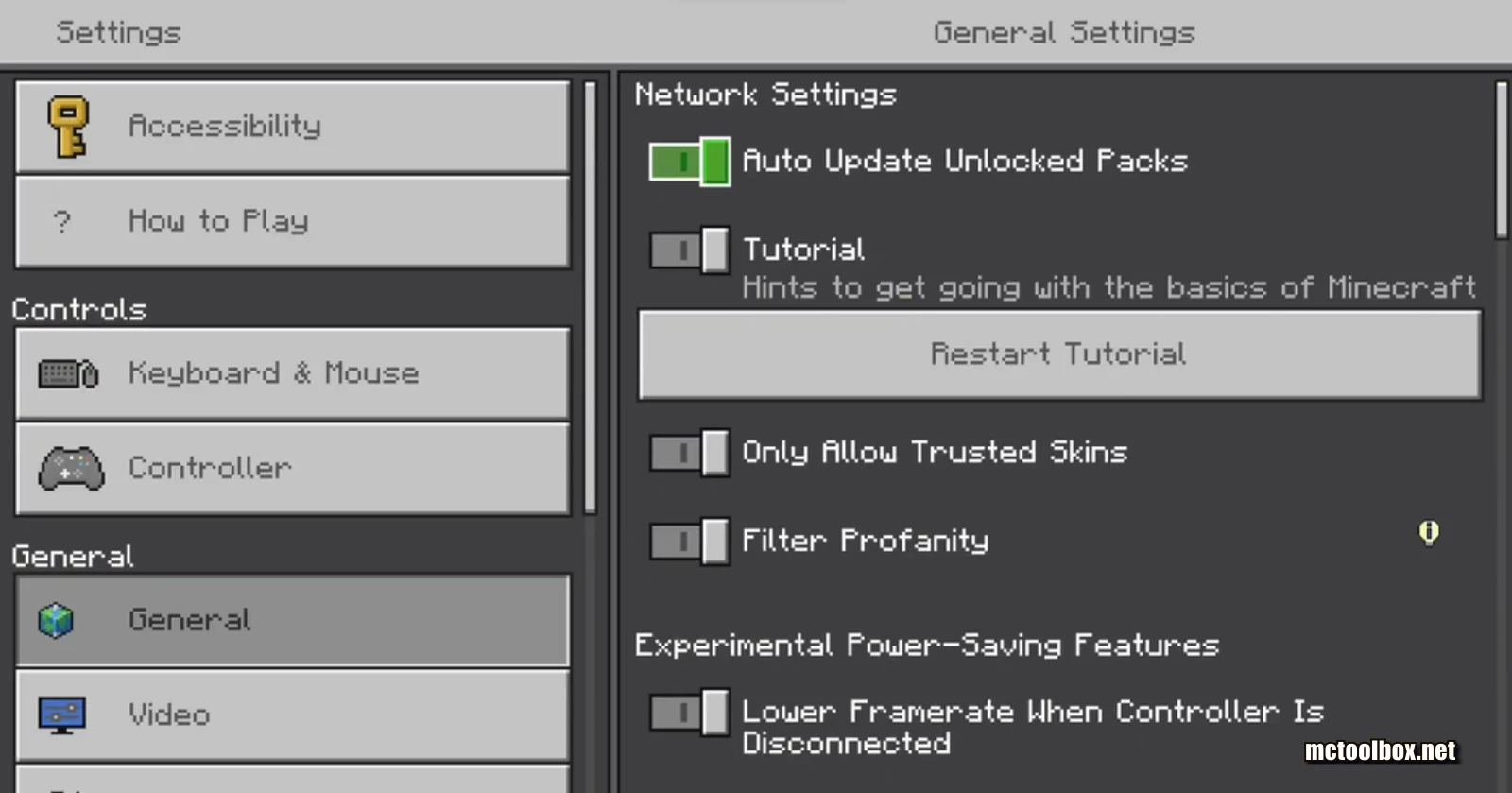
- General Network Settings: Open Settings to General to confirm your network preferences. Here you can toggle auto-updating packs over Wi-Fi and choose whether only trusted skins are rendered.
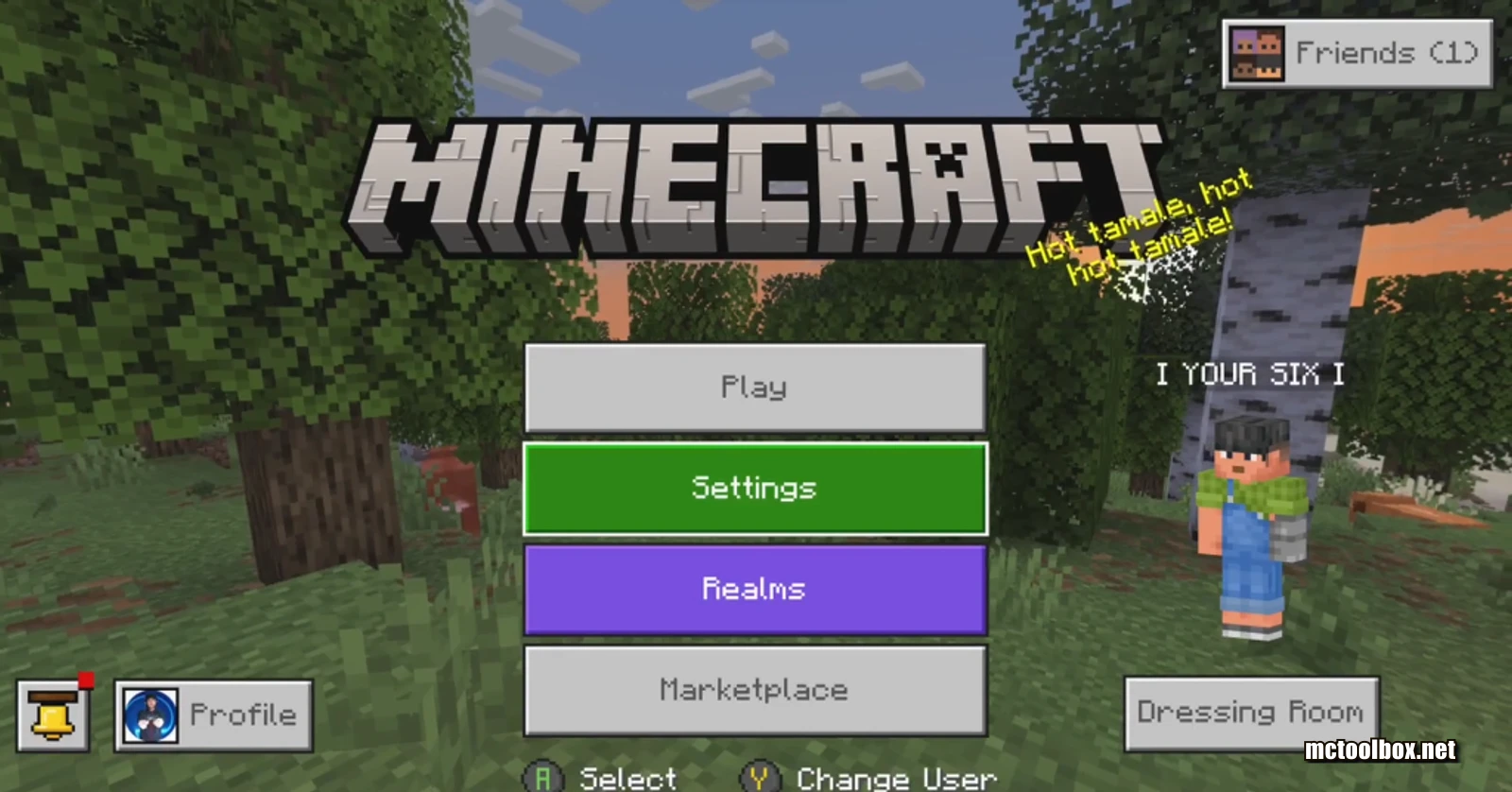
- Verify the Main Menu Status: The title screen should now display your gamer tag in the bottom left, and the green Friends counter in the upper right will reflect online friends ready for invites.
- Unlock World Multiplayer: Return to Play to Worlds. The red "Multiplayer disabled" banner will be gone. Click the pencil edit icon next to your world, open Multiplayer, and you can now freely toggle Multiplayer game to ON.
Still Not Working? 4 Common Checklist Fixes
| Issue | Why It Happens | Resolution |
|---|---|---|
| Cached Auth Token | Minecraft has not refreshed the old security token stored on your device. | Force-quit Minecraft completely. Go to Settings to Account to Sign Out, then sign back into your Microsoft account. |
| Console Network Pass Expired | Xbox Game Pass Core, PlayStation Plus, or Nintendo Switch Online has lapsed. | Verify your console subscription status in your platform's store settings. Online play requires an active subscription on consoles. |
| Family Organizer Not Joined | The account is a child account that is not linked to any adult family organizer. | Create an adult Microsoft account, visit family.microsoft.com, invite the child account to the family group, and adjust permissions. |
| Web Page Did Not Save | Closing the browser tab before clicking Submit reverts the settings to Block. | Re-open account.xbox.com/settings, ensure the green Submit button was pressed, and check for the "Your changes were saved" banner. |
Next Steps: Playing Together With Friends
Now that your Microsoft account permissions are unlocked and your world multiplayer toggle is active, you can connect with friends across any platform.
Read our guide on How to Play Minecraft With Friends to learn how to send direct in-game world invites, join dedicated servers by IP address, host local Wi-Fi LAN games, or set up 4-player console split-screen.
Need to configure your game world? Explore server rates with our Server Properties Generator, locate ideal biomes using the Interactive Seed Map, or look up recipes on the Crafting Calculator.