



The safest way to buy Minecraft is to start at the official Minecraft store, select your device first, sign in with the account that should own the game, and complete checkout only after the product page shows the correct edition and platform.
On a Windows PC, the normal choice is Minecraft: Java & Bedrock Edition for PC. You do not need to buy Java and Bedrock separately. On consoles and mobile devices, buy through the store built for that platform instead of purchasing the PC package.

Choose the platform before the edition
The biggest buying mistake is choosing by the word “Minecraft” alone. A Minecraft license is tied to a platform family. A copy purchased for Windows PC does not automatically unlock the game on PlayStation, Switch, iPhone, or Android, even when the same Microsoft account is linked later.
Open the official game selector and choose PC/Mac/Linux, Chromebook, iOS, Android, Xbox, PlayStation, Nintendo, or Amazon Fire. Mac and Linux users should note that Java Edition is the playable desktop edition on those systems. Bedrock on PC is intended for supported Windows versions.

Java or Bedrock: which one should you choose?
Windows players receive both Java and Bedrock in the current PC bundle, so the decision does not affect what you purchase. It affects which edition you launch afterward.
| Choose Java Edition when | Choose Bedrock Edition when |
|---|---|
| You want community mods, custom loaders, technical servers, or Java-only maps. | You want cross-play with friends on Xbox, PlayStation, Switch, mobile, or Windows Bedrock. |
| You play on Windows, macOS, or Linux. | You want native controller support, Marketplace content, or generally lighter PC requirements. |
| Your friends and server use Java Edition. | Your friends and Realm use Bedrock Edition. |
Java and Bedrock cannot normally join the same multiplayer world just because both are Minecraft. Ask your friends which edition they use before setting up a Realm or server. Windows owners can switch editions in the Launcher, but worlds and Marketplace purchases do not become interchangeable.
Standard, Deluxe, or Ultimate?
The Standard Edition is enough if you want the complete base game. Deluxe and Ultimate collections add Minecoins and selected Marketplace content, but they do not unlock a better version of Java Edition, improve performance, or give access to different survival mechanics.
During this walkthrough, the US store displayed Standard, Deluxe, and Ultimate choices with different prices. Those prices, taxes, included add-ons, and promotional bundles can change by country and date. Use the current total shown on the official checkout page rather than treating an old screenshot or search snippet as the final price.
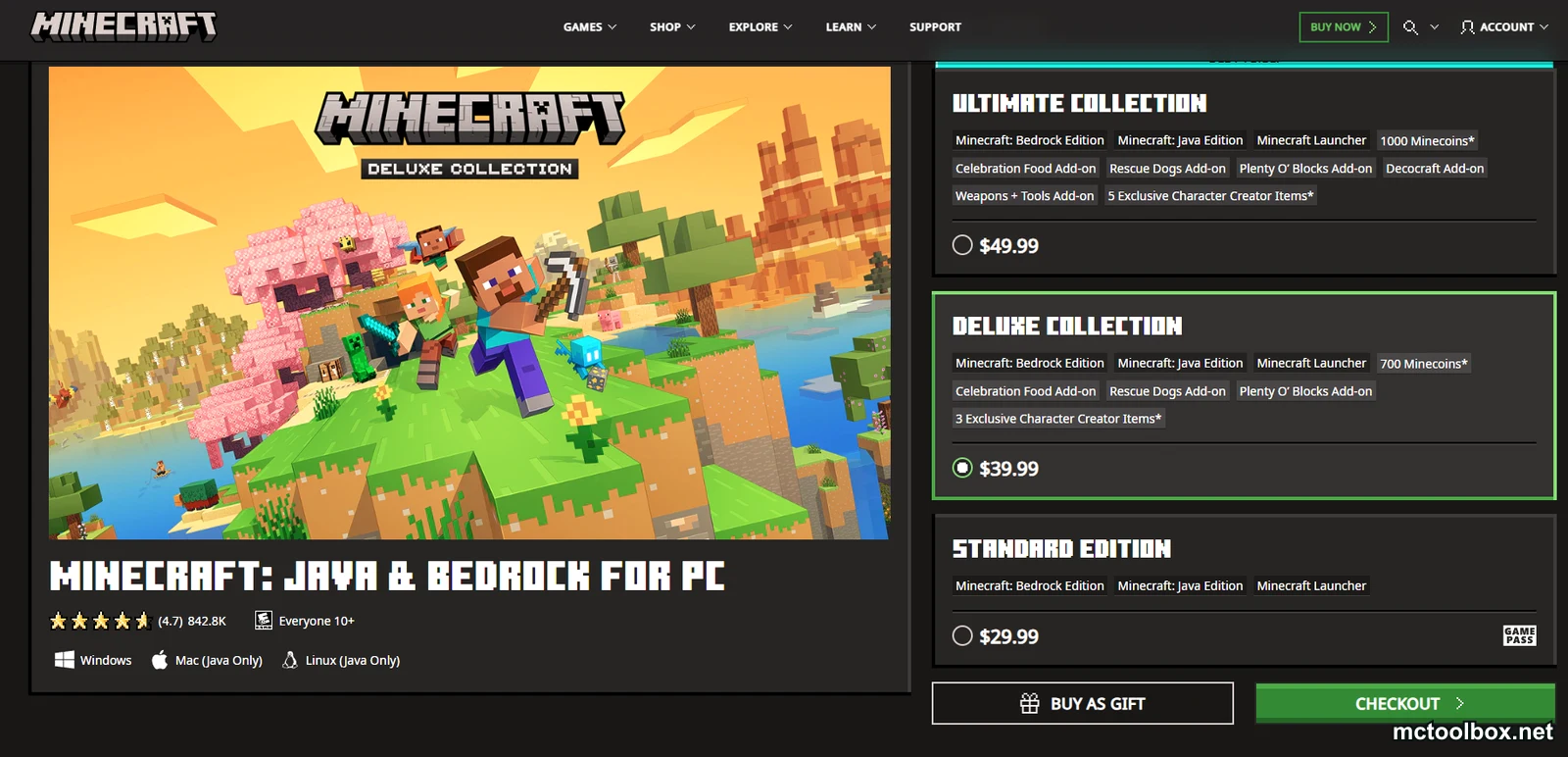
If you mostly plan to play modded Java Edition, Standard is the sensible option. Minecoins and Character Creator items belong to the Bedrock features and provide little value to a player who spends most of the time in Fabric, NeoForge, or Forge modpacks.
Sign in with the account that should own Minecraft
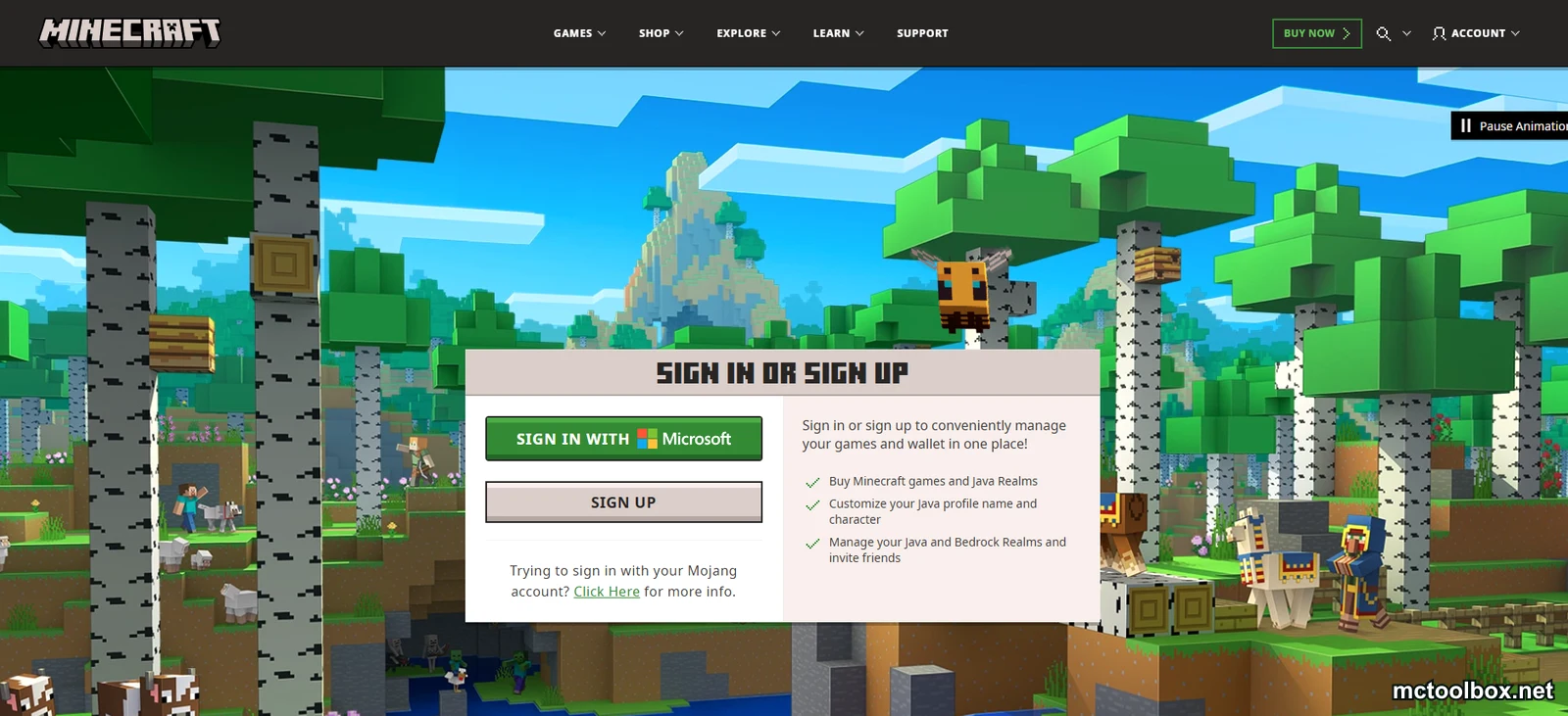
The Microsoft account used at checkout becomes the important ownership account. Sign in before paying and double-check the account name. For a child, decide whether the license should belong to the child's managed account rather than a parent's everyday work account. Family and Xbox privacy settings can control multiplayer and social features later.
Do not share a one-time code, password, recovery code, or payment screenshot with anyone offering to “activate” the game. Avoid unofficial key sellers when the store region, platform, or account ownership is unclear. A cheap key is not useful if it activates the wrong platform or cannot be recovered later.
Complete checkout safely
- Open the official Minecraft product page and verify the web address is on
minecraft.netor an official Microsoft/Xbox store. - Select the correct platform and collection.
- Sign in with the Microsoft or platform account that will own the license.
- Confirm the country or region, displayed currency, taxes, and final total.
- Choose the available card, wallet, or gift-card method and finish the store's verification.
- Keep the receipt email and do not publish screenshots containing account or payment details.
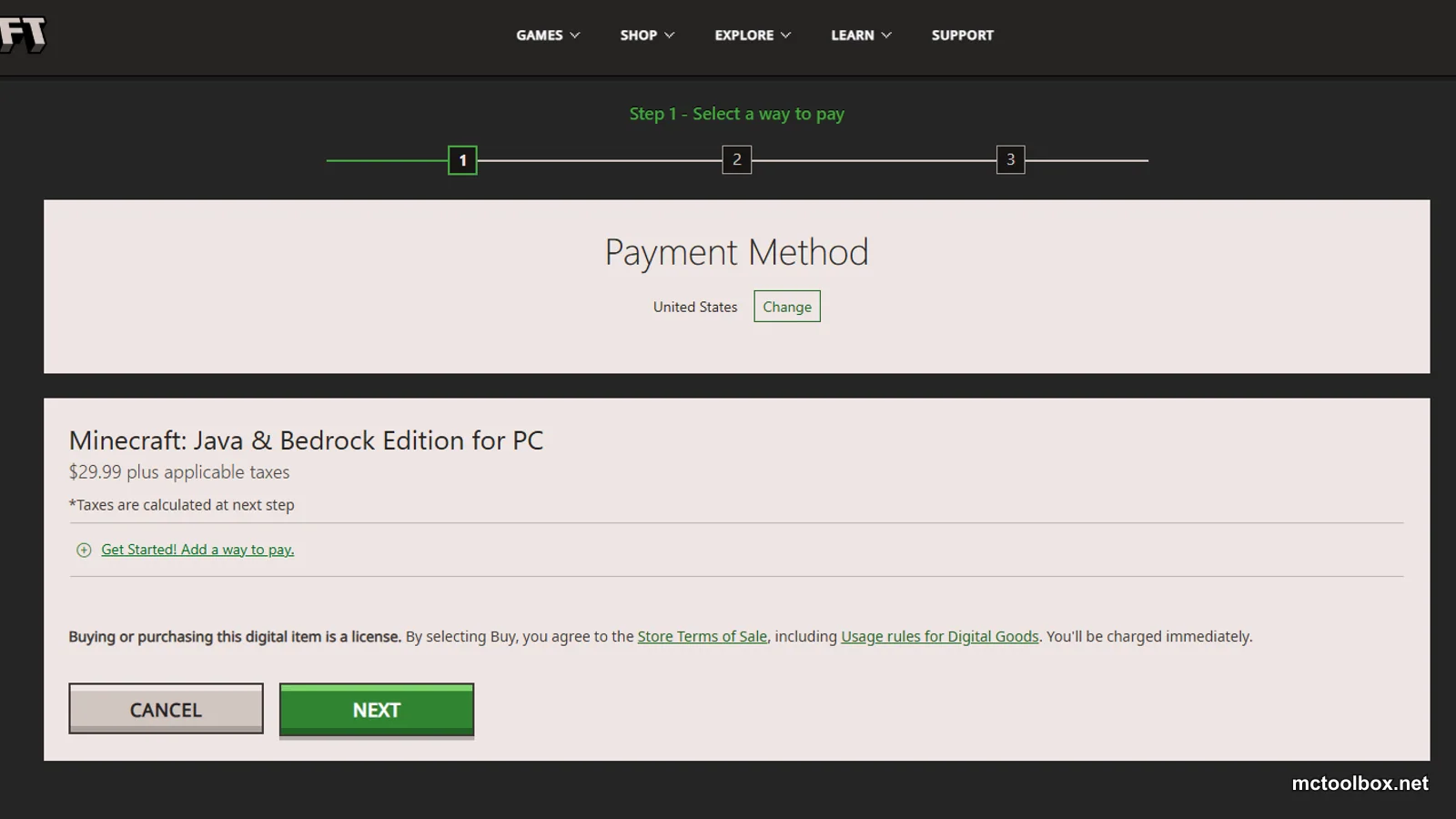
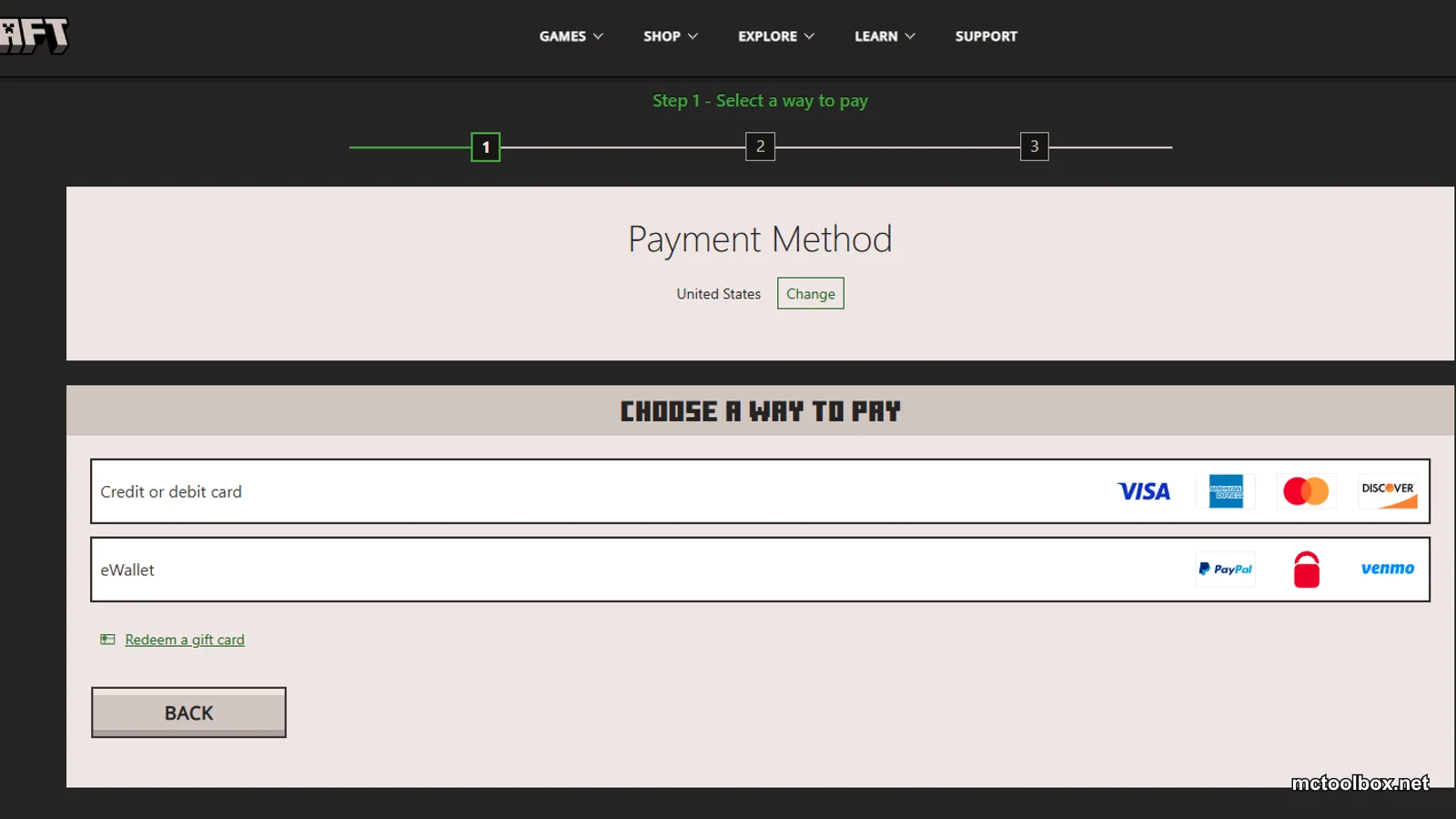
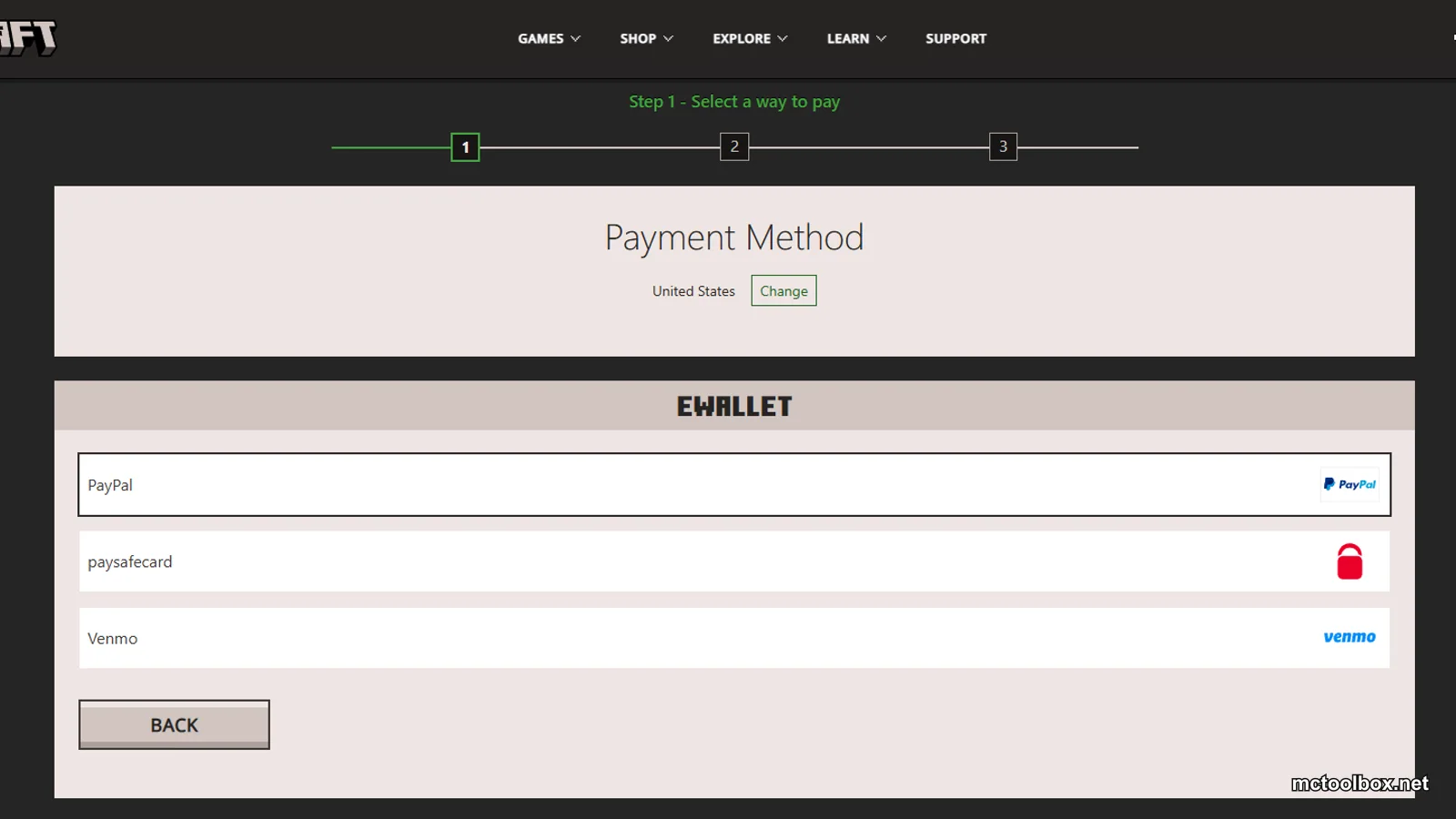
Payment methods vary by region. If one method is missing, changing the store country merely to force another option can create billing and license complications. Use the region that matches your billing information.
Download the Launcher after purchase
Once the purchase appears in your account, go to the official Minecraft download page. Existing PC owners do not need to buy the game again on a replacement computer. Install the Launcher and sign in with the same Microsoft account that owns the license.
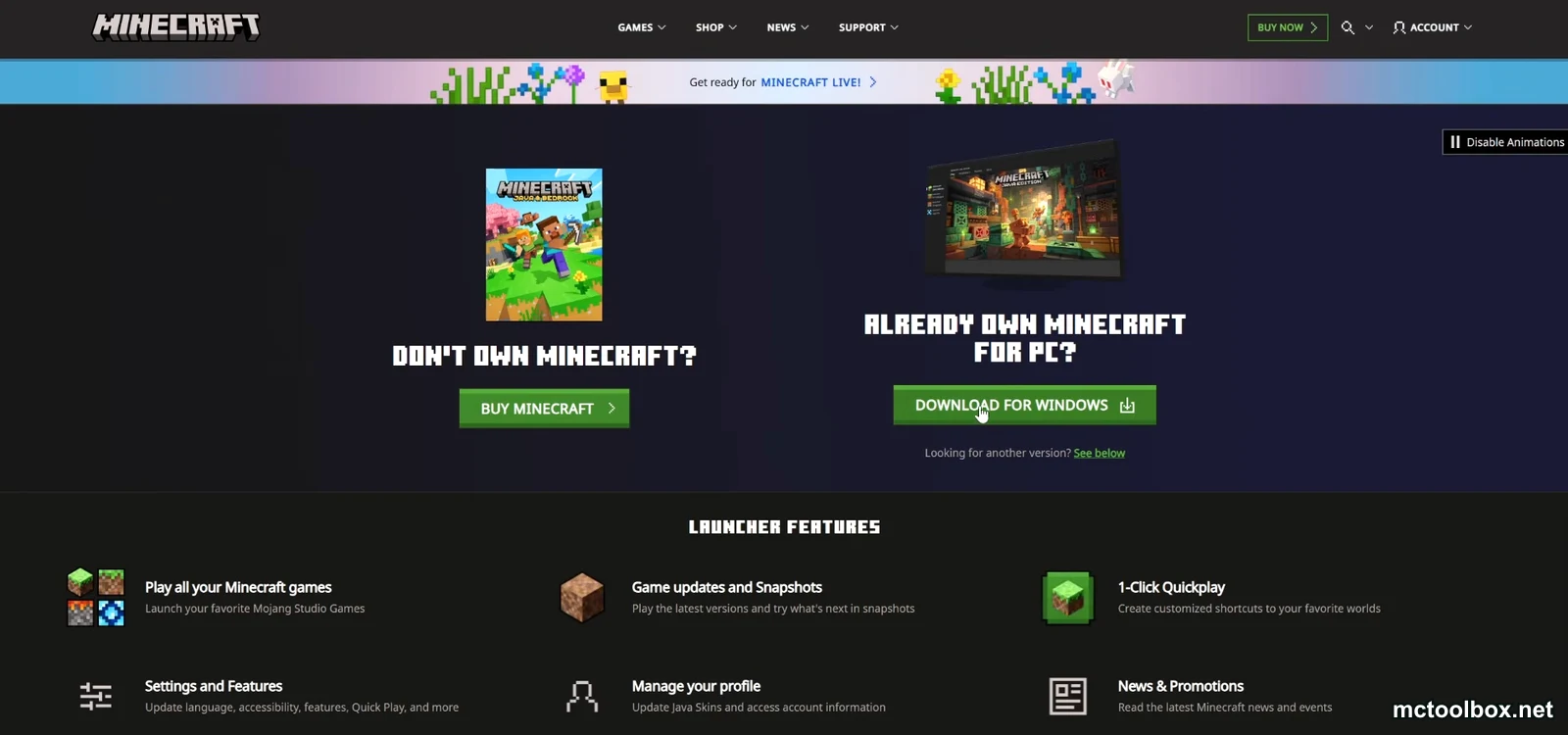
Open the Launcher, select Java Edition or Bedrock Edition from the side menu, choose the release you want, and press Install. The Launcher may show other Minecraft games too, so confirm that you have selected the main Java or Bedrock entry.

Before buying Minecraft for multiplayer
Match the edition, not just the device. A Windows player can run either Java or Bedrock, while console and mobile players use Bedrock. To play together across a Windows PC and a console, the Windows player should launch Bedrock Edition.
Online console multiplayer may require the console manufacturer's paid subscription in addition to owning Minecraft. Realms is also a separate subscription. Buying Minecraft gives you the game; it does not automatically include every online service, Marketplace pack, or server subscription.
Can you try Minecraft first?
A trial or demo may be available depending on the platform and region. On PC, sign in to the Launcher without an owned license and check whether the demo is offered. The Bedrock free trial is limited in time and features, but it is useful for testing controls and basic performance before paying.
Common purchasing mistakes
| Mistake | What to do instead |
|---|---|
| Buying a PC license for a console or phone | Purchase from the store for the device where you will play. |
| Buying Java and Bedrock separately on Windows | Use the combined Java & Bedrock Edition for PC package. |
| Paying with the wrong Microsoft account signed in | Verify the account before checkout and save the receipt. |
| Choosing Deluxe for Java mods | Choose Standard unless you specifically want the included Bedrock Marketplace extras. |
| Buying again after replacing a PC | Download the Launcher and sign in with the account that already owns the game. |
| Expecting Java to cross-play with a console | Launch Bedrock on Windows to play with supported consoles and mobile devices. |
Buying Minecraft: Common edition and account questions
Do I get Java and Bedrock when I buy Minecraft on PC?
Yes. The current Windows PC package includes both Java Edition and Bedrock Edition. The Launcher installs and starts them separately.
Do I have to buy Minecraft again on a new PC?
No, not if the same Microsoft account already owns the PC license. Download the official Launcher and sign in with that account.
Does buying Minecraft on PC unlock it on mobile or console?
No. Mobile and console editions require purchases through their respective platform stores.
Should I buy Standard or Deluxe?
Standard includes the complete base game. Choose Deluxe or Ultimate only if the listed Minecoins and Bedrock Marketplace content are worth the additional cost to you.
Can Java players join Bedrock players?
Not through normal vanilla cross-play. Windows players who need to join console or mobile friends should launch Bedrock Edition.
Do I need a Microsoft account?
A Microsoft account is required for Java and Bedrock on Windows PC, and it enables cross-platform and social features on supported Bedrock platforms.