




Bedrock Edition · Resource Packs
FPS Booster for MCPE Review: Tested Benchmarks and Visual Trade-offs
Real PresentMon frame time testing reveals where this popular Bedrock pack shines and where it cuts corners.
By RisabGamerz
Tested review of FPS Booster v2.2 for Minecraft Bedrock. Real benchmarks reveal whether freezing textures and cutting particles delivers smoother gameplay.
In this guide8 sections
FPS Booster v2.2 cuts through Minecraft Bedrock frame drops by ruthlessly trimming the game engine's heaviest visual overhead: animated fluid textures, runaway particle emitters, and mob skeletal animations. In our testing, it turned a laggy cluster of 35 smoky campfires from an unplayable 37.4 FPS slog back into a fluid 59.4 FPS experience. If you play on a budget laptop, a phone that overheats, or an integrated GPU, this pack delivers immediate stability, though you will have to make peace with frozen water surfaces and completely flat, motionless fire.
How FPS Booster Modifies Bedrock Rendering
Unlike Java Edition optimization mods that rewrite the underlying Java bytecode using Sodium or Lithium, Minecraft Bedrock does not permit third-party binary modification. Resource pack authors must work entirely within the boundaries of JSON configuration files provided by Mojang. Creator RisabGamerz targets three primary culprits responsible for frame rate drops on low-end hardware:
- Flipbook Textures: Standard Minecraft updates dozens of multi-frame animated textures every tick. Water waves, bubbling lava, crackling fire, nether portal swirls, and sea lanterns constantly cycle through animation sheets. FPS Booster overrides
textures/flipbook_textures.json, locking every animated block to static frame zero. - Particle Emitters: When players build large bee farms, automated smelters, or decorative villages, hundreds of smoke and bubble particles spawn simultaneously. The pack overrides 162 particle files, setting emitter rates to zero so the engine never spawns the geometry.
- Mob Skeletal Animations: Crowded animal pens and mob farms place high calculation loads on mobile CPUs. The pack includes dual subpacks allowing players to strip limb swinging controllers for over thirty mobs.
While the pack also pushes distance fog settings out to 900,000 blocks in fogs/default_fog_setting.json, in modern Bedrock 1.26 overworld gameplay this override produces no noticeable visual change or frame rate benefit across standard render distances.
Real PresentMon Benchmark Results
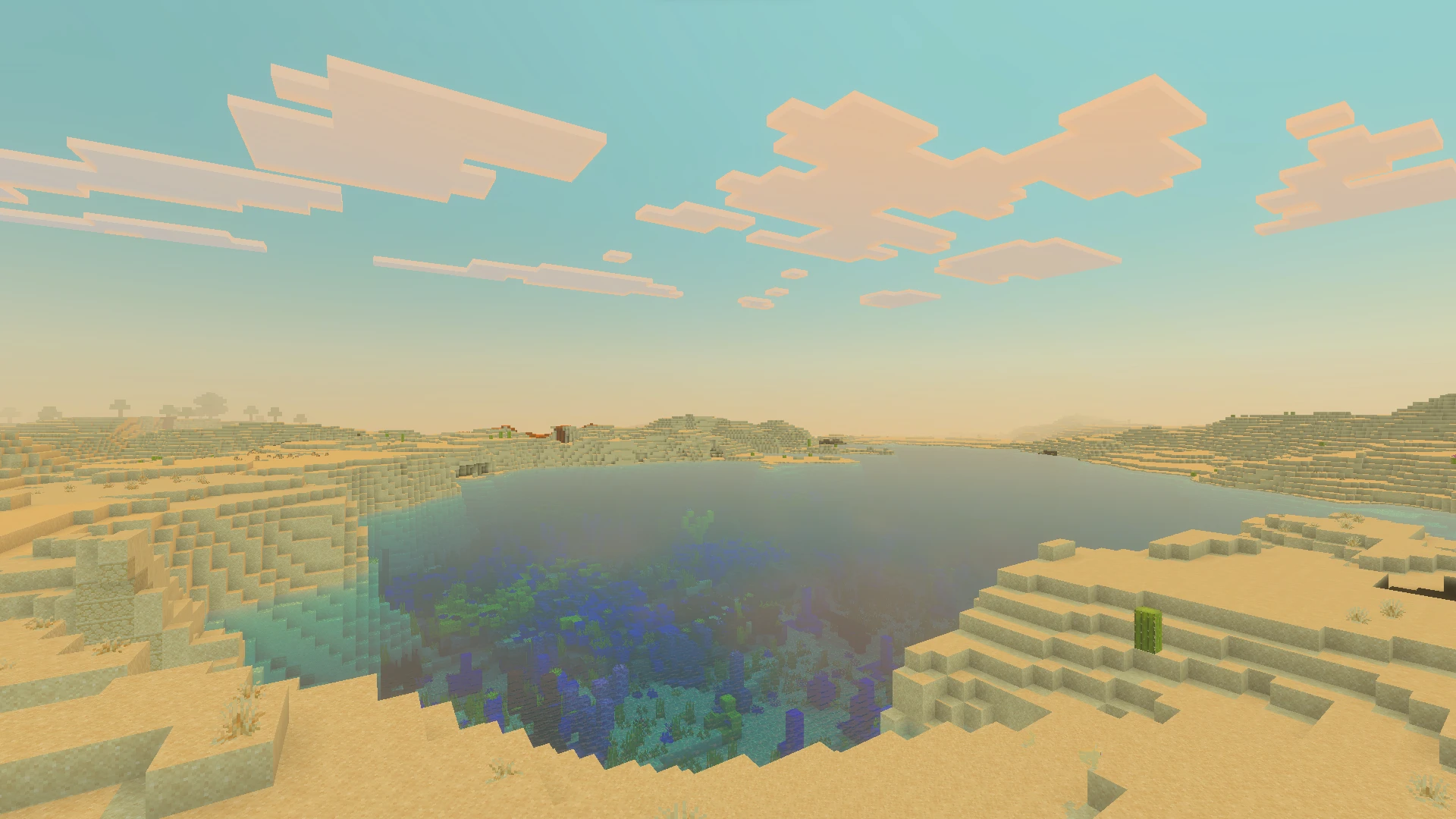
Many performance packs claim double your FPS without offering any real numbers. To see what actually happens under the hood, we recorded frame times using PresentMon over identical 30-second benchmark passes on an Intel Core i3-12100F test system paired with an NVIDIA GeForce GTX 1660 SUPER running Bedrock 1.26.5203.0.
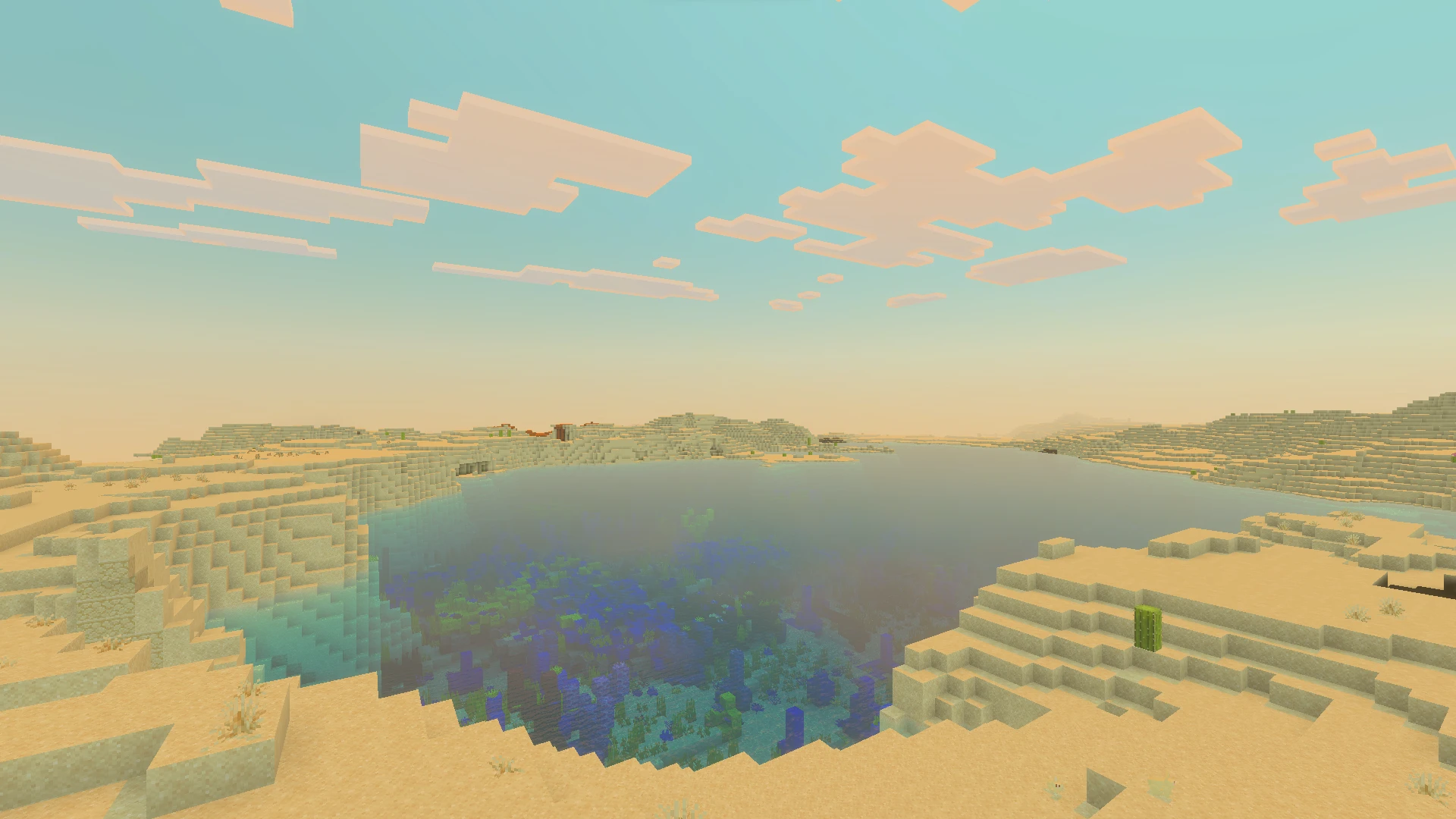
### Open View (Distance Scene)
- Vanilla: 57.6 average FPS, 28.4 FPS 1 percent low (1,727 total frames rendered)
- FPS Booster: 55.8 average FPS, 27.8 FPS 1 percent low (1,672 total frames rendered)
- The Takeaway: Looking out across open water toward a distant cliff, FPS Booster provided no measurable performance advantage over vanilla rendering. Both runs stayed within a tight 56 to 58 average FPS range with nearly identical 1 percent low frame times (28.4 vs 27.8 FPS). Modifying fog definitions delivers negligible gains on static terrain, proving that the pack's real-world benefits come almost entirely from particle elimination and mob animation toggles rather than landscape rendering tweaks.
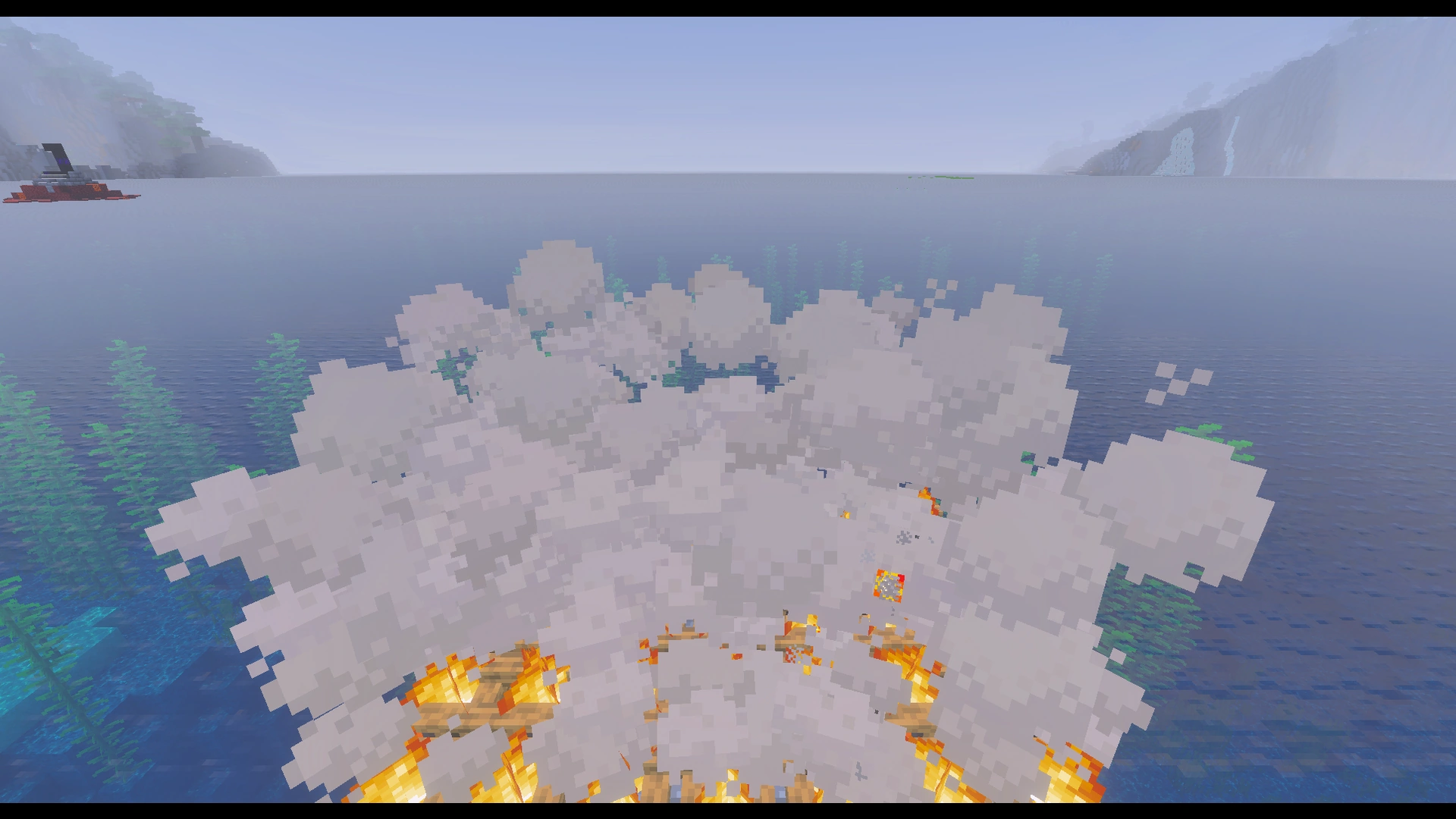
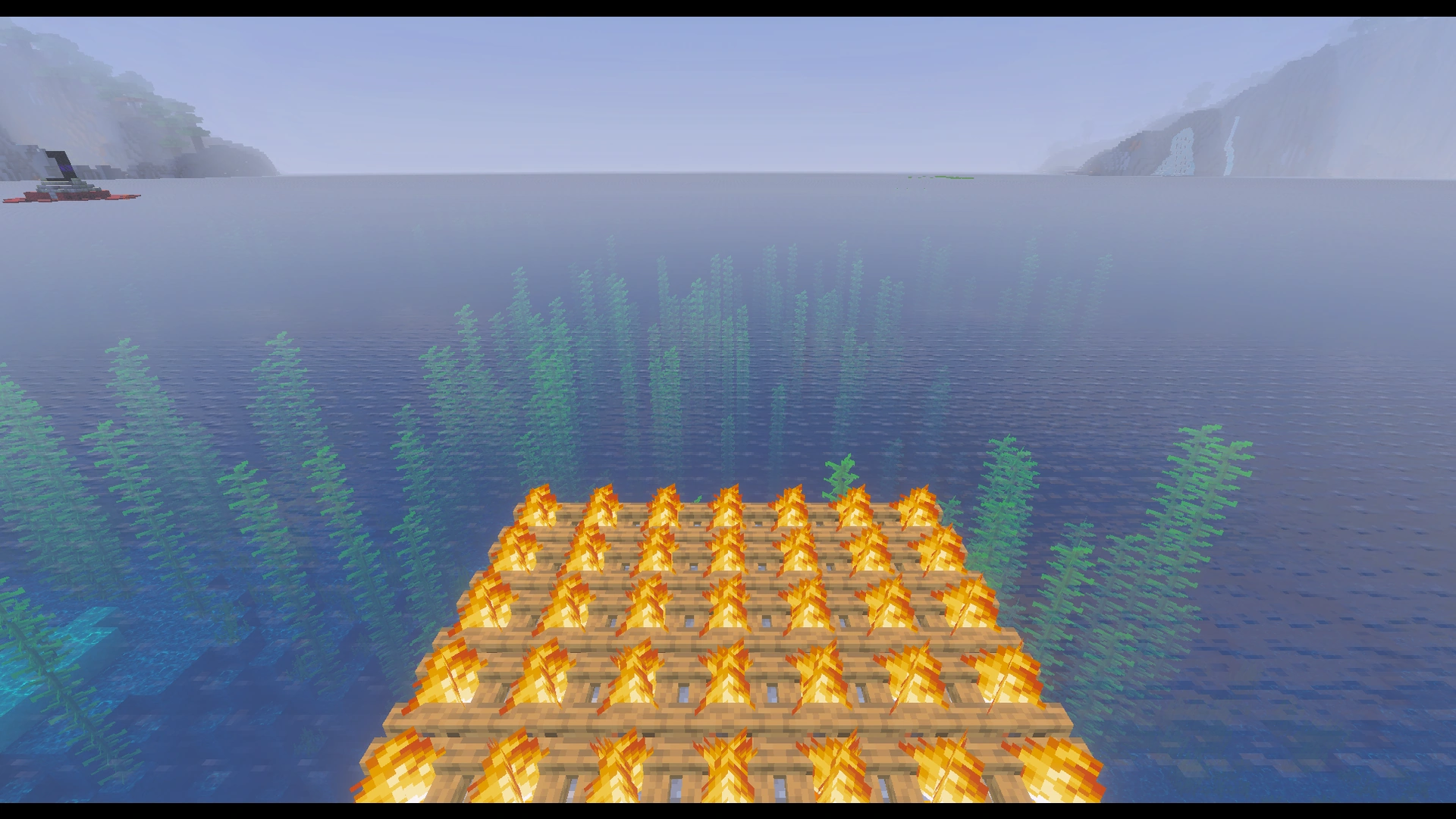
### Heavy Particle Stress Test (35 Active Campfires)
- Vanilla: 37.4 average FPS, 25.2 FPS 1 percent low (1,122 total frames rendered)
- FPS Booster: 59.4 average FPS, 32.3 FPS 1 percent low (1,777 total frames rendered)
- The Takeaway: This is where the pack proves its value. In vanilla Bedrock, thousands of overlapping semi-transparent smoke particles crush GPU fill rate, dragging frame rates down into the mid-30s. FPS Booster eliminated every single smoke particle, boosting average frame rates by 58.8 percent (+22.0 FPS) and rendering 655 additional frames over the same 30-second window.
The Visual Trade-offs: What You Give Up
Getting higher frame rates always comes with visual compromises. FPS Booster does not use magic algorithms; it turns off features that make Minecraft look alive. Before installing it on your primary survival world, you need to know what changes:
- Dead Water Surfaces: When running along rivers or oceans, water no longer ripples. The surface looks like solid blue plastic because the flipbook animation is frozen on frame zero. Flowing waterfalls still slide downward through UV scrolling, but the water texture itself does not shimmer.
- Statue-Like Flames and Nether Portals: Campfires, torches, and netherrack fires no longer dance. The flame texture sits as a static cardboard cutout. Nether portals lose their swirling purple vortex, displaying a frozen mosaic.
- Invisible Smoke Signals: If you use campfires with hay bales beneath them to mark waypoints or find your home base from miles away, you can no longer see the smoke column. The logs burn, but no smoke rises into the sky.
- Sterile Explosions: TNT and creeper explosions still break blocks and deal damage, but the massive cloud of white smoke and dust is gone.
Subpack Options and Mob Animation Choices
One thoughtful feature in FPS Booster v2.2 is its subpack configuration slider. When you activate the pack under Global Resources or World Resource Packs, clicking the gear icon presents two modes:
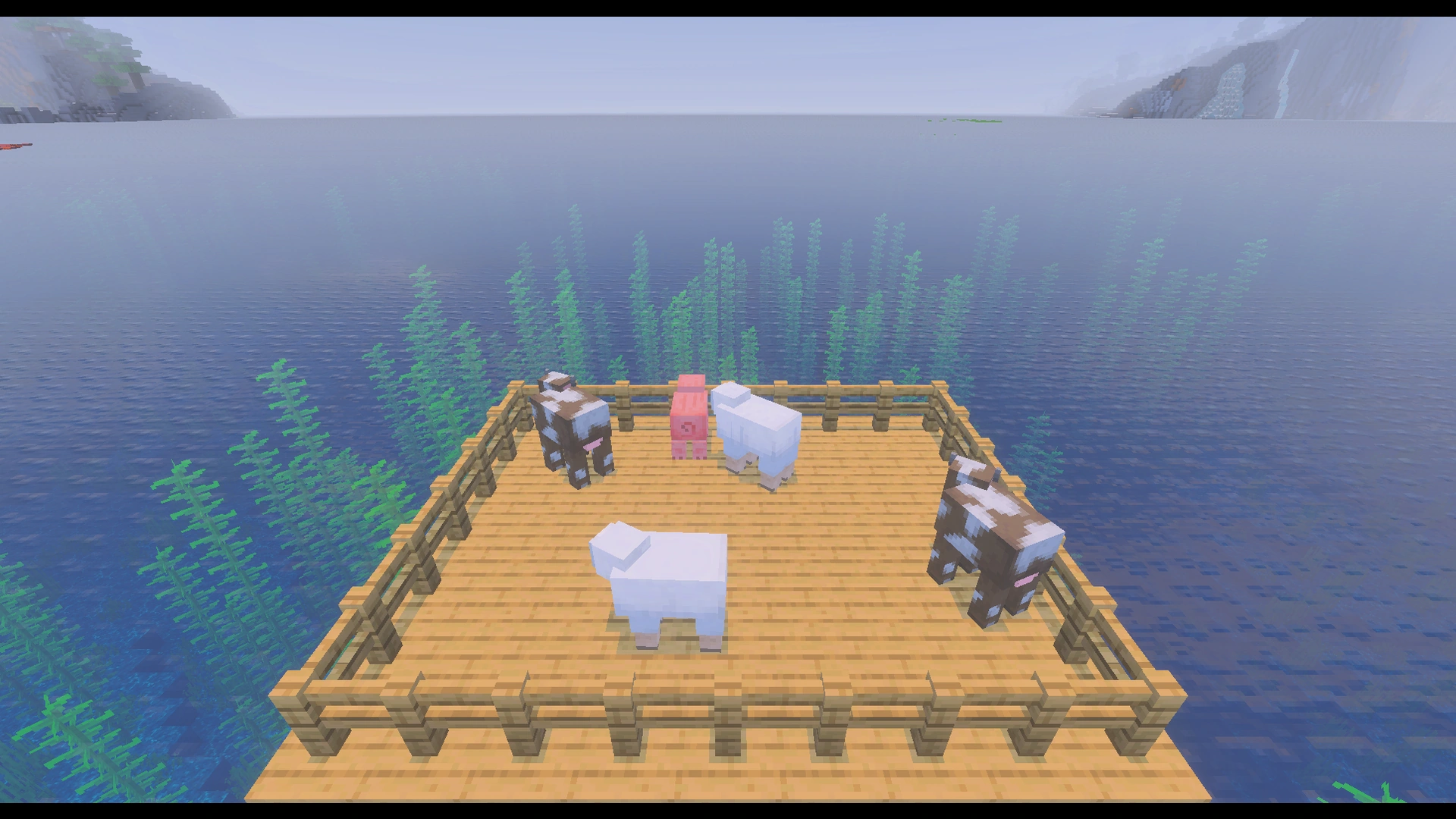
- Animations Kept (Recommended for most players): Keeps standard walk cycles and limb swinging intact for cows, pigs, sheep, zombies, and villagers. This mode relies solely on texture freezing, fog extension, and particle stripping to deliver frame gains.
- No Animation (Extreme performance mode): Strips skeletal animation controllers for over thirty mobs. Animals and monsters glide across the grass like chess pieces without moving their legs or nodding their heads. While it looks jarring, this option saves significant CPU calculation time on low-end mobile phones when visiting massive animal pens or automated mob grinders.
How to Install and Configure FPS Booster
- 1
Download the .mcpack File
Grab the official
FPS Booster v2.2 stable.mcpackfrom the CurseForge download page. - 2
Import Into Minecraft Bedrock
Double-click the downloaded
.mcpackfile on Windows, or tap it on Android and iOS. Minecraft will launch automatically and display Import Started followed by Import Successful. - 3
Apply Globally or Per-World
For universal frame rate improvements across servers and worlds, go to
Settings>Global Resources>My Packs, select FPS Booster, and tap Activate. To test it on a single survival world first, click the world edit pencil icon, navigate toResource Packs, and activate it there. - 4
Adjust the Subpack Slider
Tap the wrench or gear icon on the active pack card to choose between animations kept or noanimation based on your device hardware.
Final Verdict: Who Should Use This Pack?
If you already play on a gaming PC or a modern flagship tablet locked at a solid 60 FPS, FPS Booster will simply make your Minecraft world look static and lifeless. You do not need it.
However, if you play on an older Android phone that drops into single-digit slides during Nether fortress raids, an integrated Intel UHD laptop, or a budget iPad that gets burning hot around village trading halls, this pack is an essential tool. By eliminating the exact rendering bottlenecks that choke mobile GPUs, FPS Booster v2.2 delivers a noticeably smoother, more responsive experience without breaking Xbox achievements.
Requirements
Minecraft Bedrock Edition for Windows, Android, iOS, or consoles. No experimental toggles, scripts, or cheat commands required.
Our test setup
| device | Windows 11 Pro PC |
|---|---|
| cpu | Intel Core i3-12100F (4 cores, 8 threads, up to 4.3 GHz) |
| gpu | NVIDIA GeForce GTX 1660 SUPER (6 GB GDDR6) |
| ram | 32 GB DDR4 |
| minecraft Edition | Minecraft Bedrock Edition for Windows |
| game Version | 1.26.5203.0 |
| pack Version | v2.2 stable |
| tested Features | Flipbook animation freezing across water, fire, and portals; campfire smoke particle elimination; 30-second PresentMon frame time benchmarks on heavy particle and landscape scenes; subpack mob animations; achievement preservation. |
| not Tested | Multiplayer Realm anti-cheat evasion, battery discharge benchmarks on iOS devices. |
Official download
Check the creator's supported Bedrock versions, devices and installation instructions. Some projects need experiments or additional setup. Back up your world before installing.
Open official downloadFiles are hosted by the creator, not MC Toolbox.
Common questions
Does using FPS Booster disable Xbox achievements in survival worlds?
No. FPS Booster is packaged strictly as a cosmetic client resource pack. It contains no behavior packs, scripts, or game-altering commands, so your survival achievements and trophies stay completely active.
Why does water look completely frozen and still with this pack enabled?
The pack modifies flipbook_textures.json to lock animated textures to their first static frame. By disabling the multi-frame cycle for flowing and still water, your GPU saves texture memory bandwidth on every rendered frame.
Can I use FPS Booster on multiplayer servers and Realms without getting banned?
Yes. Because the pack only changes client-side rendering files like particle counts and texture animations, servers treat it like any standard texture pack. It provides no unfair visibility advantages like X-ray.
Which subpack option should I choose in the pack settings slider?
If you play on a mid-range phone or budget PC, keep the default animations kept setting so mobs walk naturally. If you play on an older low-end phone struggling in crowded animal pens, pick noanimation to disable mob limb swinging for extra smoothness.